com
Signal Source & Multimedia & Zoom
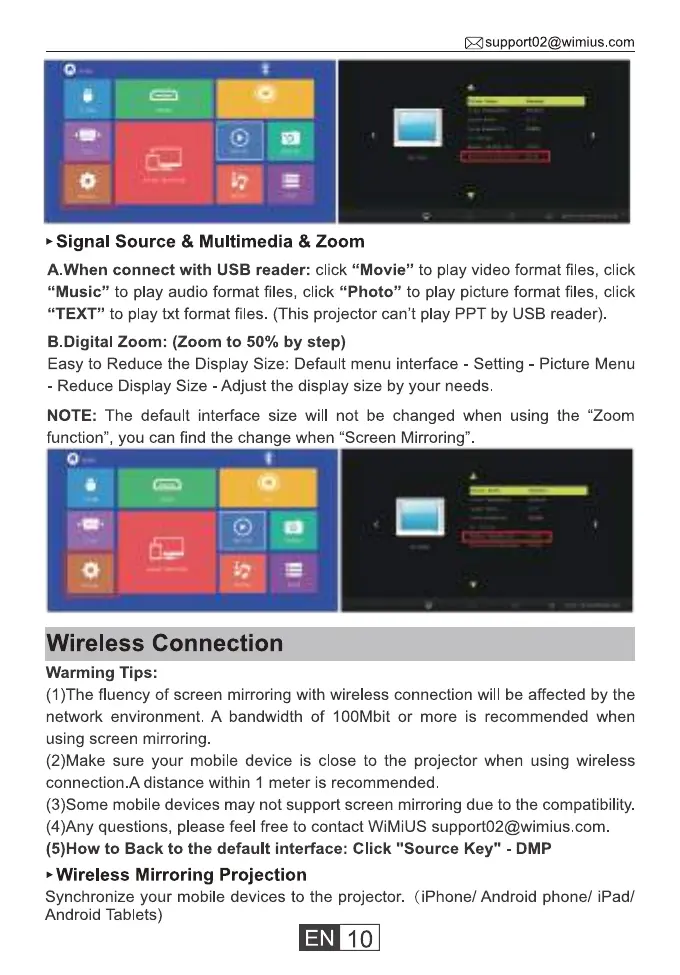
A.When connect with USB reader: click "Movie" to play video format files, click
"Music" to play audio format files, click "Photo" to play picture format files, click
"TEXT" to play txt format files. (This projector can't play PPT by USB reader)
B.Digital Zoom: (Zoom to 50% by step)
Easy to Reduce the Display Size: Default menu interface Setting - Picture Menu
- Reduce Display Size - Adjust the display size by your needs.
NOTE: The default interface size will not be changed when using the "Zoom
function", you can find the change when "Screen Mirroring"
Gi
Wireless Connection
Warming Tips:
(1 )The fluency of screen mirroring with wireless connection will be affected by the
network environment. A bandwidth of 100Mbit or more is recommended when
using screen mirroring
(2)Make sure your mobile device is close to the projector when using wireless
connection.A distance within I meter is recommended
(3)Some mobile devices may not support screen mirroring due to the compatibility.
(4)Any questions, please feel free to contact WiMiUS support02@wimius.com.
(5)How to Back to the default interface: Click "Source Key" - DMP
Wireless Mirroring Projection
Synchronize your mobile devices to the projector. (iPhone/ Android phone/ iPad/
Android Tablets)
10


 To Next Page