Introduction
Page 3/19
1 Introduction
This user guide describes the procedure of making a WinCan8 project ready to be sent to a
final customer (engineer office, town administration etc.) in easy to handle format.
This procedure implies the following four steps:
1. Exporting the projectdatabase as well as the media files from WinCan8.
2. Distribution of the data stuff via the software WinCan8 - MediaDistribution
3. Burning of the distributed data (via MediaDistribution or an external burning software)
4. Checking the exported data in WinCan8-Viewer
2 Minimum system requirements
The following modules must be licensed and installed on the PC, which the WinCan8 project
will be distributed on:
• WinCan v8 Entry (Version 8.24.0.XXXX or higher)
• The language of the project to be exported
• WinCan8 MediaDistribution
• WinCan8 Viewer (Version 4.X.X.XX) or higher)
3 Data transmission
3.1 Selection of the sections to be exported
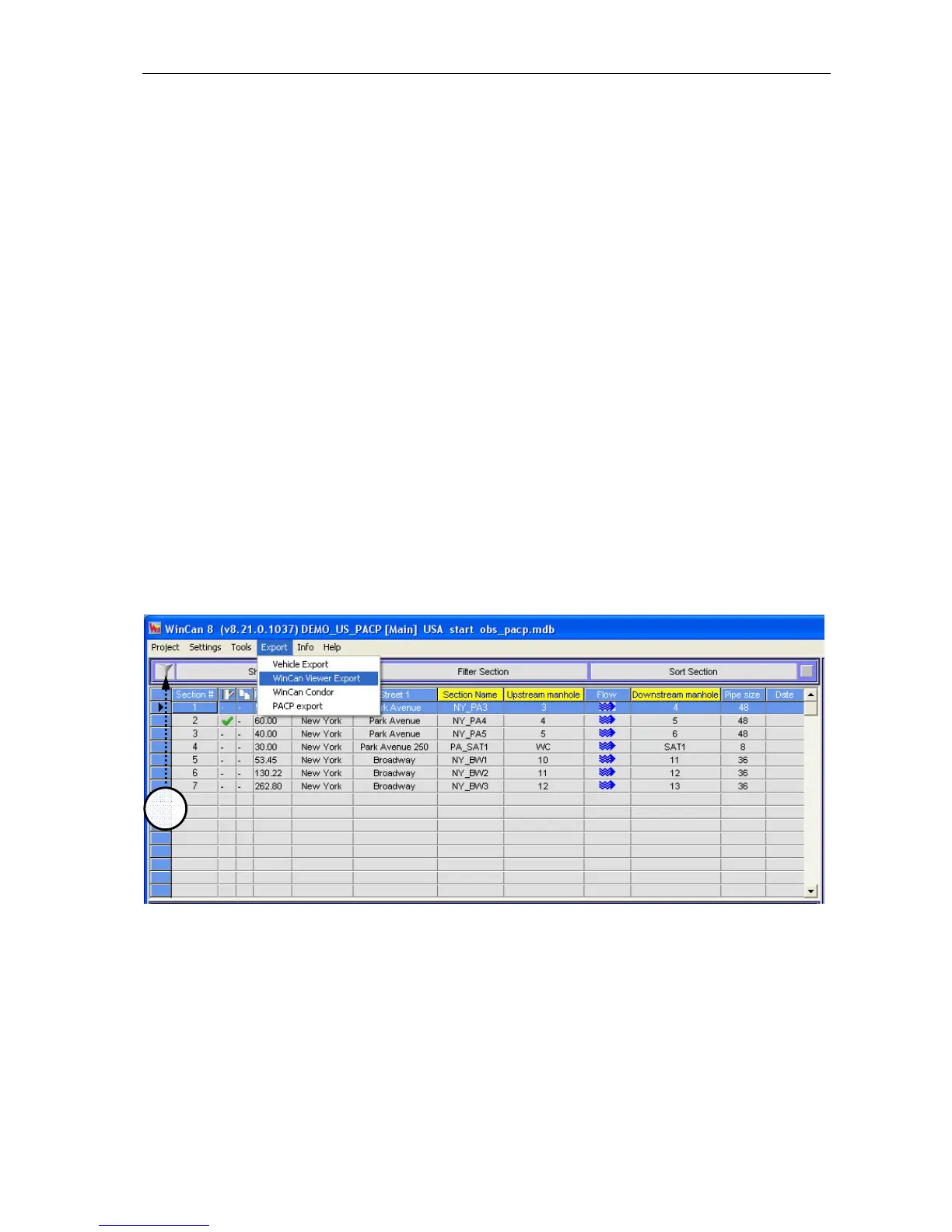
Open the project to be exported in WinCan8. Select the menu command Export, WinCan
Viewer Export:
ALL the sections displayed on the section table will be distributed and exported.
If there has to be exported a group of sections only, you may set filter criteria in the current
project. Click on the symbol (1) to set the criteria you like in the filter dialogue (see docu-
mentation WinCan Replicator). Filtered sections can then be exported directly via the com-
mand WinCan Viewer Export.



 To Next Page