Data transmission
Page 7/19
3.4 Burning data using the WinCan8 burning tool
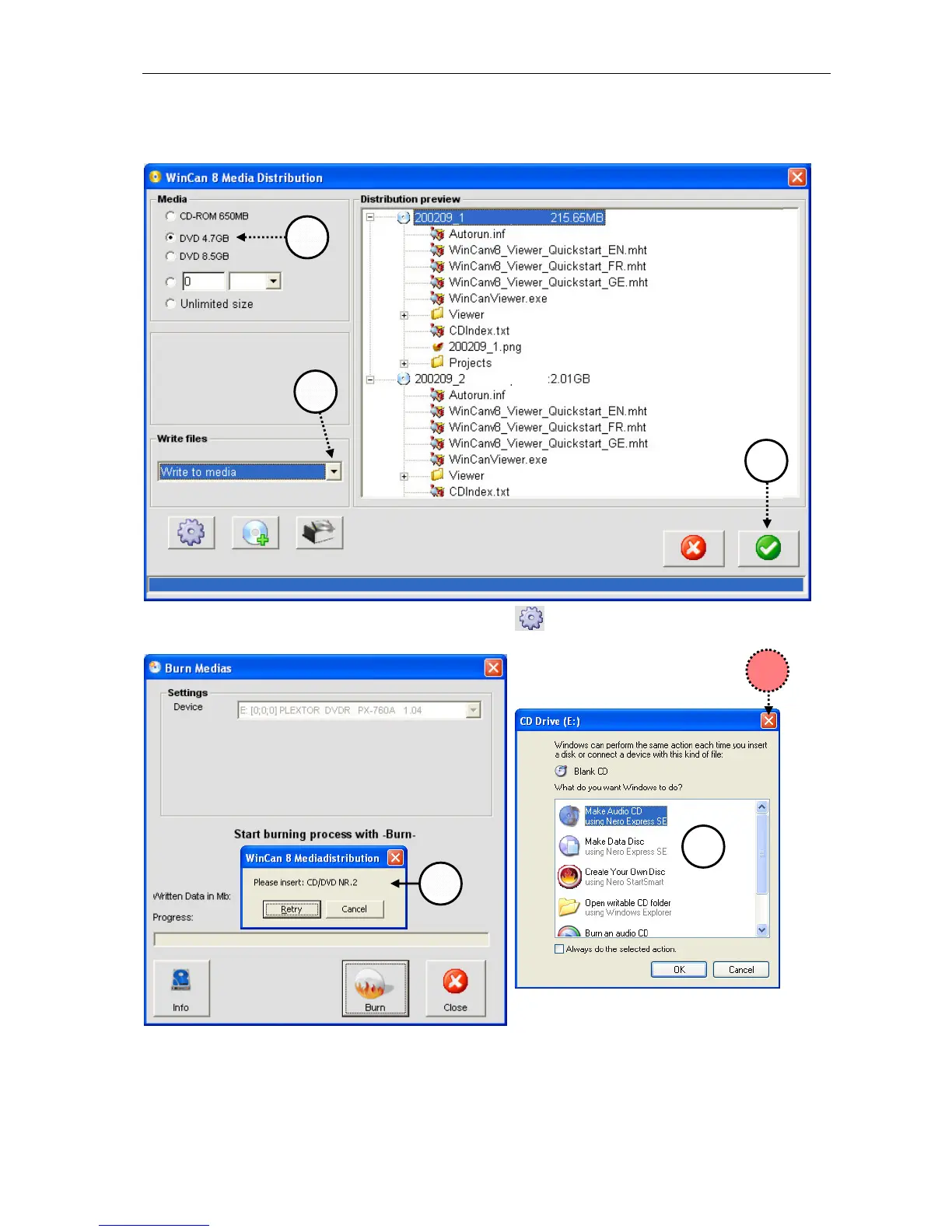
Select the media type first (1) and then select the entry Write to media (2) to get the data
burnt directly on a CD or DVD:
Check again the program settings via the button and launch the WinCan8 burning tool
with a click on the green button (3):
Click on the button Burn to start the burning process. If necessary you will AUTOMATICALLY
be asked to slide in a new media (6). Close the default WINDOWS message (4) by clicking
on the Close button (5): the burning process will be launched or resumed.
IMPORTANT: Always wait until the software is telling you that the burning process has fin-
ished completely!



 To Next Page