3.0 Messages And Calls Tab
The Messages and Calls tab provides access to:
• Voicemail messages.
3.1 Messages
All of your voicemail messages are displayed in a list within the
KineticVoiceManager.Additionally,anysystemmessages(for
example delivery reports, read reports and indications that you
havemissedareminder)arealsodisplayedinthislist.Usingthis
display, you can:
•Listentoaspecicvoicemailbyclickingontheentryinthelist
–withnoneedtolistentoallmessagestondtherelevantone,as
you would in a telephone user interface
• Read your voicemail instead of listening to it.
• Use the Voicemail Player to play voicemail messages, as described
below
• From the menu in right corner, see whether
• replay to a message
• mark as heard
• forward as Email
• forward as Voicemail
• Delete messages when they are no longer required
• Save a message to your computer
• View Missed, Dialed, Received, Rejected and Deleted
calls or messages
• Hover your mouse over the number with the hyperlink
and click to add a contact:
• Add the sender to the Contact List
• Dial the telephone
Messages marked with the private icon cannot be forwarded to
another recipient.
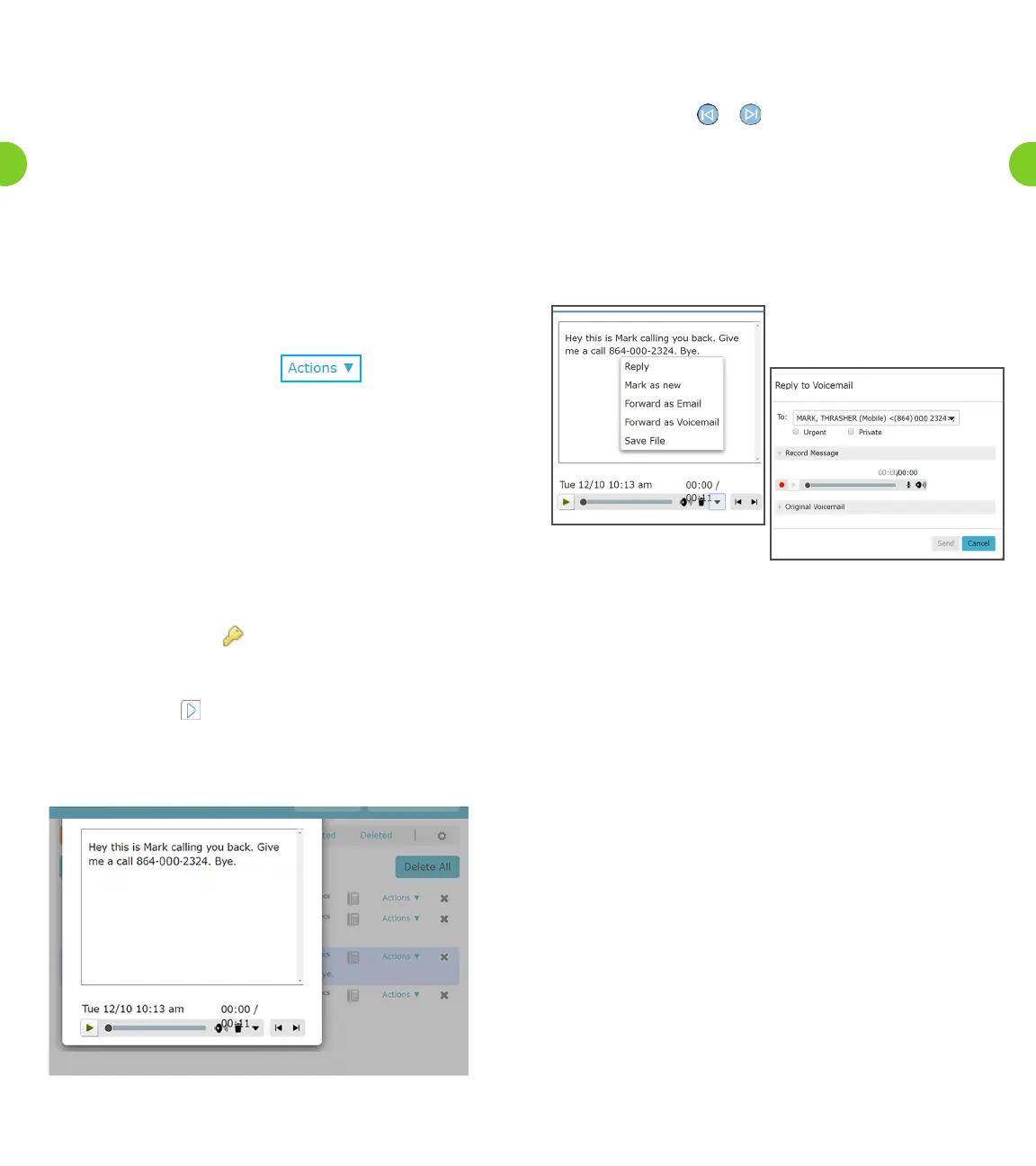
3.2 The Voicemail Player
You can click on the icon alongside any of your messages to
launch the Voicemail Player.
Figure 3. Voicemail Player
Information about the selected message will be displayed, and you
can then listen to the message by clicking on the Play button, and
adjust the volume of the playback using the slider.
You can click on the or icons to move to the previous or next
message in your mailbox, without having to return to the Messages
and Calls screen.
3.3 Voicemail Reply And Voicemail Composer Pop-Ups
The Reply to Voicemail pop-up illustrated below appears when you
click on the icon alongside a voicemail message, and select the
Reply menu option.
Figure 4. Reply To Voicemail
You can use this to:
• Record a reply to this voicemail
• Send it to one or more other Voicemail users
• Optionally mark the message urgent and/or private
• Listen to the original voicemail and then reply when you are
nishedrecorded.
The telephone number of the original sender will automatically be
lledinwhenthepop-upopens,butyouareabletochangethisor
add other recipients. Multiple recipients should be entered
with “;” separators.
TheToeldusesanauto-completefunction,whichprovidesalistof
suggestions with phone numbers retrieved from your Contacts list.
Alternatively,clickingonthedownwardarrowalongsidethiseld
displays your entire Contact List, from which you can select one or
more recipients.
Alternatively, if you want to record a completely new voicemail, you
should select the New Voicemail button at the foot of the screen to
launch the Voicemail Composer pop-up. This will allow you to record
a new voicemail and is very similar to the Reply to Voicemail pop-up
shown.
27
26



 To Next Page