Setup and Programming
SECTION 1 - PLAYBACK
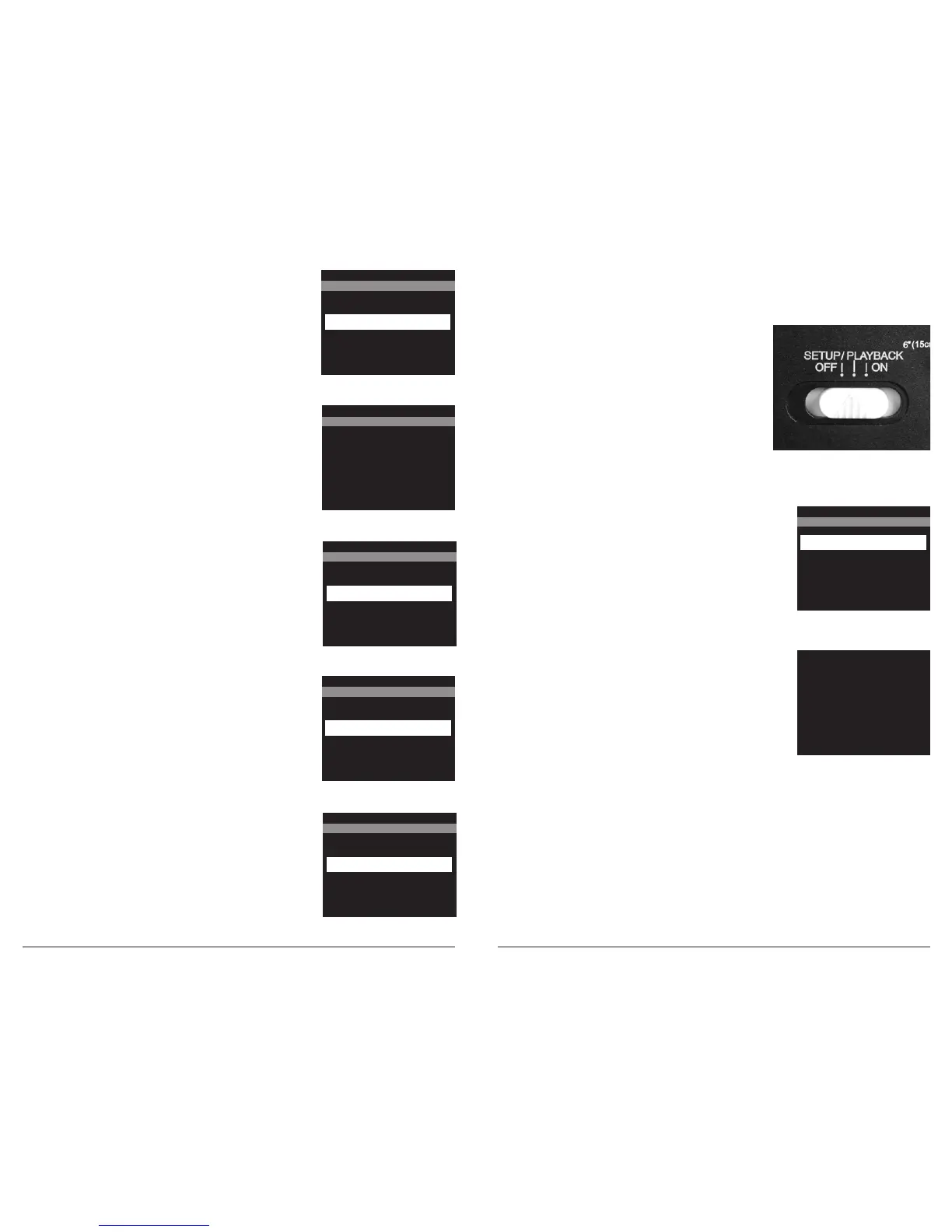
1.1 Turn POWER ON - Slide the Switch to the SETUP/
PLAYBACK position. Press (+) or (–) buttons to navigate to
Playback mode. The display will show the most recent photo.
1.3 Press (+) button and selection window will appear
in the TFT display. Press (+) to play Video. Press (-) to
Delete File. Press (<) to go to Previous. Press (>) to go
to the Next option. Press OK go to Single/Matrix View
window.
1.2
Press (-) button
DELETE PHOTO? Window will
appear on the display. Press (+) or (–) buttons to choose
between Yes or No and OK button to execute the action.
DELETE PHOTO?
X NO
YES
EXIT PLAYBACK
+
Play Video
OK
Single/Matrix
View
Delete File
-
<Previous Next>
2.12 AC CONNECTED? - Choose “Yes” when using the
Moultrie/Wingscapes AC Adapter.
AC CONNECTED?
YES
X NO
2.13 W-IFI SD CARD? - Select option when using a Wi-Fi
enabled SD card. Turning this feature on will keep the SD port
powered for a set amount of time to allow the files to transfer
off the card to the Wi-fi network set up.
Note: Wingscapes does not offer technical support
for Wi-Fi SD cards. Please contact your Wi-Fi card’s
manufacturer for support. Before use, you must setup
your Wi-Fi SD card on your wireless network.
WI-FI SD CARD?
YES
X NO
2.9 UPGRADE FIRMWARE - Only use this option when
performing a required upgrade to the camera’s firmware.
Press RIGHT (>) button to advance to the next option.
NOTE: Please contact customer service before
performing any upgrades.
UPGRADE FIRMWARE?
YES
X NO
TLPRO-131210
2.10 PROGRAM SECURITY CODE - Set a 5-digit security
code for extra security.
Press RIGHT (>) button to advance
to the next option.
NOTE: Please make sure to write down your code.
PROGRAM SECURITY CODE
00000
Page 14
TimelapseCam Pro User Guide
Page 11
TimelapseCam Pro User Guide
2.11 TEMPERATURE UNIT - Choose whether the temperature
on the info strip will be displayed in Fahrenheit or Celsius.
TEMPERATURE UNIT
CELSIUS
X FAHRENHEIT


 To Next Page