13
Wizard CMC Model 8000 RC Hardware and Software Getting Started Manual
CMC 8000RC/Frameshop 20-71034-1 GettingStartedManual8000RCFrameShop
http://info.wizardint.com/KB/default.aspx#pageid=getting_started_manual_8000_rc 04/05/19
Hook up Computer
Hook up Computer Peripherals
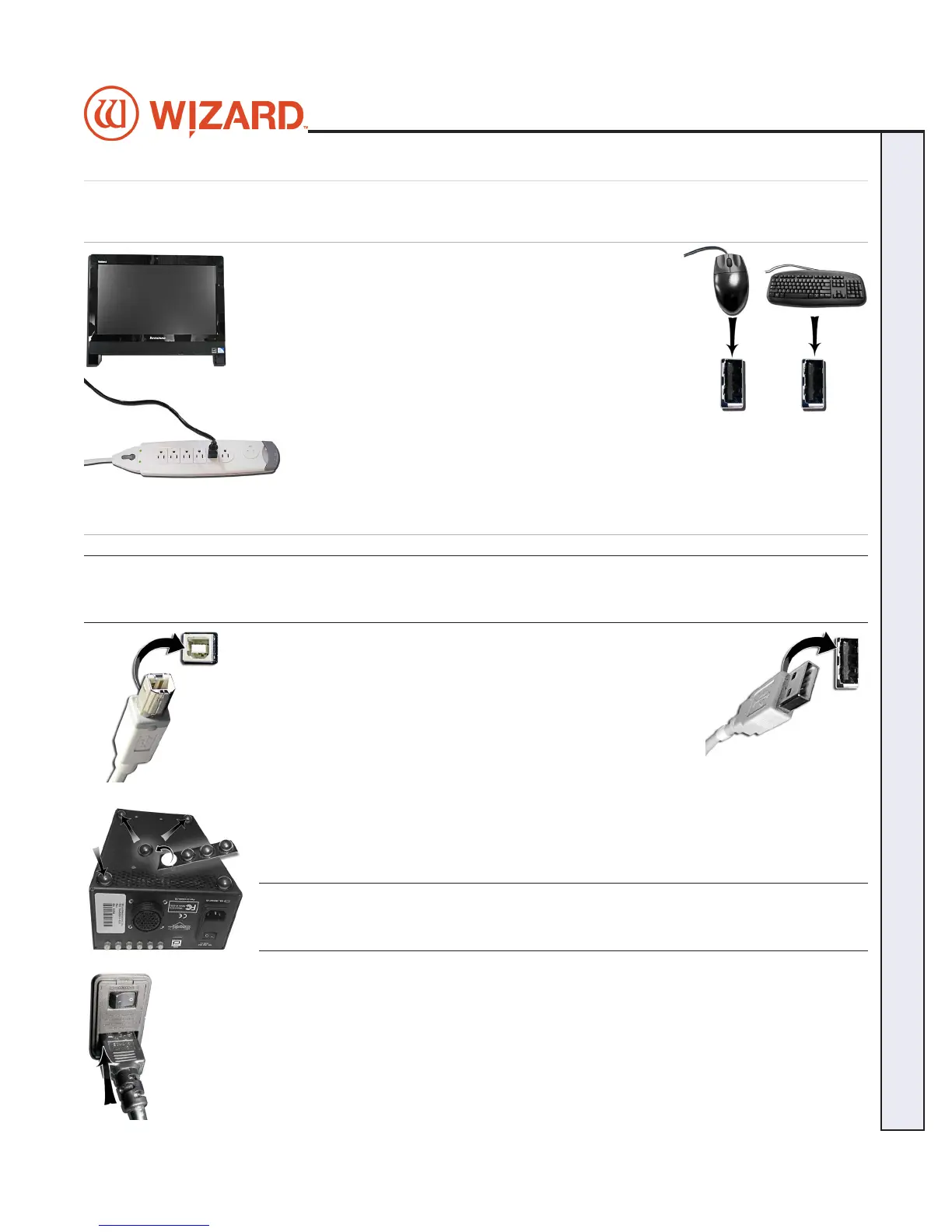
1. Place the computer on the computer stand.
2. Hook up the keyboard and mouse by plugging their USB
cables into the computer. Some of the USB connections are
in the back, and some are available along the side.
3. Plug in the computer power cord into the matching
port on the computer, then plug the power cord from the computer into a surge
protector.
NOTE: You may have to adjust your monitor settings for optimum display.
Connect the Driver Pack/ECU
WARNING: HIGH VOLTAGE! No user serviceable parts inside
the Driver Pack.
1. Connect USB cable to back of the driver pack/ECU.
2. Plug the other end of the USB cable into the USB port on the
computer. If your system came with a USB hub, plug it in between
the driver pack/ECU and the computer.
3. Attach the rubber feet to the bottom of the driver pack/ECU in
each corner*. The words on the back of the ECU face upright, and will help determine
which side is the bottom. Depending upon your CMC conguration, place the ECU on
the shelf of the stand or if provided, within the mounting brackets provided on the back
of the CMC.
*NOTE: This is VERY important for ventilation of the
electronic components.
4. Plug the power cord into the back of the driver pack/ECU.


 To Next Page