16
14. Connect F2D-Super to Computer to Upload Image Files
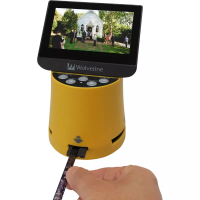
Plug small end of the USB cable to F2D-Super and the big end
to USB port on the computer.
Insert SD/SDHC memory card if not using the internal memory.
Power on F2D-Super.
Press Left/Right key to highlight "USB MSDC".
Press
OK/Enter key to activate the USB mode
.
1.
2.
3.
4.
5.
U
S
B
M
S
D
C
U
S
B
M
S
D
C
Upload Image Files to PC and Delete the Uploaded Files
After the USB mode is activated, your computer will recognize the
F2D-Super as a Removable Disk. Copy/load image files to a
15.
17
different folder each time to avoid files superseding onto your
computer’s hard drive. The converted digital image files are located
at Removable Disk under the folder DCIM/100COACH with
sequential alpha-numerical file names, PICT0001.JPG,
PICT0002.JPG , PICT0003.JPG etc.
You can delete the image files from the internal memory or
SD/SDHC memory card by d
rag and drop the DCIM folder to the
Recycle Bin or use the "Delete All" function on F2D-Super to
delete the image files.
Technical Support
For technical support, warranty service, or repair service, please
contact Wolverine Data at Support@wolverinedata.com or
call 949-458-9888 M-F 9:00 - 5:00 at Pacific Time


 To Next Page