EasyManua.ls Logo

Woodward easYview Series - User Manual

Woodward easYview Series
71 pages
Print Icon
To Next Page IconTo Next Page
Loading...
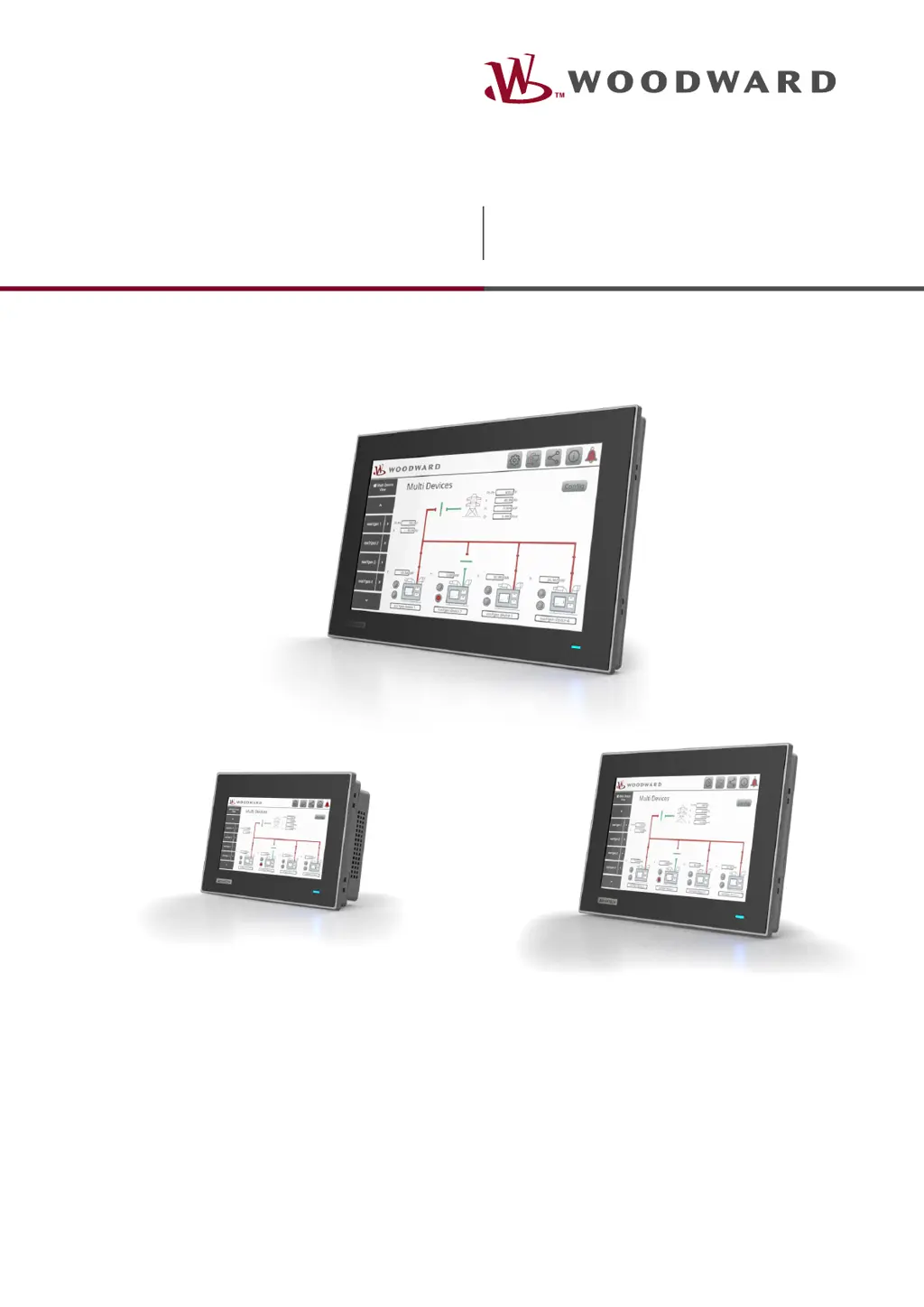
Technical Manual
easYview Series
mini SCADA
Release 2.0
easYview-07-030 / 10-060 / 15-150
Document ID: 37945, Revision B - Build 53404

Questions and Answers

  • K
    Kimberly HinesAug 8, 2025
    What to do if element blinks yellow on Woodward Control Panel mini-SCADA page?
    • W
      Willie AndrewsAug 8, 2025
      If the element blinks yellow in the mini-SCADA page of your Woodward Control Panel, it indicates that a connection to the device cannot be established. You should check your network for IP address conflicts, verify the IP address and Modbus Slave ID of the connected easYgen-3000XT, and ensure the Modbus protocol of the connected easYgen-3000XT is set to 5016. Also, confirm that no more than two easYview devices have an active Modbus TCP connection to the same easYgen-3000XT device.
  • R
    russell28Aug 14, 2025
    Why is easYgen-3000XT or LS-6XT not found in Woodward easYview Control Panel network?
    • T
      Tracy FosterAug 15, 2025
      If your Woodward Control Panel does not find the easYgen-3000XT or LS-6XT in the network device list screen, several factors could be at play. Here's what to check: * Ensure the device IP address or subnet mask is correct. * Verify all network connections and routers are functioning properly. * Confirm you are using LAN A of the easYview. * Check the network connectivity of the easYgen-3000XT or LS-6XT. * Ensure the easYgen-3000XT or LS-6XT can connect via Ethernet A. * Make sure the IP address is not being used twice on the network. * Check for any Ethernet network conflicts and contact your network administrator if needed.
  • B
    Barry MahoneyAug 22, 2025
    What to do if blue LED is off on Woodward easYview?
    • C
      Charles WilliamsAug 22, 2025
      If the blue LED on your Woodward Control Panel is off, it could be due to two reasons: either there is no power, in which case you should check the power connection, or there is a fatal device error, in which case you should send it to a Woodward service partner.
  • E
    Elizabeth MillerAug 30, 2025
    How to fix a dark display on Woodward easYview with blue LED on?
    • E
      Elizabeth ThompsonAug 30, 2025
      If your Woodward Control Panel display is dark but the blue LED is on, this indicates a fatal display error. In this case, you should send the device to a Woodward service partner.

Summary

General Information

Revision History

Document revision details and changes over time.

Depiction Of Notes And Instructions

Explanation of symbols, warnings, and instructional markings used in the manual.

Safety

Critical safety guidelines, including personnel qualifications and general electrical hazards.

Service And Warranty

Information on customer service and warranty terms for the product.

System Overview

System Overview mini-SCADA mode

Details on the mini-SCADA mode for plant visualization and multi-device monitoring.

System Overview Remote HMI

Explanation of the Remote HMI mode for single-device control and visualization.

Hardware Overview

Description of the physical components and interfaces of the easYview device.

Installation

Mount Unit

Instructions for physically mounting the easYview unit, including panel cutout dimensions.

Clamp Fastener Installation

Step-by-step guide for installing the unit using clamp fasteners.

Setup Connections

Guidance on connecting power, Ethernet, and other necessary interfaces.

Ethernet Interface

Details on configuring and using the Ethernet port for network connectivity.

Ethernet Topology

Information on how to structure the network connection between easYview and other devices.

Ethernet Topology Restrictions

Limitations and rules for setting up Ethernet network configurations.

Configuration

First time Setup

Initial setup steps and system prerequisites before configuring the device.

General configuration

Setting up network parameters, display brightness, and Remote HMI IP address.

Application Configuration

Configuring Modbus Slave IDs, enabling/disabling devices for mini-SCADA.

Password configuration

Steps to secure the device by changing default passwords.

Operation

mini-SCADA mode

Detailed guide on using the mini-SCADA mode for plant visualization.

The mini-SCADA visualization

Explanation of the layout and navigation within the mini-SCADA interface.

Personalization

Options for customizing the device, such as changing the logo or multi-device page.

Licensing

Overview of license restrictions related to display size and data points.

Trouble Shooting

Access Hierarchy and Common Issues

Guidance on resolving common operational problems, access conflicts, and error messages.

Technical Specifications

Technical Data

General specifications including product label details and ambient operating conditions.

System Hardware

Details on the CPU, memory, storage, and other internal hardware components.

Display Specifications

Technical details for the 7", 10", and 15" display options.

Touch Screen

Specifications related to the touch screen functionality and type.

Interface Specifications

Details on available Ethernet and serial interfaces and their usage.

Software

Information about the operating system and the Woodward easYview software.

Housing Specifications

Physical dimensions and mounting details for different panel sizes.

Approvals

Information regarding certifications and compliance standards.

Woodward easYview Series Specifications

General IconGeneral
BrandWoodward
ModeleasYview Series
CategoryControl Panel
LanguageEnglish

Related product manuals