EasyManua.ls Logo

Woodward easYgen-300 - User Manual

Woodward easYgen-300
125 pages
Print Icon
To Next Page IconTo Next Page
Loading...
37218D
Operation Manual
Software Version starting from 2.0008
Manual 37218D
easYgen-300
Genset Control

Table of Contents

Questions and Answers

  • L
    lindsey14Sep 23, 2025
    What to do if the starter is not engaged on Woodward Control Unit?
    • W
      wilsonsabrinaSep 23, 2025
      If the starter is not engaged, it is possible that the starting relay output of the easYgen-300 is defective or miswired. Measure the resistance between terminals 14 and 11 on the easYgen-300.
  • L
    Linda SchneiderAug 25, 2025
    What to do if the engine does not start by pressing the start button on Woodward Control Panel?
    • J
      James AllenAug 25, 2025
      If the engine won't start when you press the "Start" button on your Woodward Control Panel, ensure the unit isn't in "Stop" mode, indicated by the lit "Stop" LED. If it is, press the "Operating Mode" button twice to switch to manual mode.
  • X
    xreedAug 25, 2025
    Why does alarm 30A start fail occur on Woodward easYgen-300 Control Panel?
    • P
      Paul WilsonAug 26, 2025
      If alarm "30A - Start fail" occurs on your Woodward Control Panel, possible causes include a low fuel situation, a disconnected fuel line, a defective or miswired fuel relay output, a defective or miswired crank relay output, or a crank cutout speed parameter set too low. To troubleshoot, check if enough fuel is present, ensure the fuel line is properly connected, measure the resistance between terminals 13 and 11 (fuel relay) and 14 and 11 (crank relay) on the easYgen-300, and measure engine speed when cranking before ignition.
  • F
    franklewisAug 27, 2025
    What to do if the engine does not start by setting the remote-start signal on Woodward Control Panel?
    • B
      Barbara ArmstrongAug 27, 2025
      If the engine doesn't start using the "Remote-Start" signal on your Woodward Control Panel, the unit might be in "Stop" or "Manual" mode. Press the "Operating Mode" button to select "Auto" mode. Also, check the voltage between terminals 18/15 to ensure the "Remote-Start" signal is correctly wired to the easYgen-300.
  • J
    John BarreraAug 27, 2025
    Why does alarm 60A oil pressure occur on Woodward easYgen-300 after engine has fired?
    • A
      Adam ButlerAug 27, 2025
      If the "60A - Oil pressure" alarm appears after the engine starts on your Woodward Control Panel, the engine may not be producing oil pressure, the oil pressure sensor could be miswired or defective. You should check the engine oil pressure, the wiring of the oil pressure sensor, and the oil pressure sensor itself.
  • M
    Matthew RamirezSep 13, 2025
    What to do if alarm 13A Generator undervoltage occurs on Woodward Control Unit?
    • T
      Timothy HurstSep 14, 2025
      If alarm "13A - Generator undervoltage" occurs after the engine has started, it might be because the generator voltages are not properly connected to the easYgen-300, so check generator voltages after engine startup. Also, the wiring selected for the generator voltage measurement might be wrong, so use the LeoPC1 configuration software to check the settings of the parameter "Generator voltage measuring". Finally, the voltage regulator may not be set correctly, so adjust the voltage regulator's rated voltage or remote voltage setting.
  • J
    Johnny CameronSep 12, 2025
    How to fix engine overspeeding on Woodward Control Unit startup?
    • E
      Erin DominguezSep 12, 2025
      If the engine overspeeds on startup, it could be due to several reasons. First, the engine governor might not be set correctly, so adjust governor settings for proper response. Second, the parameter for overspeed level might not be set correctly, so set the correct speed for overspeed. Finally, the parameter for the number of pickup teeth might not be correct, so check that this setting is correct for the engine.
  • C
    Cristian HughesSep 12, 2025
    Why does alarm 21A Underspeed occur on Woodward Control Unit after engine start?
    • T
      Teresa BrooksSep 12, 2025
      If alarm "21A - Underspeed" occurs after the engine has started, it could be due to the pickup sensor being miswired to the easYgen-300, so check whether the pickup sensor is properly wired to terminals 37 (GND) and 38(+). It could also be that the pickup sensor is defective, so check the pickup sensor for proper functionality. Finally, the engine may have stalled, so troubleshoot the engine fuel and air supply, and check the air and fuel filters.
  • L
    Lori FowlerSep 4, 2025
    How to start Woodward Control Unit engine when it doesn't start with the "Start" button?
    • M
      Mary TaylorSep 4, 2025
      If the engine doesn't start when you press the Start button, it might be because the unit is in Stop mode, indicated by the Stop LED being lit. To resolve this, press the Operating Mode button twice to switch to manual mode.
  • W
    William MillerSep 2, 2025
    What causes alarm 13A Generator undervoltage on Woodward easYgen-300?
    • D
      Doris DaySep 2, 2025
      If the "13A - Generator undervoltage" alarm appears after the engine has fired on your Woodward Control Panel, the generator voltages may not be properly connected to the easYgen-300, or the wrong wiring might be selected for the generator voltage measurement. Check the generator voltages after the engine starts. Also, use the LeoPC1 configuration software to check the settings for the "Generator voltage measuring" parameter.

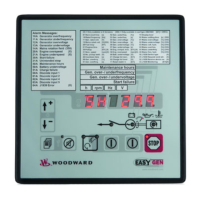
Summary

Chapter 1. General Information

Related Documents

Lists other manuals and documentation related to the easYgen-300 series.

Update Information

Details revisions and new functionalities added in software updates.

Overview

Provides a general overview of the easYgen-300 series and its capabilities.

Chapter 2. easYgen Series 300 Overview

Chapter 3. Electrostatic Discharge Awareness

Chapter 4. Housing

Dimensions; Panel Cut-Out

Specifies the physical dimensions and panel cutout requirements for the unit.

Installation

Provides step-by-step instructions for installing the unit into a panel.

Chapter 5. Wiring Diagrams

Chapter 6. Connections

Terminal Arrangement

Diagram showing the layout and numbering of the unit's connection terminals.

Power Supply

Details the power supply requirements and connections for the unit.

Charging Alternator

Explains the connection and function of the charging alternator input/output.

Voltage Measuring

Describes the principles and methods for measuring generator and mains voltage.

Voltage Measuring: Generator

Illustrates wiring for generator voltage measurement (3Ph 4W, 3Ph 3W, 1Ph 3W).

Voltage Measuring: Mains, [350], [350 X]

Illustrates wiring for mains voltage measurement (3Ph 4W, 3Ph 3W, 1Ph 3W).

MPU (pickup) [320 X], [350 X]

Details the connection and requirements for the MPU speed sensor.

Discrete Inputs

Explains the function and connection of discrete inputs (DI1-DI5).

Relay Outputs

Describes the available relay outputs and their fixed or configurable assignments.

Interfaces

Overview of the communication interfaces including DPC and CAN bus.

CAN Bus [320 X], [350 X]

Details wiring, shielding, and topology for the CAN bus interface.

DPC - Direct Configuration Cable

Information on using the Direct Configuration Cable for setup.

Chapter 7. Operation and Navigation

Operation and Display

Covers status LEDs, operating the unit, and acknowledging alarms.

Configuring the easYgen

Explains how to enter configuration mode and adjust parameters.

Display of the Operating Values

Describes how measured values are displayed on the unit's screen.

Default Operating Value Display

Details how the unit selects the initial operating value display.

Cycling Through the Displayed Operating Values

Explains how to navigate through different displayed operating values.

J1939 Visualization [320 X], [350 X]

Describes how to display J1939 messages received from the engine.

J1939 DM1;DM2 Error Message Display

Explains how J1939 diagnostic trouble codes (DM1/DM2) are displayed.

Alarm Messages

Details the various alarm messages, their classes, and display indicators.

Configuration Displays

Lists and describes configurable parameters and their display settings.

Display Hierarchy

Explains the order in which information is displayed based on conditions.

Chapter 8. Functional Description

Overview

Provides a high-level overview of the unit's functional capabilities.

Application Modes

Describes the two main application modes: 1 breaker and 2 breaker configurations.

Operating Modes

Details the different operating modes: STOP, MANUAL, and AUTOMATIC.

Operating Mode STOP

Explains the behavior and limitations of the STOP operating mode.

Operating Mode MANUAL

Describes how to operate the unit and breakers in MANUAL mode.

Operating Mode AUTOMATIC

Explains operation of the unit and breakers in AUTOMATIC mode.

AMF; Auto Mains Failure Operation - [350], [350 X]

Details the sequence of operations for AMF mode.

Breaker Closure Limits

Defines the conditions that prevent GCB or MCB closure for safety.

Functional Description of the Oil Pressure Input DI1

Explains the function of the discrete input for oil pressure monitoring.

Firing Speed Detection and Crank Termination

Describes how firing speed is detected and crank termination is managed.

Functional Description of the Charging Alternator Input;Output

Details the alternator's role in excitation and voltage monitoring.

Functional Description of the 2 nd CB Close Delay Time

Explains the function of delayed close signals for specific circuit breakers.

Functional Description of the Engine Released Signal

Describes how the engine released signal connects external components.

Chapter 9. Configuration

Restoring Default Values

Instructions for resetting the unit to factory default settings.

Configuration Using the PC

Guide on configuring the unit via PC using LeoPC1 software.

Editing the Configuration File

Details on how to modify configuration files for advanced customization.

Configuring the Flags

Explains how to assign alarms to configurable LED flags on the display.

Chapter 10. Parameters

Measuring

Parameters related to system frequency and generator/mains voltage settings.

Application

Parameters controlling discrete input functions and breaker delay times.

Engine

Parameters related to engine type, fuel relay, preglow, and speed pickup.

Engine: Start;Stop Automatic

Parameters for automatic engine start/stop sequences and delays.

Breaker

Parameters related to breaker transfer times between generator and mains.

Emergency Power (AMF)

Parameters for enabling and configuring automatic mains failure operation.

Password

Parameter for setting the HMI password for front panel configuration.

Monitoring

Overview of the monitoring parameters for generator, mains, and engine.

Monitoring: Generator

Parameters for monitoring generator frequency, voltage, and related alarms.

Monitoring: Generator Overfrequency

Parameters for generator overfrequency detection and alarm settings.

Monitoring: Generator Underfrequency

Parameters for generator underfrequency detection and alarm settings.

Monitoring: Generator Overvoltage

Parameters for generator overvoltage detection and alarm settings.

Monitoring: Generator Undervoltage

Parameters for generator undervoltage detection and alarm settings.

Monitoring: Mains

Parameters for monitoring mains voltage, phase rotation, and related alarms.

Monitoring: Mains Failure Limits

Parameters defining voltage and frequency limits for mains failure detection.

Monitoring: Engine Overspeed

Parameters for engine overspeed detection and alarm settings.

Monitoring: Engine Underspeed

Parameters for engine underspeed detection and alarm settings.

Monitoring: Engine Start Fail

Parameters for engine start failure detection and number of attempts.

Monitoring: Engine Unintended Stop

Parameters for detecting unintended engine shutdowns.

Monitoring: Battery Undervoltage

Parameters for battery undervoltage detection and alarm settings.

Monitoring: Battery Charge Voltage

Parameters for monitoring battery charge voltage and failure.

Monitoring: Interface

Parameters for monitoring the J1939 CAN interface.

J1939 interface monitoring

Settings for enabling and configuring J1939 interface monitoring.

Monitoring: Interface: J1939 Amber Warning Lamp DM1

Parameters for monitoring the J1939 amber warning lamp status.

Monitoring: Interface: J1939 Red Stop Lamp DM1

Parameters for monitoring the J1939 red stop lamp status.

Counter

Parameters for maintenance hours, counter presets, and number of starts.

Interfaces

Configuration parameters for communication interfaces like CAN and J1939.

CAN Interface

Settings for configuring the CAN bus baudrate.

J1939

Parameters for J1939 device type, send, and receive addresses.

System

System-level configuration parameters like codes and factory settings.

Codes

Parameters for commissioning level codes and HMI passwords.

Factory Settings

Parameters to enable resetting to factory settings or clearing event logs.

Parameter Access Level

Setting to control the number of displayed parameters based on access level.

Flags

Parameters for configuring configurable LED flags for alarm indication.

Versions

Displays information about the unit's firmware and software versions.

Chapter 11. Event Logger

GetEventLog Software

Information about the software used to read and manage the event logger.

Reading Out GetEventLog

Instructions on how to retrieve and view logged events.

Storing Event Logger Data

Details on how to save event logger data to a CSV file.

Resetting the Event Logger

Procedure for clearing the event logger using LeoPC1.

Chapter 12. Technical Data

Chapter 13. Accuracy

Appendix A. Common

Alarm Classes

Defines the classification of alarms and their system reactions.

Conversion Factors and Charts

Provides conversion factors for temperature, pressure, and wire sizes.

Conversion Factors: Temperature

Formulas for converting between Celsius and Fahrenheit.

Conversion Factors: Pressure

Formulas for converting between PSI and Bar.

Conversion Chart: Wire Size

Table mapping AWG wire sizes to square millimeters.

Appendix B. J1939 Protocol Descriptions

Visualizing J1939 Measuring Values with LeoPC1

Explains how to view J1939 engine data using LeoPC1.

Special EMR Messages

Lists and describes special EMR messages visible in LeoPC1.

Special S6 Messages

Lists and describes special S6 messages visible in LeoPC1.

Appendix C. Front Customization

Appendix D. Troubleshooting

Appendix E. List of Parameters

Appendix F. Service Options

Product Service Options

Details available factory options for servicing Woodward equipment.

Packing a Control

Guidelines for packing the control unit when returning for repair.

Return Authorization Number RAN

Procedure for obtaining a Return Authorization Number for repairs.

Replacement Parts

Information required when ordering replacement parts.

How To Contact Woodward

Provides contact information for Woodward GmbH and international facilities.

Engineering Services

Details after-sales support services like technical support and training.

Technical Assistance

Information required when requesting technical assistance by phone.

Woodward easYgen-300 Specifications

General IconGeneral
Frequency50/60 Hz
Digital Inputs8
Analog Outputs2
Number of phases1- or 3-phase
Communication ProtocolsModbus RTU, CAN
DisplayLCD

Related product manuals