Need help?
Do you have a question about the XENX P1-640 and is the answer not in the manual?
The XENX X1-640 is a graphics tablet designed for digital art, painting, photo editing, graphic design, document annotation, pen input for online classes and meetings, and electronic signature applications. It offers a blend of performance, customization, and compatibility across various operating systems.
The X1-640 serves as an input device that allows users to draw, write, and interact with their computer or Android device using a pressure-sensitive, battery-free pen. It translates pen movements and pressure levels into digital input, enabling precise control in creative and productivity applications. The tablet features customizable shortcut keys and supports different mapping and pen modes to suit individual workflow preferences.
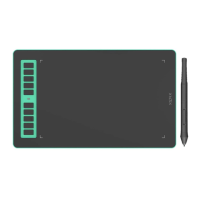
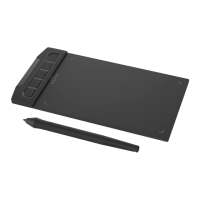
The tablet has a compact size with a 6 x 3.74 inches drawing area, making it portable and suitable for various workspaces. It features 5 customizable shortcut keys located on the side, a Type-C connector for connectivity, and an LED indicator. The underside includes anti-slip rubber feet for stability and a serial number for identification.
The X1-640 comes with a battery-free pen, eliminating the need for charging. This pen utilizes a highly precise pressure sensor, offering 8192 levels of pressure sensitivity for nuanced control in drawing and writing. It also includes two customizable side buttons, allowing users to assign their preferred shortcuts for quick access to functions.
The tablet features 5 on-tablet buttons that can be customized through the Xenx Tablet Driver. These shortcuts can be configured and saved on a per-application basis, optimizing workflow for different software. Preset values are available for common functions in Adobe Photoshop (Brush, Move, Eraser, Eyedropper, Hand), or users can assign custom hotkeys or even launch applications directly.
The tablet boasts a high report rate, capturing 266 sets of pen coordinates and pressure data per second. This ensures a smooth and responsive drawing experience with minimal lag.
For Windows 10, the X1-640 offers plug-and-play functionality for pen pressure-enabled applications, leveraging Windows Ink without requiring an additional driver. For advanced features like customizing shortcut keys and screen mapping, the Xenx Driver software needs to be installed. The installation process involves downloading the driver from the official website, unzipping, running the installer, and connecting the tablet via the USB Type-C cable. The driver can be accessed via the Xenx icon in the system tray. Users are advised to temporarily disable anti-virus software during installation if issues arise and to uninstall any other graphics tablet drivers beforehand.
The tablet supports Mac OS 10.12 or later. The installation process is similar to Windows, involving downloading the driver, selecting the appropriate CPU version (M1 or Intel), unzipping, running the installer, and connecting the tablet. After installation, users may need to update system preferences under "Security & Privacy" to allow "XenxTabletShadow" to control the computer.
The X1-640 is plug-and-play compatible with Android OS 6.0 or later. By default, the drawing area is in landscape mode. To switch to portrait mode for phone orientation, users connect the tablet with a Type-C OTG adapter, launch a drawing app, and then press and hold both the top and bottom tablet buttons for 5 seconds. Holding them again for 5 seconds reverts to landscape mode for PC/Mac use. Note that shortcut keys on the tablet and pen are not supported in Android devices, and only a USB Type-C OTG adapter is provided. Users may need to enable the USB OTG function in their Android device settings.
This section allows users to customize how the tablet's drawing area maps to their monitor(s) and to define the tablet's orientation (left-handed or right-handed mode, which positions shortcut keys accordingly).
This section allows customization of pen pressure and side button functions.
This section provides three extra functions:
The driver software includes four buttons at the bottom for managing settings:
The package includes extra pen nibs and a nib removal tool. To replace a nib, use the tool to pull out the old nib, then gently push the new nib into the pen until it stops. A note warns against over-tightening the pen nib, as this may result in poor pressure sensitivity.
XENX provides a 12-month limited warranty against defects in material or workmanship under normal use. The warranty covers repair or replacement with new or reconditioned components. It does not cover defects from misuse, accidental damage, improper installation, unauthorized repairs, or consumable parts like pen nibs. The warranty is non-transferable and applies only to the original purchaser. Specific legal rights may vary by state or province.
 General
| Brand | XENX |
|---|---|
| Model | P1-640 |
| Category | Graphics Tablet |
| Language | English |


 To Next Page