EasyManua.ls Logo

Xerox AltaLink C8030 - User Manual

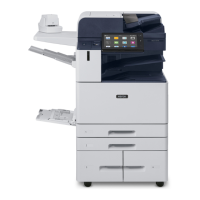
Xerox AltaLink C8030
70 pages
Print Icon
To Next Page IconTo Next Page
Loading...
Xerox® Product Security Guide and Information Assurance Disclosure
Xerox
®
Security Guide
Office Class Multi-Function Products &
Single-Function Printers
AltaLink
®
Multi-
Function Products
VersaLink
®
Multi-
Function Products
VersaLink
®
Printers
B8045, B8055, B8065,
B8075, B8090
B405, B605, B615,
B7025, B7030, B7035
B400, B600, B610
C8030, C8035, C8045,
C8055, C8070
C405, C505, C605,
C7020, C7025, C7030
C400, C500, C600,
C7000, C8000, C9000
February 2018 update

Table of Contents

Other manuals for Xerox AltaLink C8030

Questions and Answers

  • P
    pbarkerAug 13, 2025
    Why authentication failed on Xerox All in One Printer?
    • R
      Russell HowardAug 13, 2025
      Authentication can fail on your Xerox All in One Printer if the Domain Controller IP Address or Host Name is incorrect. To resolve this, verify that the server address is entered correctly. Also, verify that the Domain was configured properly. A network error can also cause this issue, so check that the network cable is connected firmly.
  • D
    dthomasAug 17, 2025
    What to do if Xerox All in One Printer says passcode is incorrect?
    • M
      Maria AlvarezAug 17, 2025
      If your Xerox All in One Printer indicates that the passcode entered was incorrect, carefully re-enter the PIN. Note that consecutive incorrect entries can lead to your card being locked.
  • J
    James McphersonAug 21, 2025
    What to do if the card reader is not detected on Xerox All in One Printer?
    • J
      Jose MillerAug 21, 2025
      If the card reader is not detected on your Xerox All in One Printer, verify that the card reader is connected properly. If you suspect the reader has failed, try swapping it with a known working reader.
  • L
    Laura RochaAug 25, 2025
    What to do if authentication failed on Xerox AltaLink C8030 All in One Printer due to server certificate?
    • D
      donald09Aug 25, 2025
      This problem with your Xerox All in One Printer usually occurs because the device does not trust the certificates on the Smart Card. Ensure that all the chain of trust certificates are imported on the device. Check the Operators Smart Card to see which Root CA and Intermediate CA issued the Smart Card certificates.
  • R
    Richard AndersonAug 28, 2025
    How to fix invalid timestamp error on Xerox AltaLink C8030?
    • P
      Patricia TaylorAug 29, 2025
      To fix the invalid timestamp error on your Xerox All in One Printer, verify that Network Time Protocol is set up correctly. If you are not using DHCP, verify the date and time and GMT Offset, or Time Zone is correct. Also verify that GMT offset is correct for Daylight Savings Time.
  • W
    William AllenSep 1, 2025
    What to do if the card reader is installed but no message appears on Xerox All in One Printer?
    • A
      Angela LeeSep 1, 2025
      If the card reader is installed but no message appears on the User Interface of your Xerox All in One Printer, it could be due to several reasons: * The card reader may be faulty, so try a different card reader. * The card reader connection may be faulty. Check that the cable is plugged in correctly, unplug the card reader cable, then plug it back in, or plug the card reader into a different USB port. * The card reader may not be compatible. Check that the card reader is on the list of compatible devices. * Smart Card access may not be enabled on the device. Use Internet Services to enable Smart Card through the Properties setup screens.
  • J
    Joseph RubioSep 4, 2025
    Why I cannot see the Internet Services web page for Xerox AltaLink C8030?
    • M
      Megan SimpsonSep 4, 2025
      If you cannot see the Internet Services web page for your Xerox All in One Printer, the IP Address might be incorrect or was reset. Check the IP Address printed on the configuration report and ensure the DHCP settings match your site settings. To print a configuration report at the Xerox device, select Device, then Information Pages. Select the Configuration Report from the list, then select Print.
  • R
    Ricardo LaneSep 8, 2025
    What to do if login was successful but I don't have access to the operation I requested on Xerox AltaLink C8030?
    • V
      victorporterSep 8, 2025
      If the login was successful, however you do not have the appropriate access to the operation you requested on Xerox All in One Printer, check the authorization method, because LDAP is not configured properly or the local user permission roles are not configured properly.

Summary

Introduction to Xerox Product Security

Purpose of the Security Guide

Defines the document's aim to disclose product security information for Office Class printers.

Target Audience for Security Information

Identifies Xerox field personnel and customers concerned with IT security.

Disclaimer on Information Accuracy

States information accuracy and liability limitations for document use.

Product Description and Architecture

Physical Components Overview

Lists and illustrates the primary physical parts of the Xerox products.

System Architecture Diagram

Presents a diagram of the product's core system architecture.

User Interface and Controls

Describes the product's user interface and administrative control capabilities.

Scanner Functionality

Explains the scanner's function and its handling of document data.

Marking Engine Operations

Details the marking engine's operations and limited access.

Controller Functions and Storage

Covers the controller's processing, storage, and network functions.

Controller External Interfaces

Lists and details various ports and connectors on the controller.

Ethernet RJ-45 Network Connector

Standard network interface for connectivity.

Rear USB (Type B) Port

USB port for printing, controllable by administrators.

Optional Equipment and Connectivity

Covers additional connectivity options like Wi-Fi, NFC, and Smart Cards.

Near Field Communications (NFC) Reader

RFID reader for authentication, data exchanged is not encrypted.

SMART CARD - CAC;PIV Support

Support for smart card login for enhanced security.

User Data Protection Measures

Data Protection Within the Product

Security controls for data residing on the product.

Encryption Standards (AES-256)

Details AES-256 encryption for data at rest.

Trusted Platform Module (TPM) Chip

Explains the TPM for secure key storage.

Media Sanitization (Image Overwrite)

Secure data erasure methods to prevent recovery.

Data Protection in Transit

Protection of data during transmission to and from the product.

Secure Print Job Submission

Secure submission of print jobs using TLS and HTTPS.

Secure Scanning to External Destinations

Secure scanning to network repositories, email, and fax servers.

Scanning to User Local USB Storage

Transferring scan data to USB drives.

Add-on Apps Security Scope

Security of third-party apps is outside this document's scope.

Network Security Features

TCP;IP Ports and Services Overview

Overview of network ports and services used by the product.

Listening Services (Inbound Ports)

Lists and describes inbound network ports configurable on the product.

IPSec for Secure Network Communication

Details IPSec support for secure network communication.

Wireless 802.11 Wi-Fi Protected Access (WPA)

Security protocols for wireless network connections.

Transport Layer Security (TLS) Versions

Supported versions of TLS for secure connections.

Public Key Encryption (PKI) and Certificates

Use of digital certificates for identity and signature verification.

Device Certificates Management

Management of CA-signed and self-signed certificates.

Trusted Certificates for Validation

Importing certificates to validate external products.

Certificate Validation Methods

Methods for validating certificate paths and CAs.

Email Signing and Encryption (S;MIME)

Securing emails with authentication and encryption.

SNMPv3 Security Features

Security features of SNMPv3 for network management.

Network Access Control (802.1 x)

Authentication protocol for network access control.

Cisco Identity Services Engine (ISE) Integration

Policy enforcement and product profiling with Cisco ISE.

Contextual Endpoint Connection Management

Network management using Cisco TrustSec.

FIPS140-2 Compliance Validation

Validating cryptographic modules for FIPS compliance.

Endpoint Firewall Options

Stateful Packet Filter and IP Whitelisting.

IP Whitelisting (Address Filtering)

Filtering network traffic based on IP addresses.

Stateful Firewall (Advanced IP Filtering)

Packet inspection and rule-based traffic control.

Device Security: BIOS, Firmware, OS, and Runtime

Pre-Boot BIOS Protection

Securing the BIOS against unauthorized access or modification.

Embedded Encryption for Data

AES encryption applied to configurations and user data.

Boot Process Security

Ensuring the integrity of the boot process.

Fail Secure vs Fail Safe Principle

Explains the product's fail-secure security design.

Pre-Boot Security Measures

Covers BIOS and embedded encryption before OS boot.

Firmware Integrity and Verification

Validation of firmware against a secured whitelist.

Runtime Security Controls

McAfee Embedded Control for process and memory protection.

Event Monitoring and Logging (Audit Log)

Recording and alerting on security-related events.

Continuous Operational Security

Ongoing security measures for product operation.

Firmware Restrictions and Delivery

Controls on firmware delivery and access.

Service Technician (CSE) Access Restriction

Password protection for service access.

Backup & Restore (Cloning) Functionality

Capturing and applying system settings.

Configuration and Security Policy Management

Centralized Device Management Solutions

Centralized management of Xerox devices using software tools.

Identification, Authentication, and Authorization Options

Supported Authentication Methods

Lists supported methods for user authentication.

Local Authentication via User Database

User database for local login and authorization.

Password Policy Configuration

Configuration options for password strength and complexity.

Network Authentication Providers

Authentication via external servers like LDAP and Kerberos.

Smart Card Authentication (CAC;PIV)

Two-factor authentication using smart cards.

Convenience Authentication Methods

Third-party solutions for easy access.

Simple Authentication (Non-Secure)

Basic authentication for non-secure environments.

Authorization via Role Based Access Controls (RBAC)

Granular user permission management based on roles.

Remote Access Controls

Controls for viewing information remotely.

Local Access Controls

Controls for viewing information locally.

Additional Information and Resources

Security Information at Xerox.com

Link to Xerox's public web page for latest security information.

Vulnerability Management Policy

Policy on managing and disclosing vulnerabilities.

Security Resource Links

Links to FAQs, certifications, and updates.

Appendix A: Product Security Profiles

AltaLink B8045;B8055;B8065;B8075;B8090 Security Details

Physical Overview, Interfaces, and Encryption/Overwrite for specific models.

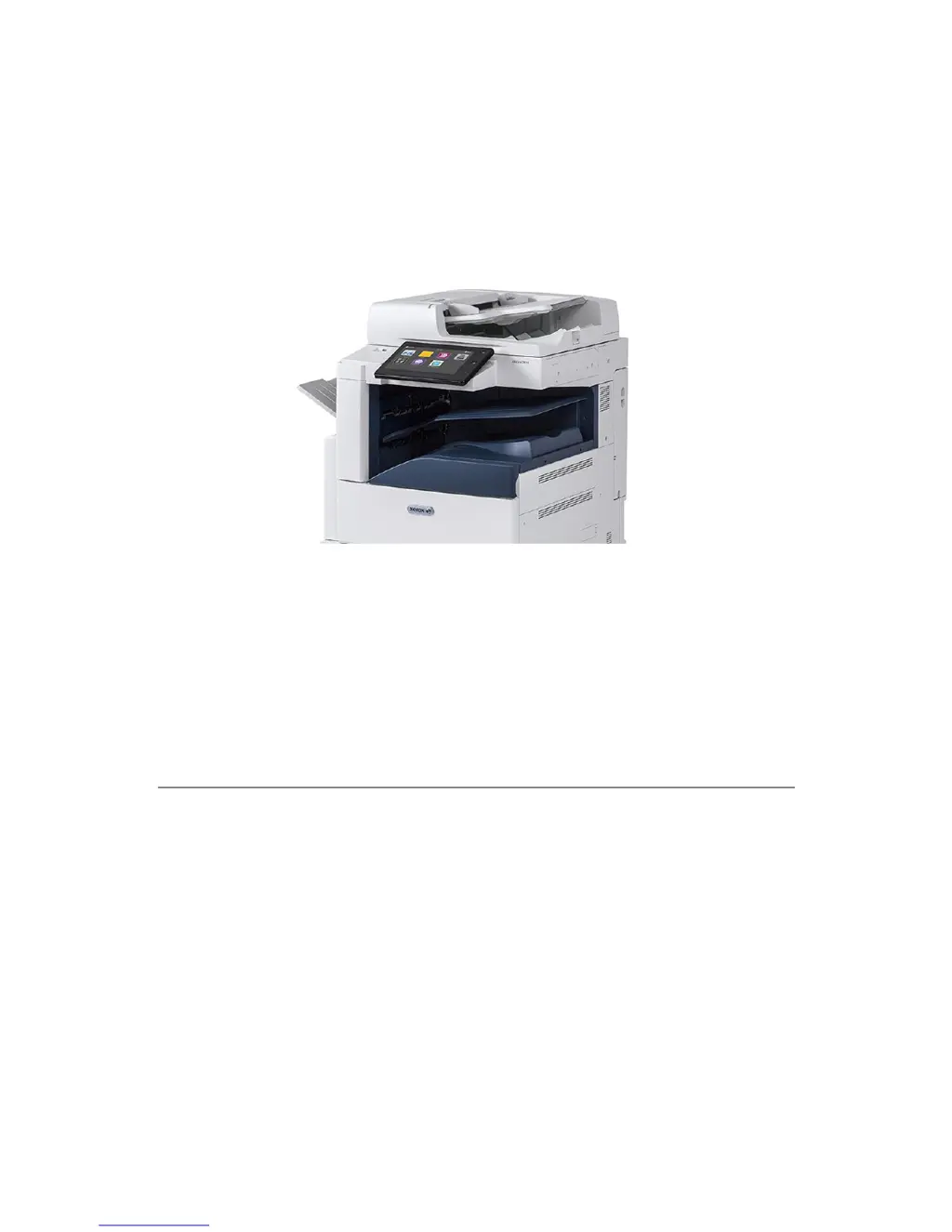
AltaLink C8030;C8035;C8045;C8055;C8070 Security Details

Physical Overview, Interfaces, and Encryption/Overwrite for specific models.

VersaLink B7025;B7030;B7035 Security Details

Physical Overview, Interfaces, and Encryption/Overwrite for specific models.

VersaLink C7000;C7020;C7025;C7030 Security Details

Physical Overview, Interfaces, and Encryption/Overwrite for specific models.

VersaLink B400;B405 Security Details

Physical Overview, Interfaces, and Encryption/Overwrite for specific models.

VersaLink C400;C405 Security Details

Physical Overview, Interfaces, and Encryption/Overwrite for specific models.

VersaLink C500;C600;C505;C605 Security Details

Physical Overview, Interfaces, and Encryption/Overwrite for specific models.

VersaLink B600;B605;B610;B615 Security Details

Physical Overview, Interfaces, and Encryption/Overwrite for specific models.

VersaLink C8000;C9000 Security Details

Physical Overview, Interfaces, and Encryption/Overwrite for specific models.

Appendix B: Security Events

Xerox AltaLink Security Events

Logged security events specific to AltaLink products.

VersaLink Security Events

Logged security events specific to VersaLink products.

Xerox AltaLink C8030 Specifications

General IconGeneral
Copy Resolution600 x 600 dpi
Scan Resolution600 x 600 dpi
Display10.1-inch color touchscreen
FunctionsPrint, copy, scan, fax, email
Memory4 GB
Duplex PrintingAutomatic
Print Speed30 ppm
Print Resolution1200 x 2400 dpi
ConnectivityEthernet, USB
Hard Drive250 GB
Mobile PrintingApple AirPrint, Google Cloud Print, Mopria, Xerox Print Service Plug-in for Android
Dimensions635 x 559 x 762 mm

Related product manuals