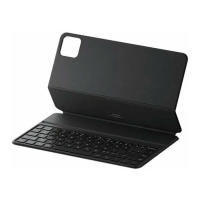
PressandholdthePowerbuttontoturnyourtableton.
2. Turningoff
PressandholdthePowerbuttonuntilamenuappears.TapPoweroff.
Ifyourtabletdoesn'trespond,pressandholdthePowerbuttonfor15secondstoforce
rebootyourdevice.
3. Rebooting
Pressand
holdthePowerbuttonuntilamenuappears.TapReboot.
Display
You can set the screen brightness, color scheme, and Dark mode according to your
preferences.
1. Adjustingbrightness
Goto Settings> Display>Brightnesslevel,andenableAutomaticbrightness.
Yourtabletwillautomaticallyadjustthescreenbrightnessaccordingtotheambientlight.
Youcanmanuallyadjustthescreenbrightness
usingeitherofthefollowingmethods:
• SwipedownfromthetoprightofthestatusbartoopenControlcenter.Dragtheslider
toadjustthescreenbrightness.
• Goto Settings> Display>Brightnesslevel.Dragtheslidertoadjustthescreen
brightness.
2. Settingacolor
scheme
Goto Settings> Display>Colorscheme,andselectacolorschemethatyouprefer.
Vividmodewillbeeasierforyoureyesandisthereforerecommended.
3. EnablingDarkmode
Inlowlightconditionsoratnight,youcanenableDarkmodetoapplyadarkercolor
scheme,whichhelpstopreventexcessivescreenlightfromirritatingyoureyes.
Goto Settings> Display,andtapDarkmodeinCOLORSCHEME.
Lock screen
Use your device’s screen lock features to secure your device. By default, the device locks
automaticallywhenthescreentimesout.
Go to Settings > Lock screen > Sleep, and select a sleep period. Your tablet is



 To Next Page