This document is a user manual for the Xiaomi Router AC1200, model RB02, providing instructions and specifications in multiple languages. The router is designed for home network use, offering basic internet functions and management capabilities through a web interface or a dedicated mobile app.
Function Description
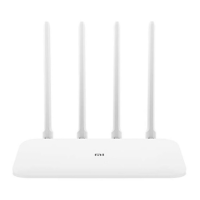
The Xiaomi Router AC1200 is a wireless router designed to provide internet connectivity and manage a local network. It supports both 2.4GHz and 5GHz Wi-Fi bands, enabling a stable and fast wireless connection for various devices. The router acts as a central hub, connecting to an internet modem (DSL/Cable/Satellite) via its WAN port and distributing the internet connection to wired and wireless devices on the local network.
Important Technical Specifications
- Model: RB02
- Operating Temperature: 0°C to 40°C
- Input: 12V, 1A
- Operating Frequency:
- 2400MHz–2483.5MHz (≤20dBm)
- 5150MHz-5250MHz (≤23dBm)
- Certifications: CE
- Compliance: The device complies with Directive 2014/53/EU. The full text of the EU declaration of conformity is available at http://www.mi.com/global/service/support/declaration.html.
- Indoor Use Restriction: The device is restricted to indoor use only when operating in the 5150-5250MHz frequency range across all EU countries.
- RF Exposure Requirements: To comply with CE RF exposure requirements, the device must be installed and operated at a minimum distance of 20 cm (8 inches) between the product and any person's body.
- WEEE Compliance: All products bearing the WEEE symbol (Waste Electrical and Electronic Equipment, as per directive 2012/19/EU) should not be mixed with unsorted household waste. Users are advised to hand over waste equipment to designated collection points for recycling to protect human health and the environment.
Usage Features
The router offers a straightforward setup process and various features for network management:
Step 1: Connect the Cables
- Power Connection: Connect the power adapter to the router and plug it into an electrical outlet.
- WAN Connection: Connect the Internet (WAN) port of the router to your DSL/Cable/Satellite modem using an Ethernet cable. If your internet network is connected via a network cable from an internet wall socket, connect that cable directly to the router's WAN port.
Step 2: Set up the Network Connection
- Initial Wi-Fi Connection: Power on the router. Connect to the router's Wi-Fi network using a phone or computer. The Wi-Fi name can be found on the bottom of the router. No password is required for the initial connection.
- Configuration Page Access: Once connected to the Wi-Fi, you will be directed to the configuration page. If the page does not appear, open a web browser and navigate to "router.miwifi.com" or "192.168.31.1" to complete the setup.
- Broadband Account Details: Enter the broadband account name and password provided by your internet service provider. This step may or may not be required depending on your ISP. If you forget these details, contact your ISP.
- Set Wi-Fi and Administrator Password: Create a new Wi-Fi password and an administrator password for the router. You have the option to use the same password for both.
- Indicator Light: Wait until the system indicator light turns blue and stops flashing, then reconnect to the Wi-Fi network.
Managing Mi Wi-Fi
The router can be managed through a web interface at router.miwifi.com or via the Mi Home / Xiaomi Home app. Key management features include:
- QoS (Quality of Service): Prioritize network traffic for specific applications or devices.
- Unauthorized Access Prevention: Enhance network security by preventing unauthorized devices from connecting.
- Wi-Fi Optimization: Improve Wi-Fi performance and coverage.
- More Features: Access additional settings and functionalities for advanced network control.
Maintenance Features
The manual provides guidance on troubleshooting common issues and understanding the router's status indicators:
Frequently Asked Questions (FAQ)
- Cannot Connect to the Internet after Setup:
- Step 1: Verify that the router is powered on and functioning correctly. Search for the Wi-Fi network created by the router.
- Step 2: Connect to the router's Wi-Fi, visit
router.miwifi.com, and use the network diagnostics to resolve the issue.
- Forgot Administrator Password: If no specific administrator password was set, it defaults to the Wi-Fi password. If this doesn't work, a factory reset is recommended.
- Factory Reset: To restore factory settings, ensure the router is operating normally, then press and hold the Reset button on the base of the router for more than 5 seconds. Release the button when the system status indicator turns orange. The reset is complete after the router restarts.
Router Indicator Lights
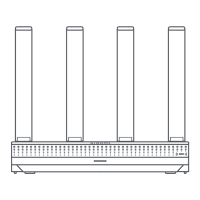
The front panel of the router features two indicator lights, each with two colors (blue and orange), to show the network status and system status:
Network Status Light (Two-color indicator: blue and orange)
- Off: The network cable is not connected to the WAN port.
- Orange (Solid): The network cable is connected to the WAN port, but the upstream network is unavailable.
- Blue (Solid): The network cable is connected to the WAN port, and the upstream network is available.
System Status Light (Two-color indicator: blue and orange)
- Off: The router is not connected to a power source.
- Orange (Flashing): System update is in progress.
- Orange (Solid, turns blue after approx. one minute): The system is booting up.
- Orange (Solid, does not turn blue after approx. two minutes): System failure.
- Blue (Solid): Operating normally.
This comprehensive guide ensures users can effectively set up, manage, and troubleshoot their Xiaomi Router AC1200 for a seamless internet experience.

 Need help?
 General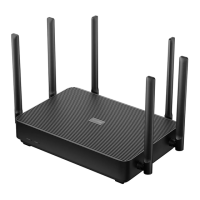




 To Next Page