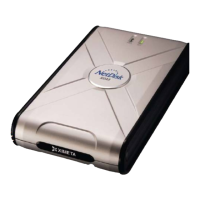
NetDisk User Manual Network Direct Attached Storage / NDAS
—————————————————————————————————————————————
XIMETA, Inc. www.XIMETA.com
—————————————————————————————————————————————
6
NetDisk Software Installation
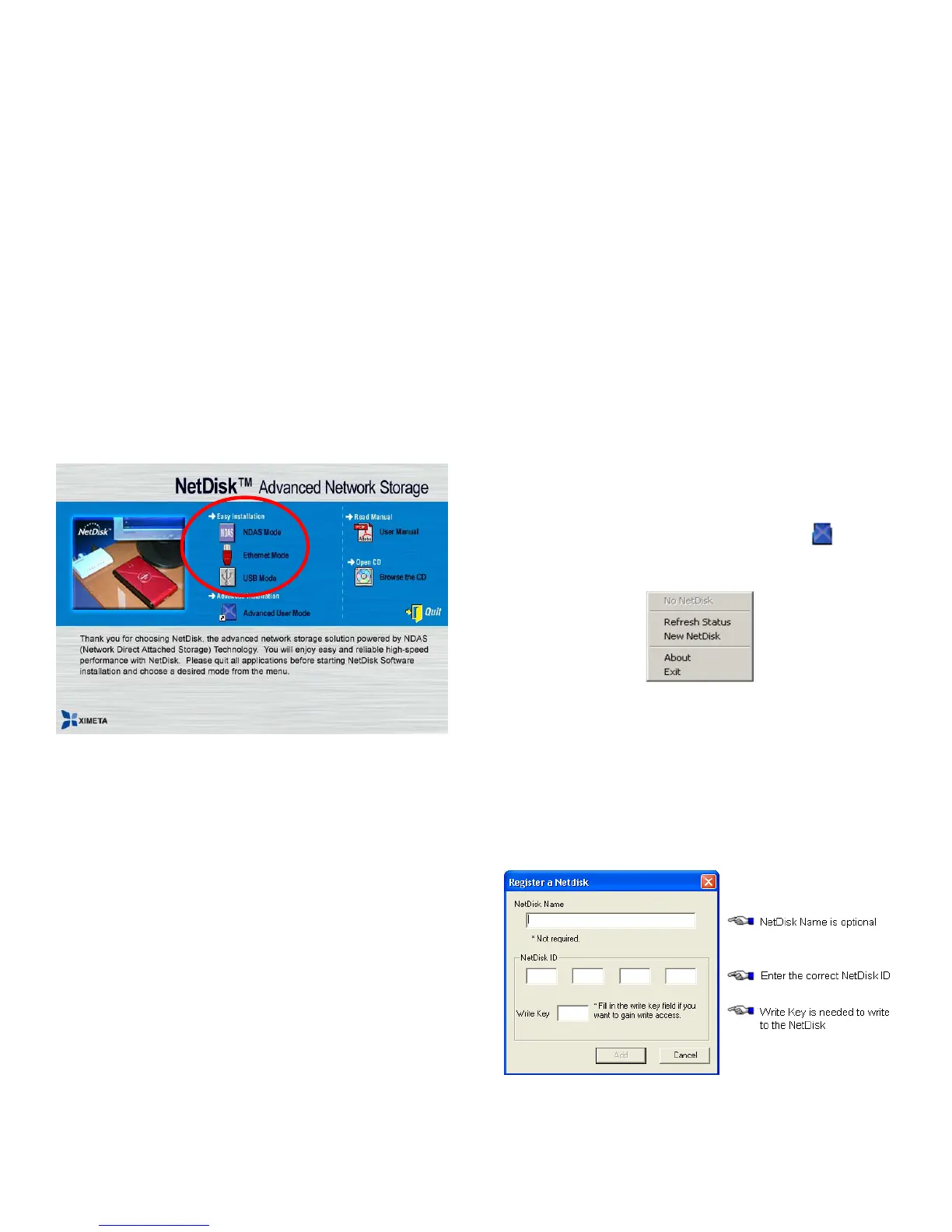
Installation of NetDisk software is simple and easy. Insert
included “NetDisk Installation CD” to your CD-ROM Drive
and select the NetDisk Mode you want. Easy and simple
instructions will guide you through the installation.
First Time Users
It is strongly recommended that the first time NetDisk user
select Easy Installation from the main menu.
For Advanced Users
Once you are comfortable with installing and using NetDisk,
you may choose to use advanced installation. You can pick
and choose features you want to install, select Advanced
Installation from the main menu.
NDAS Mode Easy Installation
• Select “NDAS Mode Easy Installation” and click “next”
button. The instructions will guide you through the
installation.
Ethernet Mode Easy installation
• Select “Ethernet Mode Easy Installation” and click
“next” button. The instructions will guide you through
the installation
USB 2.0 Mode Easy Installation
• Select “USB 2.0 Mode Easy Installation” and click
“next” button. The instructions will guide you through
the installation.
NetDisk Administrator Tool
When software installation is completed, you will find a
NetDisk Launcher Icon on your desktop screen and a NetDisk
Administrator Tool icon on the system tray.
• NetDisk Launcher activates and loads the NetDisk
Administrator Tool onto the system tray.
• NetDisk Administrator Tool performs the following
functions:
- Refresh NetDisk Status
- Add / Register a NetDisk
- Display Software Version
- Enable Read / Write Access
- Enable Read Only Access
- Disable a NetDisk
- Edit NetDisk Name
- Display NetDisk Properties
Add / Register a New NetDisk / NetDisk Mini
• Click NetDisk™ Administrator Tool Icon
located
on the bottom right corner of your screen.
• Click New NetDisk.
• Add a NetDisk / NetDisk Mini
- NetDisk ID and Write Key can be found underneath
the NetDisk case.
- NetDisk ID and Write Key do not contain the letter
O. Please use the number 0, for all 0’s.
- Click Add.


 To Next Page
 Loading...