1. Click “One-key takeoff”, the drone will go up 1 meter and hover at that position waiting for your instructions.
2. Click “One-key landing”, the drone will land at its current position and the motors shut off automatically.
Click “Start” on the screen to start the drone
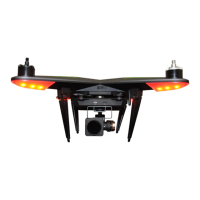
In GPS flight mode, when you power on the Xplorer Mini, the front flight indicators turn red and the rear
flight indicators blink green. When the rear flight indicators blink yellow, the drone is in Attitude flight
mode. It is advised to change your flight location.
When there are less than 6 GPS satellites locked, the Xplorer will enter the visual positioning flight mode
(the rear fight indicators blink double green slowly). When the drone flies up to 0.5 meter, the optical flow
sensors will automatically detect the environment. When the environment is not suitable for the visual
positioning flight mode, the drone will land and a warning message will be shown in the XIRO App.
When in Attitude flight mode, the Xplorer is not allowed to take off.
How to start the motors
Operation details (Takeoff / Landing)
Flight Control
Click More operations in the XIRO App, select IOC to fly the Xplorer in IOC (headless) mode.
Left control stick
The default operating mode in XIRO App is Mode 2 (American mode).
Up
Down
Press “ ” to make the Xplorer Mini vertically
fly up.
Press “ “ to make the Xplorer Mini vertically
go down.
Turn rightTurn left
Press “ ” to make Xplorer Mini turn counter-
clockwise around its center.
Press “ “to make Xplorer Mini turn clockwise
around its center.


 To Next Page