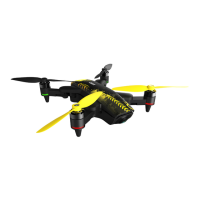
Note: After the Xplorer Mini is powered on
Connecting your XIRO App
1. Press the power button at the bottom of the
drone for 3 seconds, wait until your hear the
power on sound and the flight indicator lights
are turned on.
2. Place the drone in front of you with the front
(camera) facing away from you. Keep a safe
distanceof a minimum of 5 meters between
yourself and the Xplorer.
Flight
Power on the Xplorer Mini
1. Enable Wi-Fi on your mobile device, search for the available Wi-Fi networks and then select the network
named "XPLORER_XXXXXX" from your Wi-Fi network list. When requested for a password, enter the default
password: XIRO 1234. The Xplorer and the XIRO App are now connected. (New users, please register first.)
One Xplorer Mini can be controlled by only one mobile device. When using a second mobile device to
connect to the Xplorer the message “This drone is connected to another mobile device” will be shown
on the interface.
2. Start the XIRO App to enter the real-time aerial photography interface.
2. When the rear flight indicators fast blink alternately red and yellow, there is a GPS failure. Please restart
your Xplorer.
1. When the rear flight indicators slowly blink red and yelow alternately, the magnetic compass need to be
calibrated. (See calibration steps on page 12)
3. When the rear flight indicators blink green or yellow slowly, the Xplorer is ready to fly.
4. Place the drone on the ground one it is powered on in case of accidents.
Power Button
5 meters
When the drone has successfully connected to mobile device, the XIRO App will recognize the Xplorer
Mini automatically.


 To Next Page