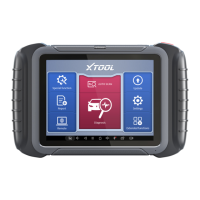
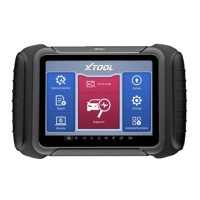
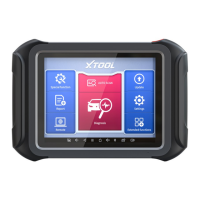
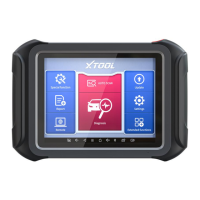
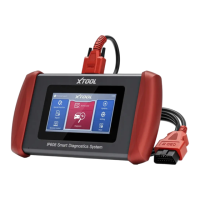
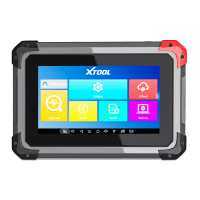
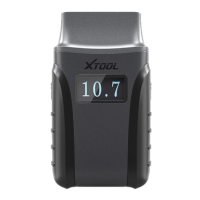
Click the VIN button in the upper left corner and then choose to enter the vehicle diagnosis through either AUTO SCAN or
MANUAL INPUT.
AUTO SCAN: It supports the automatic reading of vehicle VIN code. You also can tap on the button “AUTO SCAN” on the
diagnosis system entrance to use this function. Please make sure that the car and the device are well connected before
using this function.
If your model is not recognized, please try the following steps:
UPDATE all software, and check whether the APP is updated in [Settings]
Please click Diagnosis on the main menu to enter the selection menu, manually select the engine system to
read the ECU information, and confirm whether the VIN can be read.
Contact the XTOOL technical team to provide the VIN code to confirm whether the model supports automatic
identification of VIN.
MANUAL ENTER: It supports manual input of car VIN code. When entering the VIN code manually, make sure that the 17
characters entered are correct to ensure accurate test results.
In addition to the above 3 methods, you can also choose a car brand by selecting the appropriate region at the top of the
screen. You can select the vehicle model that needs to be diagnosed according to the area, as shown below:



 To Next Page