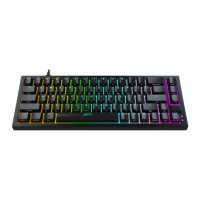
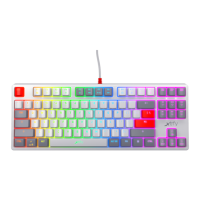
SETTINGS AND FUNCTIONS
The K5 features a wide range of settings, with no need for software. All settings are made directly
on the keyboard, by pressing the FN key + the key for each setting.
= SHOW CURRENT LED MODE
Hold FN to see which LED mode you are currently using. Tip: Your custom color settings are found
in K-LED mode. For more information on how to set your own colors, see the “CHANGE INDIVIDUAL
KEY COLORS” and “CHANGE BACKGROUND COLOR (ALL KEYS)” sections.
= LED ON/OFF
Press FN + LED/ON OFF (Caps Lock) to turn the illumination on or off.
+
+
= SWITCH TO USB 3 MODE TO BOOST
RGB
Out of the box, the keyboard is set to USB 2 mode. If you are plugging it into a USB 3 port, make
sure to switch to USB 3 mode to maximize the brightness of the RGB illumination. Press and hold
FN + the USB 2/3 key for 2 seconds.
RGB LED SETTINGS
= LED BRIGHTNESS
UP/DOWN
Press FN + one of these keys repeatedly to increase or decrease the brightness of the
LED illumination.
+
= LED TYPING EFFECTS
Press FN + this key repeatedly to switch between 6 different typing effects (visible when typing).
The 7th mode is typing effect = off. Tip: decrease the brightness of the regular LED illumination
to make the typing effects more visible.
+
4


 To Next Page