6
Chapter 1—Getting Started
Studio Manager for 01V96—Owner’s Manual
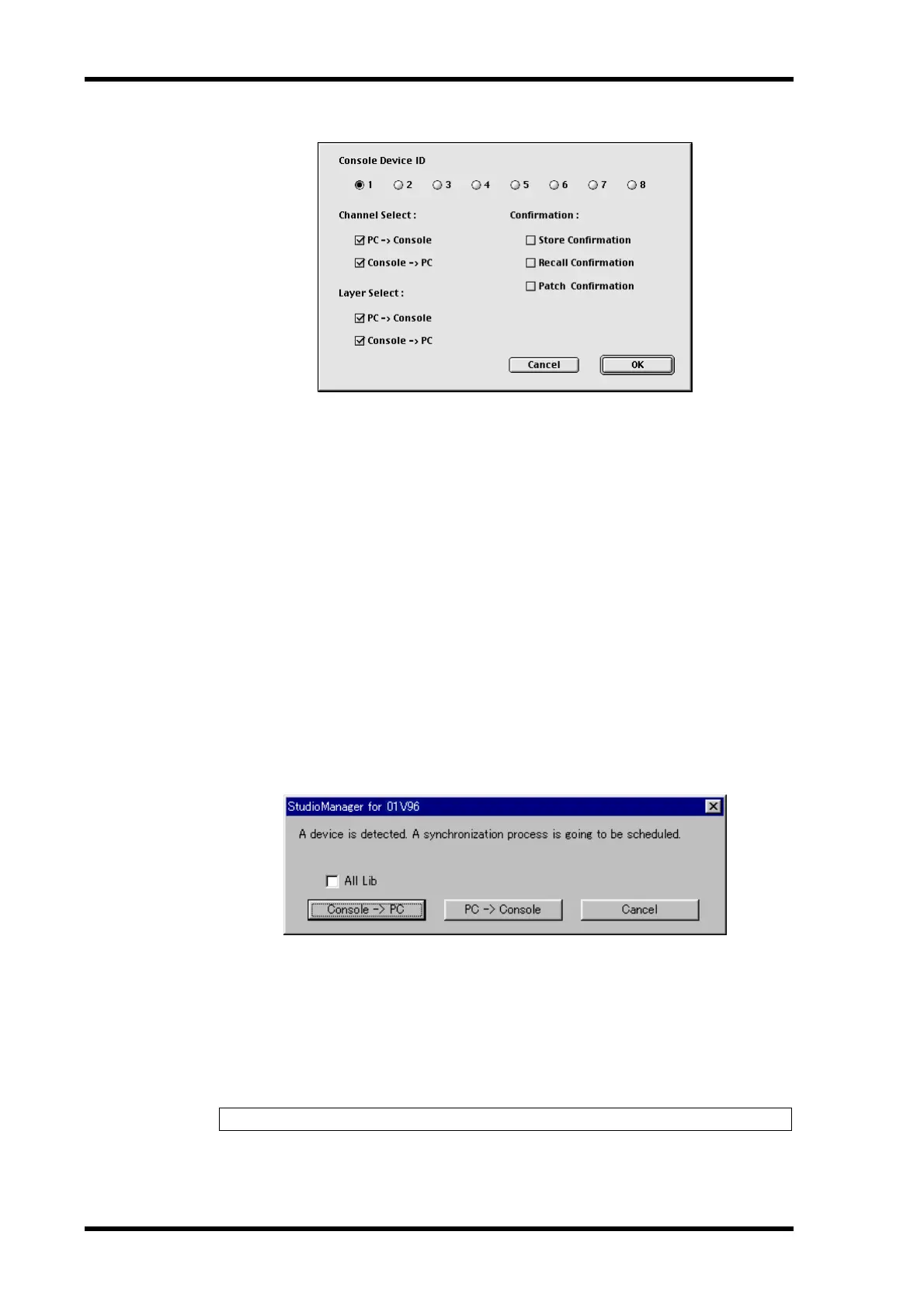
This is the Macintosh Setup window
Input Port/Output Port:
(Windows only) These pop-up menus are used to select the
ports with which Studio Manager communicates with the 01V96.
Console Device ID:
Studio Manager can control any one of up to eight 01V96s, each
with its own exclusive ID. Select the ID of the 01V96 that you want to control.
Channel Select:
These options determine whether or not channel selection is linked.
When the PC–>Console option is on, selecting a channel on Studio Manager selects the
same channel on the 01V96. When the Console–>PC option is on, selecting a channel on
the 01V96 selects the same channel on Studio Manager.
Confirmation:
These options determine whether or not a confirmation dialog box
appears when storing, recalling, or patching.
Layer Select:
These options determine whether or not Layer selection is linked. When the
PC–>Console option is on, selecting a Layer on Studio Manager selects the same Layer on
the 01V96. When the Console–>PC option is on, selecting a Layer on the 01V96 selects the
same Layer on Studio Manager.
Synchronizing Studio Manager
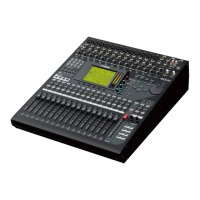
If a 01V96 is detected while Studio Manager starts up, or while Studio Manager is up and
running, the Synchronization dialog box shown below appears.
All Lib:
This option determines whether or not Scene and Library data is synchronized.
Console–>PC:
Click this button to transfer the settings of the 01V96 to the current Studio
Manager Session.
PC–>Console:
Click this button to transfer the settings of current Studio Manager Ses-
sion to the 01V96.
Cancel:
Click this button to leave the 01V96 and current Studio Manager Session unsyn-
chronized.
You can resynchronize the system at any time by choosing Re-synchronize from the Syn-
chronization menu.
Note: Do not operate the 01V96 while synchronization is in progress.


 To Next Page