11
DM1000 Editor—Owner’s Manual
Getting Started
Keyboard Shortcuts
Index
Windows
❏ Remote Channels
When you select the REMOTE 1 or REMOTE 2 LAYER button in the Master win-
dow, Remote Channels are displayed.
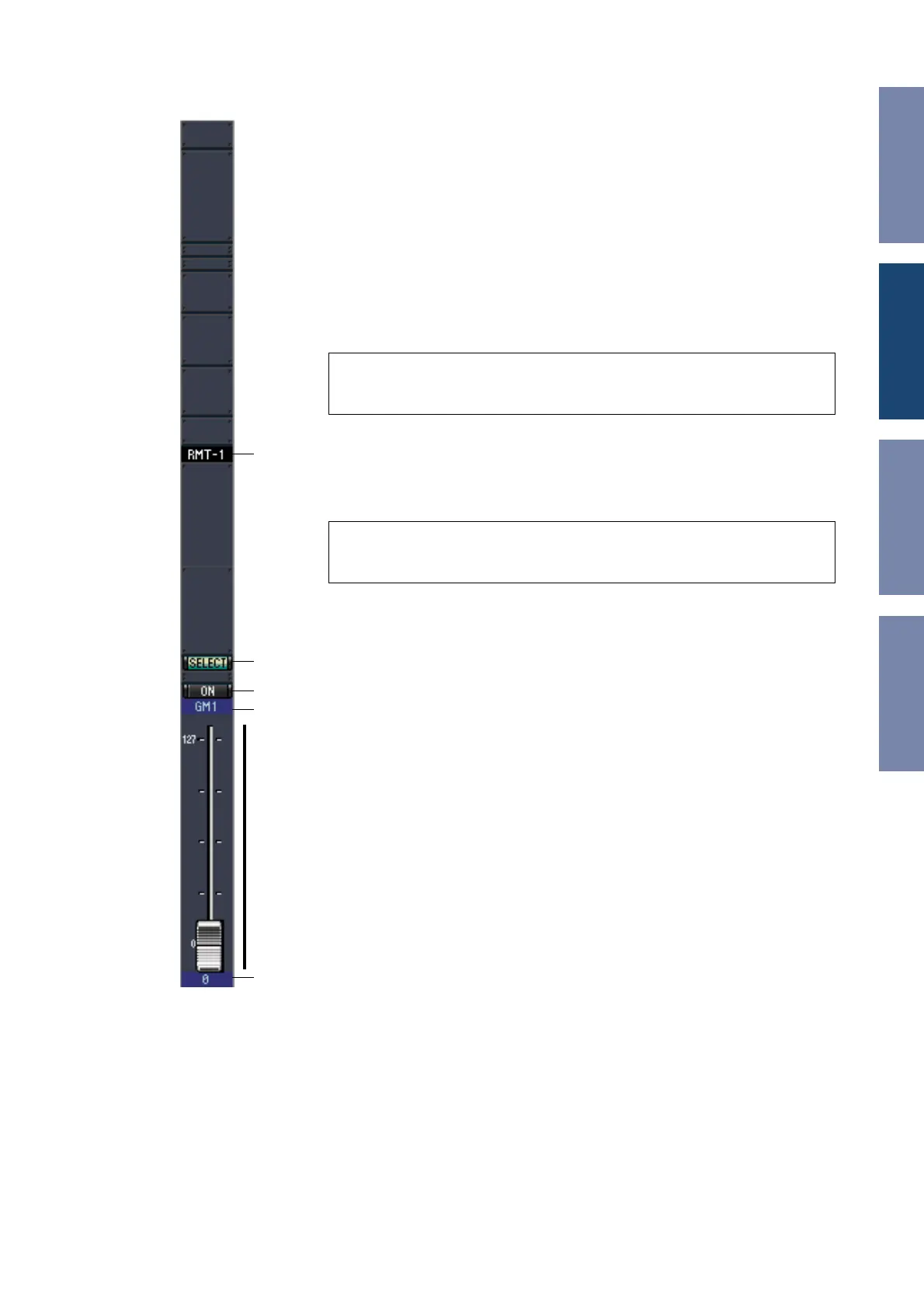
A Channel number
This is the channel number. Double-click the channel number to open the
Selected Channel window.
B [SELECT] button
This button is used to select the Remote Channel.
C [ON] button
This button turns the Remote Channel on and off. It appears orange while the
channel is on.
D Remote target name
This name indicates the remote target assigned on the DM1000.
E Channel fader
This is the Bus Out’s fader.
F Fader value indicator
This indicator indicates the fader position in the range of 0 through 127.
If the remote target is set to User Assignable Layer:
In this case, the assigned channels are displayed. For more information, refer to
“Input Channels” on page 8 and “Output Channels” on page 10. If the Group Master
Fader is assigned, only the [AUTO], [SOLO], and [ON] buttons and channel faders
are displayed.
Note: When the remote target setting on the DM1000 is set to User Defined, you
can use the [ON] buttons and channel faders to control the functions specified on
the Remote page.
Note: When the remote target setting on the DM1000 is set to User Defined, you
can use the [ON] buttons and channel faders to control the functions specified on
the Remote page.
A
B
C
D
F
E



 To Next Page