40 Genos Owner’s Manual
This section covers how to enter characters for naming your files/folders, inputting keywords on searching file, etc.
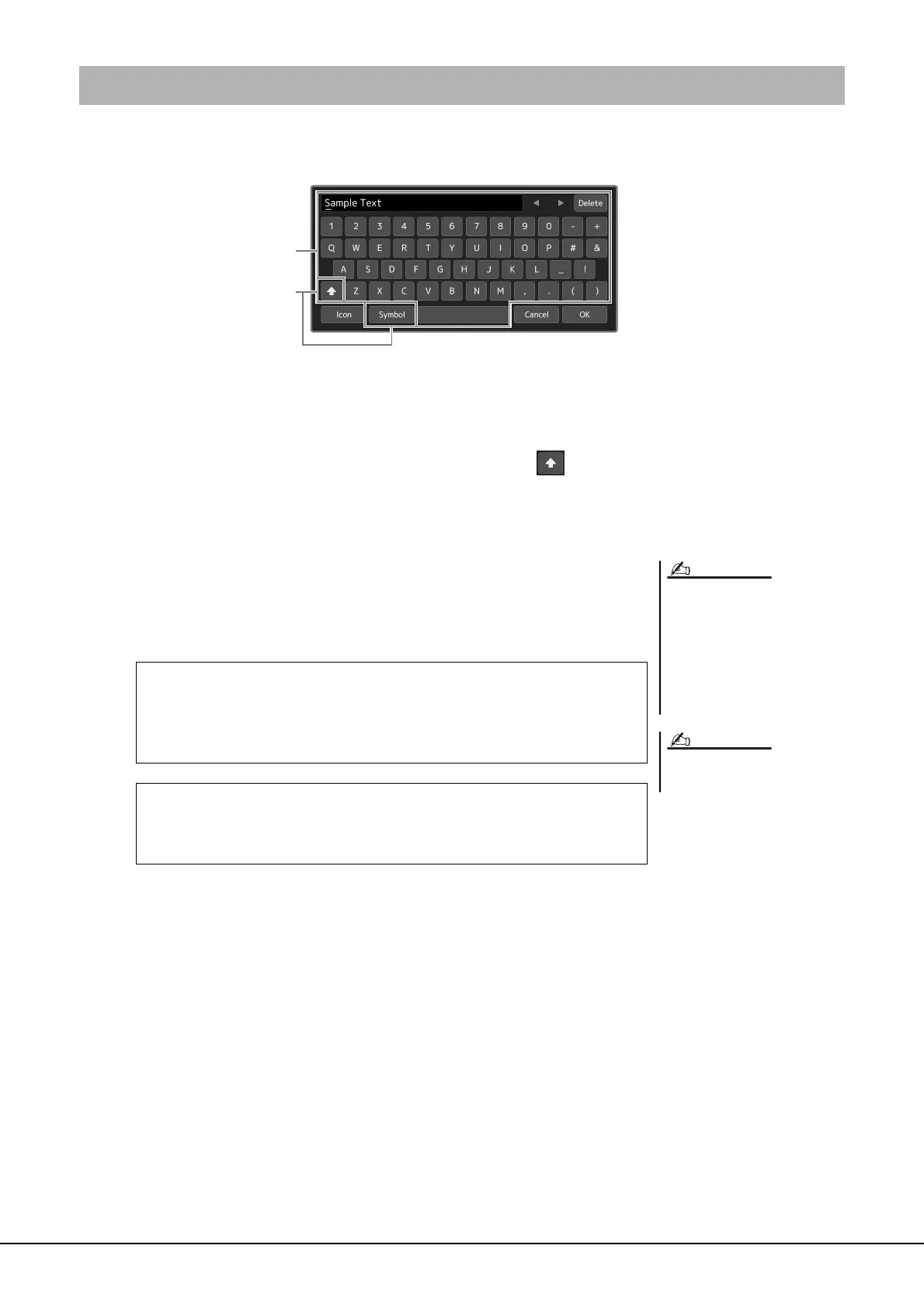
Entering characters is done in the display shown below.
1 Touch the character type.
Touching [Symbol] (or [abc]) switches between entering symbols or Roman letters
(and numbers).
To switch between entering capital letters or small letters, touch (Shift).
2 Touch []/[], rotate the Data dial or the press [DEC]/[INC] but-
tons to move the cursor to the desired location.
3 Input the desired character one by one.
To delete a single character, touch [Delete]; to delete all characters at once, touch
and hold [Delete]. To enter a space, touch the space key indicated in the illustra-
tion above.
4 Touch [OK] to finalize the characters (name, keywords, etc.)
you have input.
Entering Characters
• Depending on the display for charac-
ter entry you are working in, some
types of characters cannot be entered.
• A file name can contain up to 46
characters and a folder name can
contain up to 50 characters.
• The following characters (half size)
cannot be used: \ / : * ? " < > I
To cancel this operation, touch [Cancel]
before going on to step 4.
NOTE
To input letters with auxiliary symbols:
You can input letters with auxiliary symbols such as an umlaut by touching
and holding a letter to call up a list. For example, touch and hold “E” to enter
“Ë” from the list.
To select custom icons for files (shown at left of file name):
You can select custom icons for the file. Touch [Icon] to call up the pop-up
window, then select the desired icon.



 To Next Page