EasyManua.ls Logo

Yamaha MU128 - User Manual

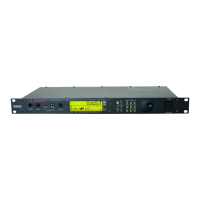
Yamaha MU128
195 pages
Print Icon
To Next Page IconTo Next Page
Loading...
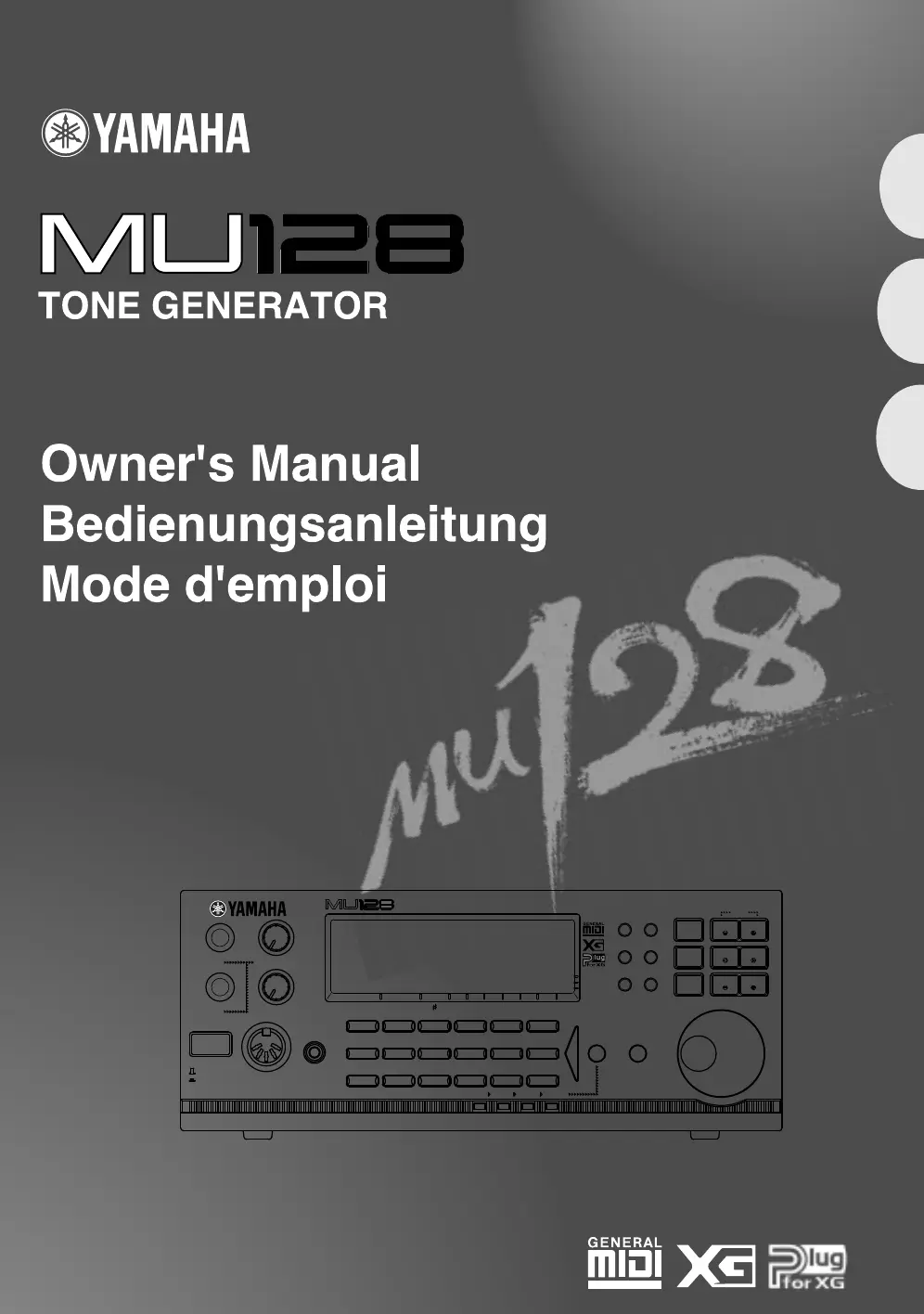
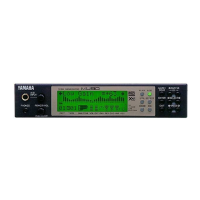
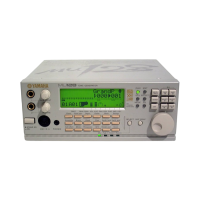
TONE GENERATOR
XG
TG
300
B
PERFORM
MODE EQ
UTIL EFFECT
PLAY EDIT
ALL
MUTE/
SOLO
PART
PART
SELECT
VALUE
SELECT
VALUE
ENTER
EXIT
SELECT
PART GROUP
StringsBassGuitarOrgan
Chrom.perc.
Piano
Ensemble Brass Reed Pipe Synth lead Synth pad
DrumModel excl.SFXPercussiveEthnic
Synth effects
PHONESMIDI IN A
STAND BY
ON
VOLUME
2
PART VOL EXP PAN
BANK/PGM
REV CHO VAR KEY
A/D INPUT
1
MU PLG-1 PLG-2 PLG-3
English
Deutsch
Français

Table of Contents

Other manuals for Yamaha MU128

Questions and Answers

  • W
    William JacksonJul 30, 2025
    What to do if my Yamaha Recording Equipment has no sound?
    • T
      Tonya FarmerJul 30, 2025
      If your Yamaha Recording Equipment isn't producing sound, ensure the panel volume and other volume-related parameters are appropriately set. Check that Mute or Solo aren't active. Verify the Variation effect settings, especially if Variation Connection is set to INS, Variation Send is on, and NO EFFECT is selected for Variation Type. In this case, turn off Variation Send for the Part. Also, confirm that the EG Attack Time, Velocity Sensitivity Offset, Note Limit Low and High, and Velocity Limit Low and High settings are correct. If the Note Limit Low is higher than Note Limit High, or if Velocity Limit settings are inappropriate, no sound may be output.
  • M
    Martin JohnsonAug 5, 2025
    What to do if there is no sound when playing Yamaha Recording Equipment from a computer, sequencer, or external keyboard?
    • A
      apageAug 5, 2025
      If you're not getting any sound when playing your Yamaha Recording Equipment from an external device, check all MIDI connections to ensure the MIDI OUT of the external device is connected to the MIDI IN of the MU128, and vice versa. If using the TO HOST terminal, verify it's properly connected to the computer and that the HOST SELECT switch is correctly set. Also, ensure the connected MIDI instrument or computer is turned on before the MU128; if not, turning the MU128 off and on again may resolve the issue.
  • A
    Alexis RayAug 11, 2025
    Why can't I hear Reverb, Chorus, or Variation effects on my Yamaha Recording Equipment?
    • M
      Michael RobertsAug 11, 2025
      If you cannot hear Reverb, Chorus, or Variation effects, check all related controls: Reverb Send, Chorus Send, and Variation Send in Single Part controls; Reverb Return, Chorus Return, and Variation Return (when Variation Connection is set to SYS) in All Part controls. Also, verify the individual effect settings; if no Type has been selected, or if the parameter settings are too low, there may be no effect sound.
  • J
    Jade WagnerAug 17, 2025
    Why are notes cut off or omitted when using Yamaha Recording Equipment?
    • S
      Sylvia CobbAug 17, 2025
      Notes might be cut off or omitted because the maximum polyphony of the Yamaha Recording Equipment is being exceeded. The equipment can play a maximum of 128 notes at once, and this limit might be reached when playing a connected keyboard along with densely arranged song data.
  • O
    onealbrittanyAug 23, 2025
    What to do if the A/D input sound (mic, guitar, etc.) cannot be heard on Yamaha Recording Equipment?
    • C
      clarkscottAug 25, 2025
      If you can't hear the A/D input sound (mic, guitar, etc.), ensure the appropriate A/D Part (A/D1 or A/D2) is turned on and the A/D INPUT control is set to an appropriate level. For best results, also ensure that the A/D input type (Mic, Guitar, Keyboard, Audio) is set to match the input you are using.

Summary

PRECAUTIONS

WARNING

Basic precautions to avoid electrical shock, damage, fire, or other hazards.

CAUTION

Basic precautions to avoid physical injury or instrument damage.

How to Use This Manual

The Controls of the MU128

Introduction to the panel controls and connectors of the MU128.

The Controls of the MU128

Front Panel

Description of the controls located on the front panel of the MU128.

Rear Panel

Description of the controls and terminals located on the rear panel of the MU128.

GUIDED TOUR

Setting Up Your MU128

Guide on connecting and setting up the MU128 for basic operation.

Powering Up

Step-by-step instructions for turning the MU128 and connected equipment on and off.

Setting Up the MU128 in Your Music System

Connecting to MIDI Devices

Instructions for connecting the MU128 to MIDI keyboards, sequencers, and computers.

Connecting Directly to a Computer

Instructions for direct connection to computers using the MU128's built-in interface.

Selecting and Playing the Performances

Calling Up the Performance Play Mode and Playing the Performances

Steps to enter Performance mode and play available Performances.

Selecting and Playing Individual Voices

About the Parts and Voices of the MU128

How to Select a Voice

General procedure for selecting Voices using bank and program numbers.

Editing in the Multi Mode

Single Part Controls

Controls for editing individual Parts in Multi mode.

Editing Drum Kits - with the Drum Setup Controls

Editing in the Performance Mode

All Part Controls

Adjusting overall Performance settings using All Part controls.

Single Part Controls - Selecting Different Voices for the Performance

Changing individual Voice settings within a Performance.

Edit Menu Parameters - Creating a Two-Voice Layer

Using edit parameters to create layered sounds, like a two-voice setup.

Using the Assignable Controller in a Performance

Assignable Controller (AC1)

Introduction to the Assignable Controller for real-time sound control.

Using the Assignable Controller - Setting Up

Steps to set up the system for using the Assignable Controller.

Effects

Equalizer (EQ)

Mute;Solo

A;D Inputs

Multi Mode

Multi Edit Mode

Drum Setup Controls

Performance Mode

Performance Edit Mode

Copy and Store Operations

Effect Edit Mode

Equalizer (Multi EQ) Edit

Utility Mode

Plug-in System

Troubleshooting

Specifications

Yamaha MU128 Specifications

General IconGeneral
BrandYamaha
ModelMU128
CategoryRecording Equipment
LanguageEnglish

Related product manuals