EasyManua.ls Logo

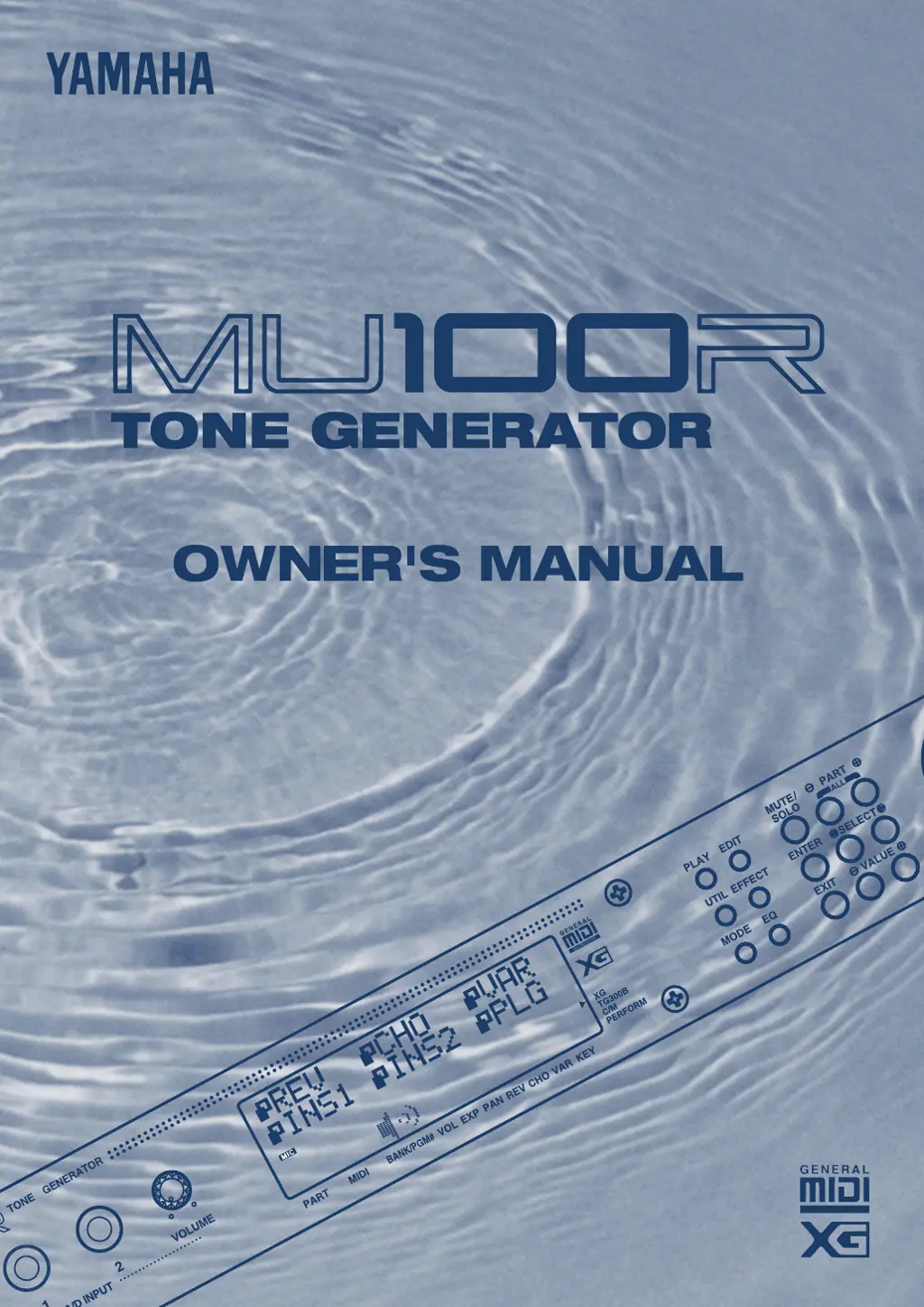
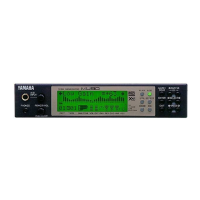
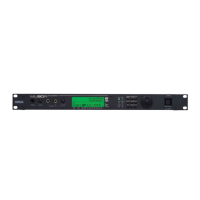
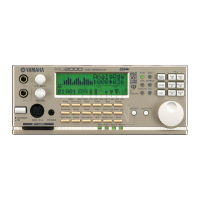
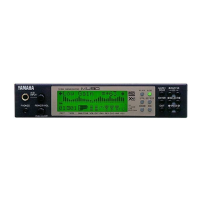
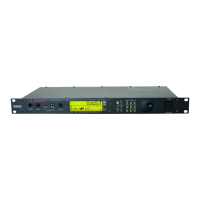
Yamaha MU100R - User Manual

Yamaha MU100R
200 pages
Print Icon
To Next Page IconTo Next Page
Loading...

Table of Contents

Other manuals for Yamaha MU100R

Questions and Answers

  • J
    Joseph WestJul 29, 2025
    Why are notes cut off on my Yamaha Recording Equipment MU100R?
    • L
      lsimmonsJul 29, 2025
      If you are experiencing cut off or omitted notes while playing your Yamaha Recording Equipment MU100R, it might be because the maximum polyphony is exceeded. The MU100R can only play a maximum of 64 notes simultaneously. If you are playing a connected keyboard along with densely arranged song data, you might exceed this limit.
  • K
    Kimberly ChanAug 2, 2025
    What to do if there is no sound when playing Yamaha Recording Equipment MU100R from a computer?
    • A
      Alyssa WeeksAug 2, 2025
      If you are not getting any sound when playing the Yamaha Recording Equipment MU100R from a computer, sequencer, or external keyboard, verify all MIDI connections. Ensure that the MIDI OUT of the external device is connected to the MIDI IN of the MU100R, and vice versa. If using the TO HOST terminal with a computer, ensure it's properly connected and the HOST SELECT switch is correctly set for your computer. Also, ensure that you turn on the connected MIDI instrument or computer before turning on the MU100R. If you haven’t, simply turning the MU100R off and back on again may solve the problem.
  • S
    Samantha MaysAug 10, 2025
    What to do if A/D input sound cannot be heard on Yamaha Recording Equipment?
    • B
      briancherryAug 11, 2025
      If you're not hearing the A/D input sound (mic, guitar, etc.) on your Yamaha Recording Equipment MU100R, ensure the appropriate A/D Part (A1 or A2) is turned on and the A/D INPUT control is set to an appropriate level. For best results, set the A/D input type (Mic, Guitar, Keyboard, Audio) to match the input you are using.
  • D
    david36Aug 14, 2025
    Why can't I hear reverb effects on my Yamaha MU100R?
    • R
      Roger AcevedoAug 15, 2025
      If you are not hearing Reverb, Chorus, and/or Variation effects on your Yamaha Recording Equipment MU100R, check all Reverb-, Chorus- and Variation-related controls, including Reverb Send, Chorus Send, and Variation Send in Single Part controls, and Reverb Return, Chorus Return, and Variation Return (when Variation Connection is set to SYS) in All Part controls. Also, check the individual effect settings; if no Type has been selected, or if the parameter settings are too low, there may be no effect sound.
  • C
    colemanpaulAug 25, 2025
    How to fix no power on Yamaha Recording Equipment?
    • A
      Arthur AdkinsAug 25, 2025
      If your Yamaha Recording Equipment MU100R has no power, check that the AC adapter is properly plugged into both the AC outlet and the MU100R.
  • D
    Daryl JonesNov 5, 2025
    How to troubleshoot no sound on Yamaha MU100R Recording Equipment?
    • M
      Michele ColeNov 5, 2025
      If you're not hearing any sound from your Yamaha Recording Equipment MU100R, check the following: * Make sure the panel volume control is at an appropriate level. * Verify that other volume-related parameters are set correctly. * Ensure that Mute or Solo are not active. * Check the Variation effect settings, specifically Variation Connection and Variation Send. If Variation Connection is set to INS, Variation Send is on, and NO EFFECT is selected for the Variation Type, turn off Variation Send for the Part. * Confirm the EG Attack Time is appropriately short for percussive sounds. * Check the Velocity Sensitivity Offset. * Verify that the Note Limit Low and Note Limit High settings are appropriate. * Ensure the Velocity Limit Low and Velocity Limit High settings are correc...
  • V
    Veronica HullNov 18, 2025
    How to enable VL Voices on Yamaha MU100R Recording Equipment?
    • S
      Steven WallaceNov 18, 2025
      Check the following points: * The VL Voices and Harmony effect can only be used in the XG or Performance modes. * The VL Voice must be assigned to a Part in the Part Assign parameter, and the Harmony effect must be assigned to a Part in the Insert Part parameter. * The VL Voices can only be used with Parts 1 – 16. * When using MIDI, the VL Voices and Harmony effect can only be controlled via the MIDI-A terminal. When using TO HOST, they can only be controlled via MIDI port 1. * The VL Voices and Harmony effect can be used in the Performance mode; however, the Store operation saves only edits made from the panel controls, and not any of the “hidden” parameters accessible via MIDI. * When controlling certain VL Voice and Harmony effect parameters via MIDI, the value or setting d...

Summary

Safety and Compliance Information

Precautions and User Guidance

Essential Safety Warnings and Guidelines

Covers critical warnings on electrical safety, handling, and instrument care to prevent hazards.

Battery Management and Data Saving

Advises on battery replacement, safety, disposal, and the importance of saving user data.

MU100 R Front Panel Controls

Audio, Power, and Mode Selection Controls

Describes front panel jacks (PHONES, A/D INPUT) and buttons (VOLUME, PLAY, UTIL, MODE, EDIT, EFFECT, EQ).

MU100 R Rear Panel Connections

MIDI, Host, and Audio Terminals

Details rear panel ports including MIDI (IN/OUT/THRU), TO HOST, OUTPUT, DC IN, and INDIVIDUAL OUTPUTs.

MU100 R Features Overview

Key Capabilities and MIDI Standards

Highlights voice count, GM/XG MIDI compatibility, VL Synthesis, polyphony, and multi-timbral capacity.

System Setup and Connections

Connecting to MIDI Devices

Guides connecting the MU100R to MIDI keyboards and sequencers for music system integration.

Guided Tour: Basic Setup

Essential Connections for Operation

Provides step-by-step instructions for connecting the MU100R to essential audio and MIDI equipment.

Powering Up Your System

Correct Power On;Off Procedure

Details the proper sequence for powering on and off the MU100R and connected devices to prevent damage.

MU100 R System Integration Examples

Connecting to MIDI Keyboards and Sequencers

Illustrates common MIDI connections for playing sounds from keyboards or sequencers.

Direct Computer Connectivity

Macintosh Computer Setup

Explains connecting the MU100R to Macintosh computers via the TO HOST terminal and necessary software setup.

PC;AT Computer Integration

IBM PC;AT Computer Setup

Details connecting MU100R to PC/AT systems, including driver installation and serial port usage.

Editing in the Multi Mode

Utilizing Single Part Controls for Editing

Details using Single Part controls to adjust MIDI channel, volume, and pan for individual sound parts.

Multi Mode: Single Part Control

Multi Mode: Edit Menu Parameters

Modifying Filter and EG Parameters

Details how to adjust Filter and Envelope Generator settings to shape the sound character of Parts.

Multi Mode: Drum Kit Editing

Configuring Drum Parts and Sounds

Guides on assigning drum parts and editing individual drum sound parameters using Drum Setup controls.

Editing in the Performance Mode

All Part Controls for Performance Editing

Covers global Performance controls like transpose, volume, and effect returns for overall sound adjustment.

Performance Mode: Transposition

Adjusting Overall Key with System Transpose

Explains how to change the key of a Performance for vocalists or ease of playing.

Performance Mode: Single Part Controls

Selecting and Modifying Voices in Performance

Details how to change voices for individual Parts within a Performance using Single Part controls.

Performance Mode: Edit Menu

Creating Layered Sounds and Using Mute;Solo

Demonstrates creating two-voice layers and using Mute/Solo for effective sound editing.

Performance Mode: Keyboard Splits

Setting Up Keyboard Splits with Note Limits

Guides on assigning different voices to keyboard zones using note limit parameters.

Assignable Controller (AC1) Overview

Understanding MIDI Controllers and Numbers

Explains how MIDI controllers affect sound parameters for real-time expression and control.

Assignable Controller (AC1) Applications

Setting Up the Assignable Controller

Assigning Controller Numbers to Parts

Details how to specify the controller number for AC1 to affect Part-specific parameters.

Assignable Controller: Practical Examples

Modifying Piano Voice Brightness with AC1

Demonstrates using AC1 Filter Control to dynamically adjust the brightness of a piano voice.

Expressive Control with AC1

Volume Control via Foot Controller

Shows how to use a foot controller for expressive volume swells on a Part using AC1 Amplitude Control.

Effects Processing Overview

Harmony Effect

Setting Up and Using the Harmony Effect

Guides on configuring and utilizing the Harmony effect for vocal harmonies and pitch correction.

Equalizer (EQ) Editing

Individual Outputs for Processing

Mute and Solo Functions

A;D Inputs for External Signals

Multi Mode Operation

Multi Mode: All Part Control

Multi Edit Mode: Filter Parameters

Multi Edit Mode: Envelope Generator

Multi Edit Mode: Equalizer (EQ)

Multi Edit Mode: Drum Setup Controls

Multi Edit Mode: VL Voice Parameters

Performance Mode Operation

Performance Mode: Part Control

Performance Mode: Single Part Control

Performance Edit Mode

Performance Edit Mode: Part Parameters

Copy and Store Operations

Effect Edit Mode

Chorus (CHO) Effect Parameters

Variation (VAR) Effect Parameters

Insertion 1, 2 (INS 1, 2) Effects

Plugin (PLG) - Harmony Parameters

Configuring Harmony Effect Types and Modes

Explains Harmony effect types (Vocoder, Chordal) and mode settings for creating vocal harmonies.

Equalizer (EQ) Edit Mode

Utility Mode Overview

Dump Out Functions (DUMP)

Initialize Functions (INIT)

Troubleshooting Guide

Resolving Common MU100 R Issues

Provides solutions for common problems like power, sound, MIDI, and effect issues.

Error Messages

Yamaha MU100R Specifications

General IconGeneral
BrandYamaha
ModelMU100R
CategoryRecording Equipment
LanguageEnglish

Related product manuals