EasyManua.ls Logo

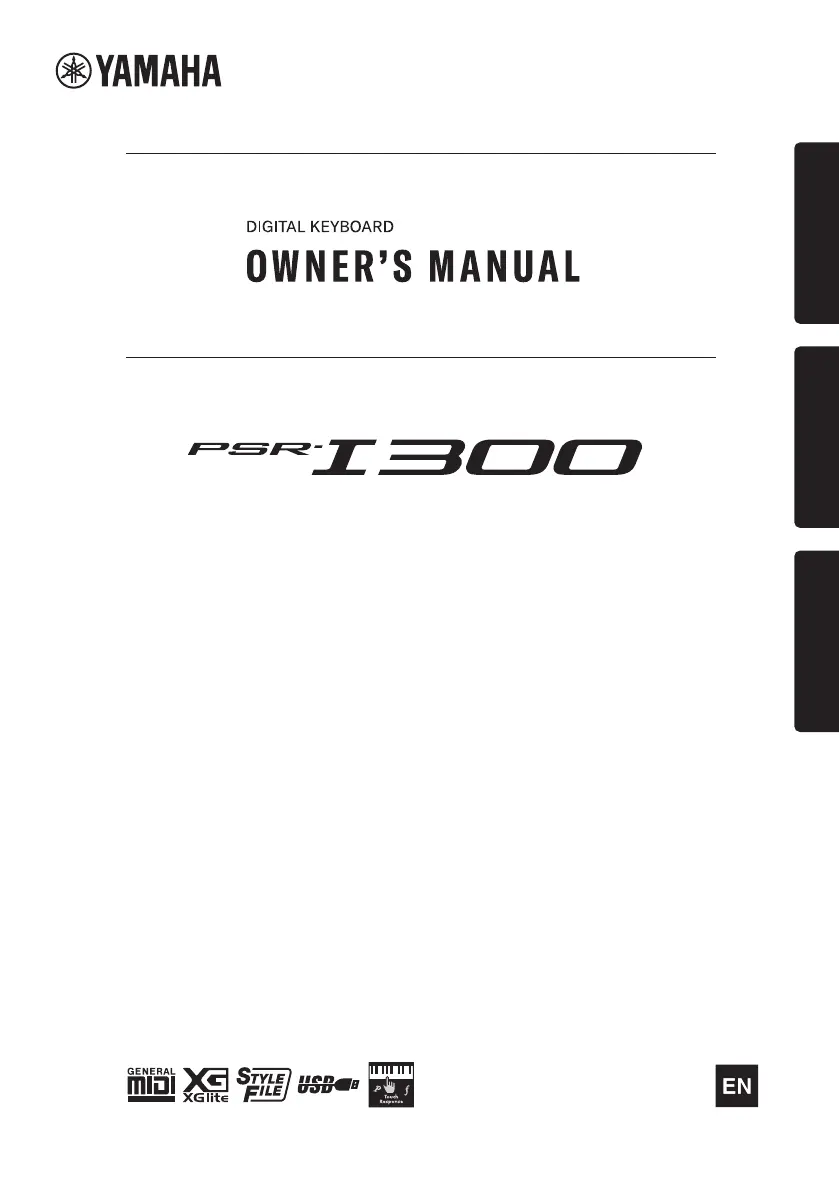
Yamaha PSR-I300 - User Manual

Yamaha PSR-I300
100 pages
Print Icon
To Next Page IconTo Next Page
Loading...
1
Setting UpReferenceAppendix
Before using the instrument, be sure to read
“PRECAUTIONS” on pages 5-7.

Table of Contents

Questions and Answers

  • N
    Nicholas FletcherSep 10, 2025
    Why ACMP ON indicator doesn't appear on Yamaha Musical Instrument?
    • R
      Robert JohnsonSep 10, 2025
      If the ACMP ON indicator does not appear when the [ACMP ON/OFF] button is pressed on your Yamaha Musical Instrument, always press the [STYLE/RIYAZ] button first when you are going to use any Style-related function.
  • J
    Jackie AbbottAug 22, 2025
    How to stop my Yamaha Musical Instrument from turning off by itself?
    • D
      Debbie KellyAug 22, 2025
      This is normal and the Auto Power Off function may have been activated on your Yamaha Musical Instrument. To disable this function, select 'Off' in the Function settings.
  • K
    kprestonAug 25, 2025
    What to do if my Yamaha Musical Instrument volume is too soft or the sound quality is poor?
    • D
      Dawn BernardAug 25, 2025
      Low or dead batteries can cause several issues with your Yamaha Musical Instrument. Replace all six batteries with completely new ones, or use the included AC adaptor.
  • D
    Dillon Jones MDAug 26, 2025
    What to do if Style or Song doesn't play on Yamaha Musical Instrument?
    • D
      destinymcclainAug 27, 2025
      If the Style or Song on your Yamaha Musical Instrument does not play back when you press the [START/STOP] button, ensure that External Clock is set to OFF.
  • A
    Amanda SheltonAug 27, 2025
    Why does my Yamaha Musical Instrument make a popping sound when turned on or off?
    • A
      Abigail RogersAug 28, 2025
      This is normal for Yamaha Musical Instrument and indicates that the instrument is receiving electrical power.
  • M
    Marcia GutierrezAug 29, 2025
    Why Yamaha Musical Instrument turns off suddenly after turning on?
    • K
      Kevin PughAug 29, 2025
      The protection circuit of your Yamaha Musical Instrument has been activated due to over current. Use only the specified adaptor. If it appears to be malfunctioning, stop using it immediately and have it inspected by qualified Yamaha service personnel.
  • K
    kwarrenSep 18, 2025
    What to do if some notes don’t sound properly when playing back a User Song using A-B Repeat on Yamaha Musical Instrument?
    • H
      Haley BrownSep 18, 2025
      Turn off the DSP. Use other Voices.
  • C
    Charles PatelSep 12, 2025
    Why do the right-hand keys on my Yamaha Musical Instrument not make sound?
    • B
      barrettdanielSep 12, 2025
      When using the Dictionary function on your Yamaha Musical Instrument, the keys in the right hand area are used only for entering the chord root and type.
  • C
    christian55Sep 8, 2025
    How to fix a Yamaha Musical Instrument Style that doesn't sound right?
    • K
      Kevin RiggsSep 8, 2025
      If the Style on your Yamaha Musical Instrument does not sound properly, make sure that the Style Volume is set to an appropriate level. Also, check if the Split Point is set to an appropriate key for the chords you are playing and ensure the 'ACMP' indicator is showing in the display by pressing the [ACMP ON/OFF] button.
  • T
    Thomas PetersonSep 5, 2025
    Why is there no sound from my Yamaha Musical Instrument?
    • N
      natasha82Sep 5, 2025
      If there is no sound from your Yamaha Musical Instrument, first check that nothing is connected to the [PHONES/OUTPUT] jack on the rear panel. When headphones are plugged in, no sound is output from the speakers. Also, check the Local Control setting and make sure it is set to ON.

Summary

FCC Information (U.S.A.)

FCC Compliance Statement

Device complies with Part 15 of FCC Rules, subject to two conditions for interference.

Product Identification

Location for model number, serial number, and power requirements.

IMPORTANT SAFETY INSTRUCTIONS

Graphical Symbols Explanation

Explains lightning flash and exclamation point warning symbols.

General Safety Precautions

Lists 14 essential safety instructions for safe product use.

Electrical Shock Warning

Warning against exposing apparatus to rain or moisture.

PRECAUTIONS

Power Supply Precautions

Instructions on handling power cords, plugs, and voltage.

Handling and Battery Precautions

Covers magnetism, battery disposal, and handling.

Water and Fire Warnings

Warnings against water exposure and flammable items.

CAUTIONARY NOTICES

Location and Handling Precautions

Advice on product placement, cable management, and avoiding gaps.

Connection and Usage Cautions

Guidance on connecting components and using headphones.

Panel Controls and Terminals

Front Panel Controls

Identifies and describes the front panel buttons and controls.

Rear Panel and Setup Settings

Identifies rear panel terminals and panel setup options.

Setting Up

Power Requirements and Options

Details on using AC adaptor and batteries for power.

Auto Power Off and Turning On

How to set auto power off and turn the instrument on/off.

Volume, Pedal, and Rest Usage

How to adjust volume, use a pedal, and set up the music rest.

Display Items and Basic Operations

Display Items Overview

Explains various elements shown on the instrument's display.

Basic Operations Guide

Guide to using number buttons and +/-/YES/NO buttons.

Playing a Variety of Instrument Voices

Selecting and Playing Voices

How to select main voices and use the Harmonium/Piano preset.

Playing the keyboard with two persons (Duo mode)

Playing Rhythm and Accompaniment (Style)

Fingering Types and Chord Settings

How to select chord input methods like SmartChord or Multi.

Playing Styles and Volume

How to select and play styles, and adjust their volume.

Style Variations Explained

Using Intro, Main, Fill-in, and Ending sections for style arrangement.

Chord Types for Style Playback

Chart of common chords and how Smart Chord recognizes them.

Playing Songs

Selecting and Playing Songs

How to choose and play internal songs.

Using the Song Lesson Feature

Lesson Modes Overview

Introduction to Keys To Success, Phrase Repeat, Listening/Timing/Waiting lessons.

Keys To Success Lesson Practice

How to engage and practice individual song phrases.

Phrase Repeat Practice

How to practice difficult phrases repeatedly.

Learning How to Use “Touch” Control (Touch Tutor)

Recording Your Performance

Memorizing Your Favorite Panel Settings

Playing a Device with the Built-in Speakers

Using with a Computer or Smart Device

Backup and Initialization

Backup Parameters and Error Handling

Information on data maintained after power off and backup errors.

Initialization Options (Backup Clear, Flash Clear)

How to reset instrument settings and clear data.

The Functions

Function List Overview

Introduces the function settings and lists overall parameters.

Troubleshooting

Common Problems and Solutions

Lists issues like no sound, noise, or unresponsive keys with solutions.

Further Troubleshooting Issues

Addresses problems like low volume, unexpected power off, and app recognition.

Voice List

Effect Type List

Specifications

Product Specifications Overview

Details on dimensions, weight, voices, styles, functions, and connectivity.

Yamaha PSR-I300 Specifications

General IconGeneral
BrandYamaha
ModelPSR-I300
CategoryMusical Instrument
LanguageEnglish

Related product manuals