EasyManua.ls Logo

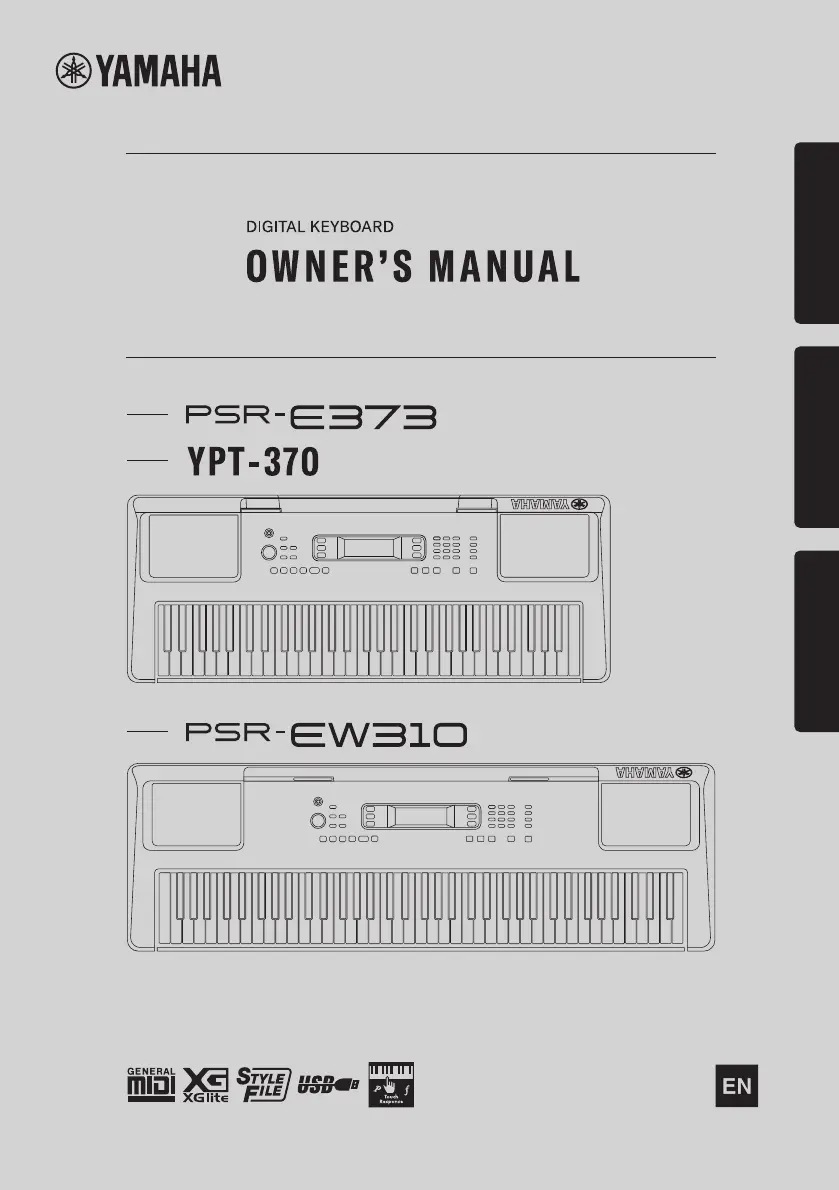
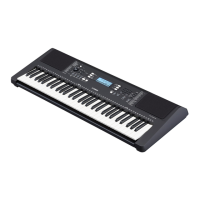
Yamaha PSR-E373 - User Manual

Yamaha PSR-E373
92 pages
Print Icon
To Next Page IconTo Next Page
Loading...
1
Setting UpReferenceAppendix
Before using the instrument, be sure to read
“PRECAUTIONS” on pages 5-7.

Table of Contents

Other manuals for Yamaha PSR-E373

Questions and Answers

  • M
    Matthew OwensSep 4, 2025
    Why is Yamaha PSR-E373 footswitch reversed?
    • T
      Taylor SanchezSep 4, 2025
      If the footswitch on your Yamaha musical instrument seems to produce the opposite effect (pressing cuts off sound, releasing sustains), the polarity of the footswitch is reversed. Ensure the footswitch plug is properly connected to the [SUSTAIN] jack before turning on the power.
  • E
    Eric BlackburnSep 18, 2025
    Why no sound when playing right hand on Yamaha musical instrument?
    • M
      Melissa BrowningSep 18, 2025
      When using the Dictionary function on your Yamaha musical instrument, the keys in the right hand area are used only for entering the chord root and type.
  • D
    Dawn ParrishSep 16, 2025
    Why Yamaha PSR-E373 makes popping sound when turned on?
    • M
      Micheal PooleSep 16, 2025
      When the Yamaha instrument is turned on or off, a popping sound may be temporarily produced. This is normal and indicates that the instrument is receiving electrical power.
  • N
    Natalie PinedaSep 14, 2025
    Why do some voices not sound on Yamaha musical instrument?
    • S
      Scott RodriguezSep 14, 2025
      If not all of the voices seem to sound on your Yamaha musical instrument, or the sound seems to be cut off, it may be because the instrument is polyphonic up to a maximum of 48 notes—including Dual voice, Split Voice, auto accompaniment, song, and Metronome. Notes exceeding this limit will not sound.
  • J
    Julie CarpenterSep 12, 2025
    Why doesn’t Yamaha musical instrument harmony sound?
    • W
      William ElliottSep 13, 2025
      If the harmony doesn’t sound on your Yamaha musical instrument, the method of sounding the Harmony effect differs depending on the selected type. For Types 001–005, turn the Auto Accompaniment on and play it by pressing a chord in the auto accompaniment section of the keyboard, then play some keys in the right-hand side to produce the Harmony effect. For Types 006–026, turning auto accompaniment on or off has no effect; however, it is necessary to play two notes simultaneously for Types 006–012.
  • S
    Sharon SchmidtSep 12, 2025
    Why Yamaha PSR-E373 Style does not sound as I play a chord?
    • A
      Ashley MarquezSep 12, 2025
      If the Style on your Yamaha musical instrument does not sound as you play a chord and the Fingering Type is set to Multi, the auto accompaniment might not change when related chords are played in sequence, two-note fingerings will produce a chord based on the previously played chord, and playing two same root keys in adjacent octaves produces accompaniment based only on the root.
  • M
    Mark RamirezSep 9, 2025
    Why does Yamaha musical instrument Style not sound properly?
    • A
      Ashley SpencerSep 9, 2025
      If the Style on your Yamaha musical instrument does not sound properly, ensure that the Style Volume is set to an appropriate level. Also, check if the Split Point is set to an appropriate key for the chords you are playing, and ensure the “ACMP” indicator is showing in the display by pressing the [ACMP ON/OFF] button.
  • W
    William MillerSep 7, 2025
    Why ACMP ON indicator doesn't appear on Yamaha PSR-E373?
    • B
      breedSep 7, 2025
      If the ACMP ON indicator does not appear when the [ACMP ON/OFF] button is pressed on your Yamaha musical instrument: * Always press the [STYLE] button first when you are going to use any Style-related function. * The ACMP ON indicator does not appear when the Duo mode is on.
  • S
    Steven BlairSep 5, 2025
    What to do if no sound from Yamaha musical instrument?
    • C
      cynthia22Sep 5, 2025
      If you are not getting any sound from your Yamaha musical instrument, even when playing the keyboard or playing back a song or style, first check that nothing is connected to the [PHONES/OUTPUT] jack on the rear panel. When headphones are plugged in, no sound is output. Also, check the Local Control setting and make sure Local Control is set to ON.
  • M
    mark92Aug 20, 2025
    What to do if Yamaha PSR-E373 volume is too soft?
    • T
      Thomas CookAug 21, 2025
      If your Yamaha musical instrument's volume is too soft, the sound quality is poor, the rhythm stops unexpectedly, recorded data doesn't play correctly, or the LCD display goes dark with settings reset, the batteries may be low or dead. Replace all six batteries with completely new ones, or use the included AC adapter.

Summary

Essential Information and Setup

FCC Information and Compliance

Details compliance with FCC rules and important notices regarding product modification and cable use.

Important Safety Instructions and Precautions

Crucial safety guidelines and precautions for safe operation, handling, and maintenance of the instrument.

Manuals, Accessories, and Product Features

Information on available manuals, included accessories, and an overview of product formats and functions.

Setting Up Your Digital Keyboard

Panel Controls and Terminals Overview

Identifies and explains the function of front and rear panel controls and terminals, including panel settings.

Powering the Instrument and Initial Settings

Instructions for powering the instrument using AC adaptor or batteries, and initial setup like battery type and auto power off.

Display, Basic Operations, and Connections

Explains display items, basic operations, and how to connect headphones, pedals, and audio devices.

Exploring Keyboard Features (Reference)

Playing Voices, Styles, and Songs

Guides on selecting voices, playing styles with accompaniment, and managing songs and lessons.

Performance Features: Recording, Lessons, and Effects

Covers recording performances, using lesson features, applying effects, and managing harmony/arpeggios.

Functions, Connectivity, and Backup

Explains instrument functions, connecting to computers/devices, backup operations, and EQ settings.

Appendix and Support

Troubleshooting Common Issues

Provides solutions for common problems like no sound, noise, unresponsive controls, and power issues.

Instrument Data Lists and Specifications

Comprehensive lists of voices, songs, styles, effects, and product technical specifications.

Yamaha Limited Warranty and Guarantee Information

Details the limited warranty terms, service procedures, and regional guarantee information.

Yamaha PSR-E373 Specifications

General IconGeneral
Control typeButtons, Rotary
MIDI-keyboard number of keys61 keys
Duet functionYes
Product colorBlack
Sound effectsChorus, Reverberation
Sound effects quantity240
Maximum polyphony (notes)48
Music memory capacity (songs)2
InterfaceUSB
Headphone outputs1
Display typeLCD
Battery typeAA
Power source typeAC, DC
Power consumption (typical)5 W
Number of batteries supported6
Batteries includedNo
Weight and Dimensions IconWeight and Dimensions
Depth369 mm
Width945 mm
Height118 mm
Weight4600 g

Related product manuals