EasyManua.ls Logo

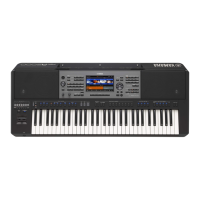
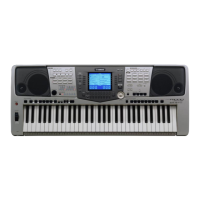
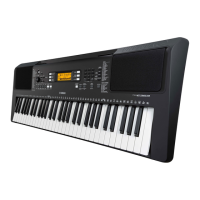
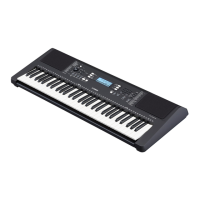
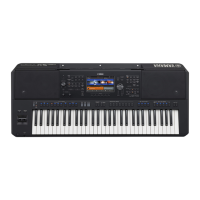
Yamaha PSR-A3000 - User Manual

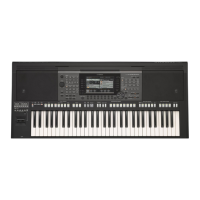
Yamaha PSR-A3000
224 pages
Print Icon
To Next Page IconTo Next Page
Loading...
Thank you for purchasing this Yamaha Digital Workstation!
We recommend that you read this manual carefully so that you can fully take advantage of
the advanced and convenient functions of the instrument. We also recommend that you
keep this manual in a safe and handy place for future reference.
Before using the instrument, be sure to read “PRECAUTIONS” on pages 5 – 6.
Digital Workstation
Owners Manual
EN

Table of Contents

Questions and Answers

Yamaha PSR-A3000 Specifications

General IconGeneral
Pitch wheelYes
Product typeDigital synthesizer
Product colorBlack, Grey
Sound effectsFlanger/Digital Signal Processing (DSP), Reverberation
RMS rated power30 W
Number of speakers2
Chorus effects quantity106
Keyboard number of keys61
Preset programs quantity4
Maximum polyphony (notes)128
Display typeLCD
Display diagonal7 \
Power source typeDC
Weight and Dimensions IconWeight and Dimensions
Depth437 mm
Width1002 mm
Height148 mm
Weight11200 g

Summary

FCC Information (U.S.A.)

Important Notice: Do Not Modify This Unit!

Warning against unauthorized modifications to the unit.

Important Safety Instructions

Precautions

For AC Adaptor

Safety guidelines for AC adaptor usage.

For PSR-A3000

Essential safety instructions for the instrument.

Panel Controls and Terminals

Top Panel

Description of the instrument's top panel controls.

Rear Panel

Description of the instrument's rear panel connectors and air vents.

Resetting to the Factory-programmed Settings

Voices - Playing the Keyboard -

Playing Voices

Instructions on playing single or layered Voices across the keyboard.

Voices - Playing the Keyboard -

Using the Joystick

Description of the joystick's function for real-time sound control.

Applying Voice Effects

HARMONY;ARPEGGIO

Applying harmony or arpeggio effects to the right-hand Voices.

TOUCH

Turning Touch Response on or off for dynamic volume control.

SUSTAIN

Enabling longer sustain for notes played on the right-hand part.

MONO

Using monophonic playback for lead sounds.

Advanced Features

Touch Response and Effect-Related Settings

Detailed settings for Touch Response and effects like Harmony/Arpeggio.

Editing Records

Procedure for editing existing Music Finder Records.

Pitch-Related Settings

Adjusting fine-tuning, scale tuning, and transpose button assignments.

Creating;Editing Styles (Style Creator)

References for creating and editing Styles using the Style Creator function.

Using the Auto Accompaniment Features with Song Playback

Playing Styles along with Song playback using Auto Accompaniment.

Saving the Record as a Single File

How to save all Music Finder Records as a single file.

Editing Voices (Voice Set)

Procedure for editing Voice parameters using the Voice Set display.

Song Playback Related Parameters (Guide Function, Channel Settings, Repeat Settings)

Adjusting parameters for Guide function, channel assignments, and repeat playback.

Styles - Playing Rhythm and Accompaniment -

Playing a Style with the Auto Accompaniment

Instructions on selecting a Style and activating Auto Accompaniment.

Operating Style Playback

How to start and stop Style playback using control buttons.

Changing Pattern Variation (Sections) During Style Playback

How to change Style sections effectively for dynamic performances.

Turning On;Off Each Channel of the Style

How to selectively turn Style channels on or off to vary the sound.

Adjusting the Volume Balance Between the Parts

How to adjust the volume balance between different parts like Song, Style, and Voices.

Setting the Split Point

How to divide the keyboard into two sections using Split Point (LEFT) and Split Point (STYLE).

Specifying Chords with Your Right Hand while Playing Bass with Your Left Hand

How to use the right-hand section as the Chord section for melody performance.

Changing the Chord Fingering Type

How to select different chord fingering types for automatic accompaniment.

Calling Up Appropriate Panel Settings for the Current Style (One Touch Setting)

How to automatically recall panel settings matching the current Style.

Finding Suitable Music Pieces for the Current Style (Repertoire)

How to search for music pieces suitable for the current Style using Music Finder.

Adjusting the Tempo

How to adjust the tempo for Style, Song, and Metronome playback.

Songs - Playing, Practicing and Recording Songs -

Playback of Songs

Instructions on selecting and playing preset, recorded, or external MIDI Songs.

Displaying Music Notation (Score)

How to view and navigate the music notation of a selected Song.

Displaying Lyrics;Text

How to view lyrics data or text files associated with a Song.

One-handed Practice with the Guide Function

How to practice the right-hand part using the Guide function.

Repeat Playback

Using repeat functions to play back Songs or specific measure ranges.

Quick Recording

Recording all parts of a performance at once or specific parts.

Turning Each Channel of the Song On;Off

How to selectively turn individual Song channels on or off.

Multi Track Recording

Recording data to each channel individually for multi-part Songs.

Recording Each Channel Individually (Multi Track Recording)

Detailed steps for multi-track recording, including channel assignment.

USB Audio Player;Recorder - Playing Back and Recording Audio Files -

Playing Back Audio Files

How to play back WAV and MP3 audio files from a USB flash drive.

Recording Your Performance as Audio

How to record your performance as an audio file (WAV) to a USB flash drive.

Multi Pads - Adding Musical Phrases to Your Performance -

Playing the Multi Pads

Instructions on selecting and playing Multi Pad phrases from banks.

Music Finder - Calling Up Ideal Panel Setups for Your Performance -

Selecting the Desired Record (Panel Settings)

How to call up panel settings by selecting a Music Finder Record.

Registration Memory - Saving and Recalling Custom Panel Setups -

Registering Your Panel Setups

Steps to save current panel settings to Registration Memory buttons.

Saving the Registration Memory as a Bank File

How to save all eight registered panel setups as a single Registration Memory Bank file.

Oriental Scales - Setting Original Scales -

Setting Oriental Scales

How to lower specific note pitches by 50 cents to create custom oriental scales.

Memorizing the Scale Settings

How to memorize scale settings to SCALE MEMORY buttons for instant recall.

Mixing Console - Editing the Volume and Tonal Balance -

Editing EFFECT Parameters

Editing Master Compressor (CMP) Parameters

Connections - Using Your Instrument with Other Devices -

Precautions When Using the [USB TO DEVICE] Terminal

Important precautions for connecting USB devices.

Connecting to an iPhone;iPad ([USB TO DEVICE], [USB TO HOST] and MIDI Terminals)

How to connect smart devices like iPhone/iPad via USB or MIDI.

Connecting to a Computer ([USB TO HOST] Terminal)

How to connect a computer via USB for MIDI data transfer.

Using a USB Flash Drive

Information on saving and reading data using a USB flash drive.

Formatting a USB Flash Drive

Instructions for formatting a USB flash drive on the instrument.

Connecting External MIDI Devices (MIDI [IN];[OUT] Terminals)

Other Functions - Making Global Settings and Using Advanced Features -

Basic Procedure

General steps to access and use the FUNCTION menu for various settings.

Voices

Voice Types (Characteristics)

Explanation of the characteristics of different Voice types like S.Art!, Live!, Cool!, Sweet!, Drums.

Touch Response and Effect-Related Settings

Setting the Touch Response of the Keyboard

How to adjust the keyboard's touch sensitivity for volume response.

Pitch-Related Settings

Scale Tuning

How to select and set various custom scale types for playing.

Editing Voices (Voice Set)

Editing Organ Flutes Voices

Creating;Editing Styles (Style Creator)

Step Recording (EDIT)

Editing the Rhythm Part of a Style (Drum Setup)

Creating;Editing Songs (Song Creator)

Recording Melodies (Step Recording)

Recording Chords (Step Recording)

Re-recording a Specific Section-Punch In;Out

USB Audio Player;Recorder

Multi Pads

Creating Multi Pads (Multi Pad Creator)

How to create original Multi Pad phrases using Realtime and Step Recording.

Editing Multi Pads

Editing Multi Pads

Managing (renaming, copying, pasting, deleting) created Multi Pads and Banks.

Music Finder

Editing Records

MIDI Settings

Connecting with an iPhone;iPad via Wireless LAN

Other Functions

RESET

Troubleshooting

Overall

Common issues and their solutions related to power, noise, sound quality, and volume.

1-Year Limited Warranty on Arranger Workstation Keyboards

Related product manuals