EasyManua.ls Logo

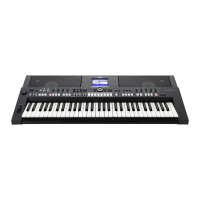
Yamaha PSR-S650 - User Manual

Yamaha PSR-S650
75 pages
Print Icon
To Next Page IconTo Next Page
Loading...
Owners Manual
DIGITAL WORKSTATION
EN
Before using the instrument, be sure to read “PRECAUTIONS” on pages 4-5.

Table of Contents

Other manuals for Yamaha PSR-S650

Questions and Answers

  • E
    Elizabeth HessAug 15, 2025
    What to do if there is no sound on my Yamaha PSR-S650 Electronic Keyboard?
    • J
      Jennifer SmithAug 15, 2025
      If you're not getting any sound from your Yamaha Electronic Keyboard, even when playing or during song/style playback, here are a few things to check: * Ensure nothing is plugged into the PHONES/OUTPUT jack on the rear panel. Headphones plugged in here will silence the main output. * Confirm that “Local Control” is set to ON in the Function display. * Also, ensure the FILE CONTROL display isn't active; press the [EXIT] button to return to the Main display.
  • D
    Dakota JonesAug 19, 2025
    What to do if my Yamaha PSR-S650 Electronic Keyboard says OVER CURRENT?
    • A
      Alexis Zhang MDAug 19, 2025
      If your Yamaha Electronic Keyboard displays an “OVER CURRENT” message and the USB device isn't responding, communication with the USB device has been shut down due to excessive current. Disconnect the device from the USB TO DEVICE terminal, then turn the power of the instrument off and on again.
  • J
    joe09Aug 21, 2025
    Why is my Yamaha PSR-S650 making noise when I use my phone?
    • D
      David JimenezAug 21, 2025
      Using a mobile phone close to the Yamaha Electronic Keyboard can cause interference. To fix this, either turn off your mobile phone or move it further away from the instrument.
  • W
    wrodriguezAug 25, 2025
    Why does my Yamaha PSR-S650 style not sound right?
    • A
      alexislambertAug 25, 2025
      If the style on your Yamaha Electronic Keyboard doesn't sound properly, ensure the following: * The 'Style Volume' is set to an appropriate level in the Function display. * The split point is set at an appropriate key for the chords you are playing in the Function display. * The [ACMP] button is lit. If not, press it to light it up.
  • C
    codyandersonAug 27, 2025
    Why doesn't the style or song play on my Yamaha PSR-S650 Electronic Keyboard?
    • J
      Julia CamachoAug 27, 2025
      If the style or song doesn't play back when you press the [START/STOP] button on your Yamaha Electronic Keyboard, make sure “External Clock” is set to OFF in the Function display.
  • D
    dsmithAug 30, 2025
    What to do if the footswitch is reversed on my Yamaha PSR-S650?
    • M
      Manuel HeathAug 31, 2025
      If the footswitch (for sustain) seems to produce the opposite effect on your Yamaha Electronic Keyboard, the polarity of the footswitch might be reversed. Make sure that the footswitch plug is properly connected to the SUSTAIN jack before turning on the power.
  • L
    Lauren JosephSep 2, 2025
    Why does my Yamaha Electronic Keyboard sound different on each note?
    • Z
      Zachary CarpenterSep 2, 2025
      The sound of the voice changes from note to note on your Yamaha Electronic Keyboard. This is normal. The AWM tone generation method uses multiple recordings (samples) of an instrument across the range of the keyboard.
  • T
    Thomas JohnsonSep 5, 2025
    Why does my Yamaha PSR-S650 Electronic Keyboard make popping sounds when turning on?
    • E
      Eric HermanSep 5, 2025
      When the Yamaha Electronic Keyboard is turned on or off, a popping sound is temporarily produced. This is normal and indicates that the instrument is receiving electrical power.
  • F
    Francis WilliamsSep 9, 2025
    Why is my Yamaha PSR-S650 Electronic Keyboard cutting off sounds?
    • S
      scooperSep 9, 2025
      If not all of the voices seem to sound, or the sound seems to be cut off on your Yamaha Electronic Keyboard, the instrument is polyphonic up to a maximum of 64 notes. If the Dual voice or Split voice is being used and a Style or Song is playing back at the same time, some notes/sounds may be omitted (or 'stolen') from the accompaniment or Song.
  • V
    Veronica MullenSep 12, 2025
    Why is ACMP indicator not showing on my Yamaha PSR-S650?
    • L
      Lisa EdwardsSep 12, 2025
      If the ACMP indicator does not appear when the [ACMP] button is pressed on your Yamaha Electronic Keyboard, always press the desired style category button first when you are going to use any Style-related function.

Summary

General Safety Precautions

Critical Warnings

Essential warnings to prevent serious injury or death from electrical shock, fire, or other hazards.

Instrument Panel Overview

Front Panel Controls and Indicators

Overview of the physical controls and indicators on the front of the instrument.

Rear Panel Connectivity Terminals

Overview of the physical controls and terminals on the rear of the instrument.

Initial Instrument Setup

Power Supply Connection

Instructions for connecting the power adapter and ensuring correct voltage.

1. Voices - Playing the Keyboard

Selecting and Playing a Main Voice

Step-by-step instructions for selecting and playing a primary instrument voice.

1. Voices - Playing the Keyboard (Continued)

Playing Drum Kits

How to select and play drum kits, where each key triggers a different drum sound.

Touch Response Control

How to enable or disable touch response to control volume dynamically.

Using the Metronome for Practice

How to use the metronome for practice and tempo guidance.

2. Styles - Playing Rhythm and Accompaniment

Selecting and Playing Styles

Instructions for selecting and initiating style playback.

2. Styles - Playing Rhythm and Accompaniment (Continued)

Playing Auto Accompaniment Chords

Chart and explanation of common chords for auto accompaniment.

2. Styles - Playing Rhythm and Accompaniment (Continued)

Playing Styles from USB Flash Memory

Instructions for selecting and playing styles stored on a USB flash memory.

One Touch Setting (OTS) Feature

How the OTS feature automatically selects matching voices for a style.

3. Using Songs

Selecting and Listening to Songs

Steps to choose and play a song from different categories.

3. Using Songs (Continued)

Song Playback Control

How to start and stop song playback.

Displaying Song Scores

How to view the musical notation for songs.

Playing Songs from USB Flash Memory

Instructions for selecting and playing songs stored on a USB flash memory.

Displaying Song Lyrics

How to display song lyrics if they are available.

4. Recording Your Own Performance

Quick Recording Procedure

Step-by-step guide for quick recording of performances.

4. Recording Your Own Performance (Continued)

Multi-track Recording Procedure

How to record performances on multiple tracks independently.

Deleting Entire User Songs (Song Clear)

How to delete entire user songs from the instrument's memory.

Deleting Specific Tracks from User Songs (Track Clear)

How to delete a specific track from a user song.

5. Playing with the Music Database

Selecting and Playing Styles via Music Database

Using the Music Database to select and play styles.

6. Mixer Operations

Mixer Parameter Adjustment

Detailed steps for using the mixer to control track parameters like volume, pan, and effects.

7. Memorizing Panel Settings

7. Memorizing Panel Settings (Continued)

Memorizing Panel Settings

Step-by-step guide to saving current panel settings into Registration Memory.

Recalling Memorized Panel Settings

How to recall previously saved panel settings from Registration Memory.

7. Memorizing Panel Settings (Continued)

Freezing Specific Settings (Disabling Recall)

How to use the Freeze function to prevent specific settings from being recalled.

Deleting Specific Registration Memory

How to delete specific Registration Memory setups.

8. Initialization Procedures

Clearing Backup Data

Steps to clear backup data, restoring factory settings.

Clearing User Memory Data

Steps to clear user memory data, including user songs and styles.

9. Using USB Flash Memory

USB TO DEVICE Terminal Precautions

Important safety and usage precautions for the USB TO DEVICE terminal.

9. Using USB Flash Memory (Continued)

Using the File Control Display

Accessing and using the file control display for USB operations.

10. Expanding Voices and Styles

Installing Expansion Packs

Step-by-step guide to installing expansion packs to add new voices and styles.

10. Expanding Voices and Styles (Continued)

11. Connecting to a Computer

Appendix

Troubleshooting Common Issues

Common problems and their solutions for the instrument.

Instrument Specifications

Yamaha PSR-S650 Specifications

General IconGeneral
Product colorBlack
Sound effectsChorus, Flanger/Digital Signal Processing (DSP), Reverberation
Pitch bend wheelYes
Maximum polyphony (notes)64
Control typeButtons, Rotary, Scrollbar, Touch
MIDI-keyboard number of keys61 keys
Display typeLCD
InterfaceUSB
Headphone outputs1
Input voltage16 V
Power source typeDC
Power consumption (typical)25 W
Weight and Dimensions IconWeight and Dimensions
Depth405 mm
Width946 mm
Height137 mm
Weight7300 g

Related product manuals