17
4. The “Install Location” box displays the destination of the installation. If you
wish to change the destination disk or folder, use the [Switch Disk] button and
the pop-up menu to specify the desired destination.
This box usually displays the start-up disk as the destination.
5. Click the [Install] button. The system displays the following message: “This
installation requires your computer to restart after installing this software. Click
Continue to automatically quit all other running applications.” Click [Con-
tinue].
To cancel the installation, click [Cancel].
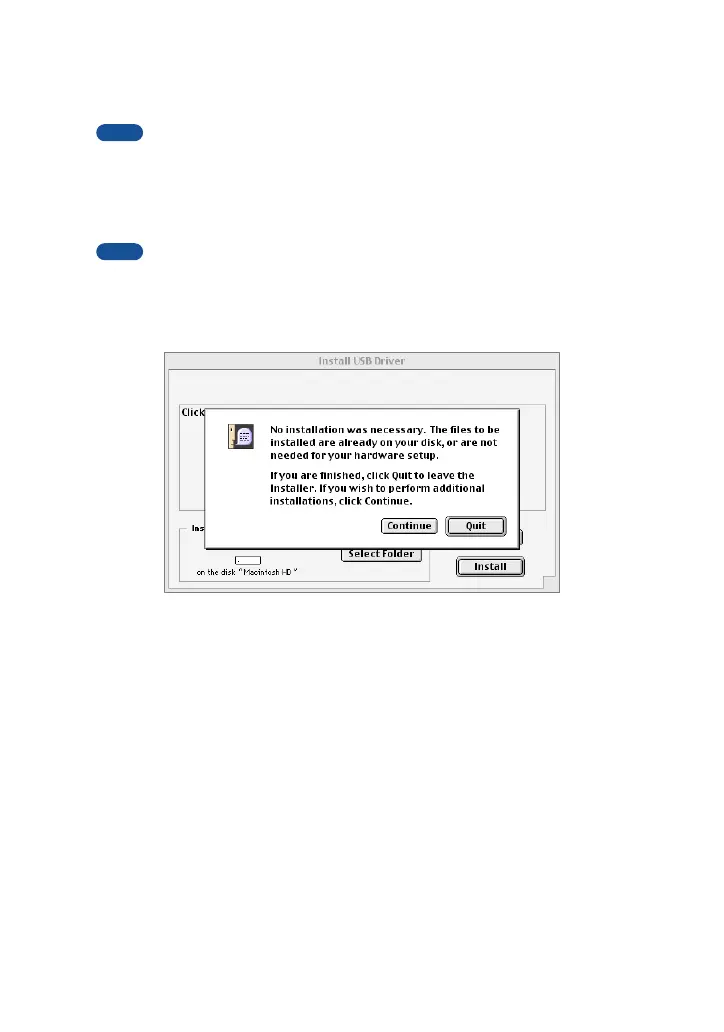
6. The installation starts. If the driver has already been installed, you will receive
the following message. To return to step 3, press [Continue]. To complete the
installation, click [Quit].
7. When the installation is complete, the system displays the following message:
“Installation was successful. You have installed software which requires you to
restart your computer.” Click [Restart]. The computer automatically restarts.
You can locate the installed files in the following locations:
• System Folder | Control Panels | YAMAHA USB MIDI Patch
• System Folder | Extensions | USB YAMAHA MIDI Driver
• System Folder | OMS Folder | YAMAHA USB MIDI OMS Driver
NOTE
NOTE


 To Next Page