EasyManua.ls Logo

Yealink SIP-T21P E2 - User Manual

Yealink SIP-T21P E2
2 pages
Print Icon
To Next Page IconTo Next Page
Loading...
PLACE CALLS
Using the handset
Dial the number you are calling, then pick up the handset.
Note: You may place a call by picking up the handset before dialing. Just be aware, the system will attempt to com-
plete the call after a slight pause in entering digits on the dialpad.
Using the speakerphone
With the handset in the cradle, dial the number you are calling,
then press or the Send sof t key.
ANSWER CALLS
Using the handset
When a call comes in, pick up the handset.
Using the speakerphone
When a call comes in, press or the Answer soft key.
Answer a second call
When a second call comes in, press the Answer soft
key or the blinking line key. The active call is
automatically placed on hold.
HOLD AND RESUME CALLS
Place a call on hold
Press the Hold soft key during an active call. The line key controlling that call will blink.
Resume a held call
Press the blinking line key or the Resume soft key.
Note: You may need to press or on the navigation dial to select the desired call before you see the Resume soft
key.
Yealink SIP-T21P E2 Quick Reference Guide
For full user guides and video tutorials, visit help.ena.com and select ENA SmartVoice
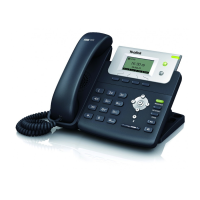
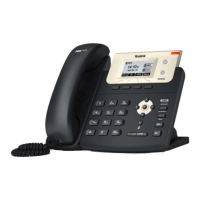
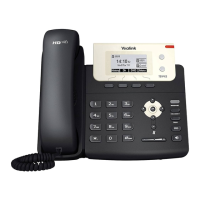
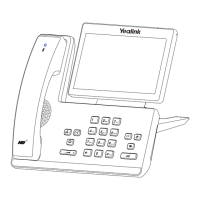
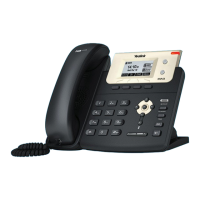
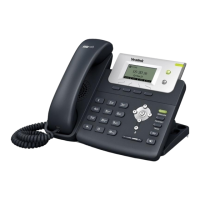
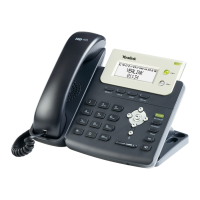
PHONE LAYOUT
Line keys
Line keys appear to the side of your
screen and indicate the status of
the call being controlled by the key.
When the key is controlling an active
call, it is solid green. When the key
is controlling a call on hold, it is
blinking green.
Soft keys
Soft keys appear at the bottom
of your screen and their functions
change depending on where you
are in a call sequence.
Watching your soft keys is one of
the most helpful things you can do
when using your phone. In almost all
cases, the thing you are most likely
to do next in a call sequence will
appear as a soft key.
Buttons
Physical buttons always perform the
function for which they are labeled.
Question and Answer IconNeed help?

Do you have a question about the Yealink SIP-T21P E2 and is the answer not in the manual?

Overview

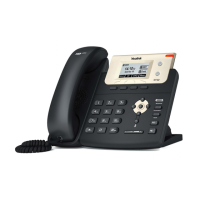
The Yealink SIP-T21P E2 is a SmartVoice-enabled IP phone designed for efficient and user-friendly communication. It offers a range of features for placing, answering, transferring, and managing calls, along with voicemail and conferencing capabilities.

Function Description:

The Yealink SIP-T21P E2 serves as a primary communication device, facilitating voice calls over an IP network. Its core function is to provide reliable and clear voice communication, supported by features that enhance call management and user productivity. The phone integrates with the ENA SmartVoice system, offering a comprehensive suite of telephony services.

Usage Features:

Placing Calls:

Calls can be placed using either the handset or the speakerphone.

  • Using the Handset: To place a call with the handset, simply dial the desired number and then pick up the handset. Alternatively, you can pick up the handset first and then dial. The system will attempt to complete the call after a slight pause if you pick up the handset before dialing.
  • Using the Speakerphone: If the handset is in its cradle, dial the number you wish to call and then press the speakerphone button or the "Send" soft key.

Answering Calls:

The phone provides two primary methods for answering incoming calls.

  • Using the Handset: To answer an incoming call, simply pick up the handset.
  • Using the Speakerphone: To answer an incoming call using the speakerphone, press the speakerphone button or the "Answer" soft key.
  • Answering a Second Call: If a second call comes in while you are already on an active call, you can answer it by pressing the "Answer" soft key or the blinking line key. The active call will be automatically placed on hold.

Holding and Resuming Calls:

Managing active and held calls is straightforward.

  • Placing a Call on Hold: During an active call, press the "Hold" soft key. The line key associated with that call will begin to blink, indicating it is on hold.
  • Resuming a Held Call: To resume a held call, press the blinking line key or the "Resume" soft key. If you have multiple calls on hold, you may need to use the navigation dial (up or down arrows) to select the desired call before the "Resume" soft key appears.

Transferring Calls:

The phone supports various call transfer methods to suit different scenarios.

  • Blind Transfer: This method allows you to send a call directly to another recipient without speaking to them first.
    1. During an active call, press the "TRAN" button or "Trans" soft key. The call will automatically be placed on hold.
    2. Enter the number to which you want to transfer the call.
    3. Press the "TRAN" button or the "B Trans" soft key to complete the blind transfer.
  • Consultative Transfer: This method allows you to speak with the transfer recipient before sending the caller through.
    1. During an active call, press the "TRAN" button or "Trans" soft key. The call will automatically be placed on hold.
    2. Place a call to the transfer recipient by entering their number and pressing the "Send" soft key, or by waiting for the call to complete automatically.
    3. Once the transfer recipient answers and confirms they are available to take the call, press the "TRAN" button or "Trans" soft key again to complete the transfer.
  • Direct to Voicemail Transfer: This feature allows you to transfer a call directly to another extension's voicemail.
    1. During an active call, press the "TRAN" button or "Trans" soft key. The call will automatically be placed on hold.
    2. To transfer to a four-digit extension, enter *90 followed by the extension number. For a five or six-digit extension, enter * followed by the extension number.
    3. Press the "B Trans" soft key.
  • Returning to the Original Caller: At any point before completing a transfer, you can retrieve the original caller from hold by pressing the blinking line key or the "Resume" soft key.

Voicemail:

The phone provides integrated voicemail functionality.

  • Setting Up Voicemail: The first time you press the "MESSAGE" button, the system will guide you through the voicemail setup process, provided voicemail is available for your extension.
  • Checking Voicemail: Once voicemail is set up, you can check your messages by pressing the "MESSAGE" button and following the audio prompts.

Making a 3-Way Conference Call:

The phone allows you to conference in an additional person during an active call.

  1. During an active call, press the "Conference" soft key. The active call will automatically be placed on hold.
  2. Enter the number of the party you wish to conference in, then press the "Send" soft key or wait for the call to complete.
  3. When the second party answers, press the "Conference" soft key again. All three parties will then be joined in the conference.

Muting and Unmuting Microphone:

  • To mute your microphone during a call, press the mute button (indicated by a microphone icon with a line through it).
  • To unmute your microphone, press the mute button again.

Phone Layout and Indicators:

The phone's design includes several visual and physical elements to aid in its operation.

  • Line Keys: These keys are located to the side of the screen and display the status of calls. A solid green light indicates an active call, while a blinking green light signifies a call on hold.
  • Soft Keys: These contextual keys appear at the bottom of the screen. Their functions change depending on the current call sequence, providing relevant options for the next action. This dynamic display makes it easier to navigate call management.
  • Buttons: Physical buttons on the phone always perform their labeled function, offering consistent access to common features like message, headset, transfer, and redial.
  • Navigation Dial: This dial, typically with up, down, left, and right arrows, is used for navigating menus and selecting options, particularly when managing multiple held calls.

Maintenance Features:

While the provided documentation primarily focuses on usage, the "For full user guides and video tutorials, visit help.ena.com and select ENA SmartVoice" statement implies that further resources are available for comprehensive understanding, which would typically include information on basic troubleshooting, cleaning, and care. However, specific maintenance features are not detailed within this quick reference guide. Users are encouraged to consult the full user guides for any maintenance-related inquiries. The robust design of Yealink phones generally suggests a low-maintenance device, requiring only standard care for electronic equipment.

Yealink SIP-T21P E2 Specifications

General IconGeneral
Wall MountableYes
Operating Humidity10% to 90% (non-condensing)
Audio CodecsG.722, G.711
Network10/100 Mbps Ethernet
Power SupplyPoE or optional power adapter
Lines2
Featurescall hold, call transfer, call waiting, mute, DND
Protocols SupportedSIP
Headset PortYes, 3.5mm
Weight0.8 kg
Operating Temperature0°C to 40°C
CertificationsCE, FCC, RoHS
Display2.3-inch (132x64) graphical LCD

Related product manuals