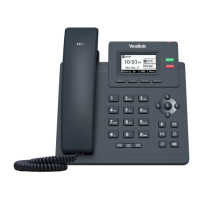
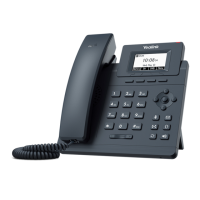
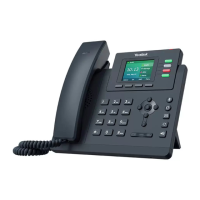
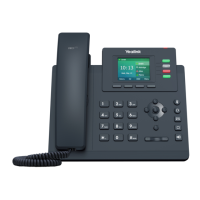
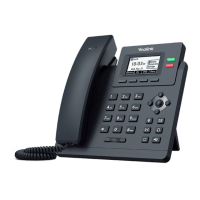
The BT One Phone Yealink SIP-T33 is an IP phone designed for business communication, offering a range of features for efficient call management and user customization. This guide provides comprehensive instructions for setting up, using, and maintaining the device.
Function Description:
The Yealink SIP-T33 serves as a primary communication tool within the BT One Phone SIP network. It allows users to make and receive calls, manage call features such as call waiting, call hold, transfer, and conference calls, and customize various phone settings. The device supports both handset and speakerphone modes, with an option for headset connectivity. It integrates with the BT One Phone portal for managing settings and preferences remotely.
Important Technical Specifications:
The phone includes an LCD screen that displays call information, caller ID, call length, icons for status (e.g., DND, loss of connection), missed calls, prompt text, time, and date. It features a Power LED that flashes when a call comes in and a Line key LED that indicates line status (taken, in use, incoming call, inactive, on hold). The device connects to the network via Ethernet cables, with two network ports on the back. It can be powered over Ethernet (PoE) or with a separate DC 5V power adapter (not supplied). The keypad allows for number and letter input, and dedicated keys provide quick access to features like headset mode, mute, message, redial, speakerphone, and volume control.
Usage Features:
-
Getting Started:
- Setup: The phone stand can be clicked into the back of the phone at either a 40° or 45° angle.
- Connectivity: The handset connects to the bottom port on the side of the phone, while a wired headset connects to the top port. The Ethernet cable connects to the internet port on the phone and a network port (either on a PoE switch/hub or a network port with a separate power adapter).
- Initial Configuration: Users should consult their system administrator to ensure the phone is ready for setup on the BT One Phone SIP network.
-
Customization:
- Features: Users can enable or disable features like Call Waiting, Auto Redial, Hotline, Do Not Disturb (DND), and Busy Lamp Field (BLF) through the menu.
- Basic Settings:
- Time and Date: Set the time and date format (12 or 24-hour clock) and date format (e.g., DD-MMM-YY, YYYY-MM-DD).
- Screen Backlight: Adjust the screen backlight timer (always on, 30 mins, 1h, 2h, 4h, 6h, 8h, or 12 hours).
- Screen Wallpaper: Choose from available wallpapers.
- Ringtones: Select a preferred ringtone for the extension number.
- Key Tones: Enable or disable keypad sounds.
- Phone Unlock PIN: Set or change a four-digit PIN to lock the phone, requiring an Admin password for initial setup.
- Speed Dial Keys: Assign speed dial numbers and labels to DSS keys (lines 1-4). BLF keys can also function as speed dials.
- Advanced Settings: Accessing advanced settings requires an Admin password provided by the local Administrator. This menu allows enabling or disabling the phone lock. To lock the phone manually, press and hold the # button on the keypad.
-
Call Features:
- Making Calls:
- Pick up the handset, dial the number, and press Call or #Send.
- With the handset on the hook, press the speakerphone key, dial the number, and press #Send.
- With a headset connected, press the headset key, dial the number, and press Call or #Send.
- Call mode can be switched during a call by pressing the headset or speakerphone key, or by picking up the handset.
- Answering Calls:
- Pick up the handset.
- Press the Answer key or speakerphone key.
- Press the headset key with a connected headset.
- Incoming calls can be rejected by pressing the reject soft key.
- Ending Calls:
- Put the handset down.
- Press End Call (for handset, speakerphone, or headset modes).
- Redialling Calls: Press the redial key to access the placed calls list, scroll to select a number, and press redial, Call, or #send again.
- Mute: Press the mute key during a call to mute the microphone. Press again to unmute.
- Call Hold and Resume: Press Trans during a call to put it on hold. Press Resume to return to the call. If Cancel is pressed after Trans, the Resume key appears, and pressing Cancel again disconnects the caller.
- Transferring Calls:
- Without Talking First: During a call, press Trans, dial the transfer number, and press Cancel or hang up. To cancel, end the second call and then resume the first.
- After Talking First: During a call, press Transfer, dial the transfer number, press Transfer again or Call to ring, speak to the person, then hang up to connect the parties. To cancel, end the second call and then resume the first.
- Conference Calls: During a call, press Trans, enter the number of the person to join, press Trans again, and when they answer, press figure 3. To end, press End Call.
- Handing Over Calls: To transfer an active call to another SIP phone on the subscription, press #Send then 0. The other phone will ring and the call will transfer automatically upon answering.
- Adjusting Volume: Press the volume keys to adjust ringer volume (when idle) or handset, speakerphone, or headset volume (during a call).
- Pickup Group Calls: Dial 8899 to pick up the longest waiting call in the pickup group.
-
Information Access:
- Call History: Press the history option to view made, received, or missed calls. Use scroll buttons to navigate and the #send key or green Call button to call from the list. The option soft key provides details (date, time, duration) or allows adding contacts to the local directory.
- Directory: Press the Directory button to access the corporate directory. Soft keys include Back, Enter (to select a group), and Search (to input numbers/letters via dial pad). To update the directory, restart the phone by holding the X key or unplugging/replugging the Ethernet cable.
Maintenance Features:
- Troubleshooting: If the phone stops working after changing the BT One Phone portal password, reboot the phone by pressing and holding the X key or by unplugging and re-plugging the Ethernet cable.
- Support: For problems with setup or usage, contact the BT One Phone helpdesk at 0345 154 8844 (or 8844 from a BT One Phone). The helpdesk operates Monday to Friday, 8 am to 6 pm. For lost/stolen SIMs, support is available 24/7. Additional help can be found in the FAQs at bt.com/btonephonehelp and on the BT One Phone portal.
- PIN Management: The phone unlock PIN can be changed through the basic settings menu, requiring the old PIN and a new four-digit PIN.
- Admin Password: Advanced settings and certain lock features require an Admin password, which should be obtained from the local Administrator.

 Need help?

 To Next Page
 General