EasyManua.ls Logo

Yealink T27G - User Manual

Yealink T27G
2 pages
Print Icon
To Next Page IconTo Next Page
Loading...
Version 1 CJJ
HOSTED PBX 2.1 YEALINK T27G QUICK START GUIDE
Making a call
Dial the internal extension number or full external telephone number. (No 9 required)
Press the Send button. (or OK button)
To end the call, hang up or press the End Call button.
Transferring calls
Supervised Transfer
Place the caller on hold by pressing the Tran button.
Dial the extension number or the external number that you wish to transfer the call to, then press OK.
When the person picks up the phone, announce caller, then press the Tran button to connect the call. OR
If you wish to come back to your caller on hold without transferring them, press the flashing green line key.
(Please note, call charges apply to calls transferred externally)
Unsupervised Transfer
Place the caller on hold by pressing the Tran button.
Dial the extension number or the telephone number that you wish to transfer the call to, then press Tran
again.
(Please note, call charges apply to calls transferred externally)
Call Pick-Up
To pick up any phone when ringing
Dial *8 (or the programmed feature key).
Lift handset and talk.
To pick up specific extension
Dial ** and the extension number.
Lift handset and talk.
Setting up personal Voicemail
Press or dial *97 then press Send or .
To record your outgoing message, choose option 5 for the advanced menu, then option 1 to record a greeting and
follow the prompts
Listening to Voicemail messages
Press or dial *97 then press Send or .
To listen to new messages, press 1. To listen to saved messages, press 2.
For the advanced menu, press 5.
Call Forwarding (All calls)
Press the Menu button from the display soft key.
Choose option 2, Features from the Menu.
Choose option 1, Call Forward, rom the menu.
Choose option 1, Always Forward from the menu
Use the right arrow to change from Disabled to Enabled,
Use the Down arrow to Enter the Forward to number and press save
To Disable repeat steps above and Change to Disabled in step 5.
Please note, call charges apply to calls Forwarded externally)
If you have any handset queries, you can contact Spitfire Support on:
020 7501 3030
support@spitfire.co.uk

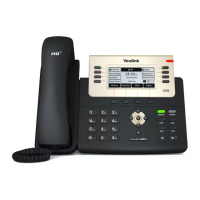
Other manuals for Yealink T27G

Questions and Answers

  • M
    Melanie JohnsonAug 17, 2025
    Why doesn't my Yealink Telephone get an IP address?
    • A
      allenchristinaAug 18, 2025
      If your Yealink Telephone isn't getting an IP address, check the following: * Ensure the Ethernet cable is securely plugged into the internet port and is not loose. * Verify the Ethernet cable is not damaged. * Confirm that the IP address and related network parameters are set correctly. * Make sure your network switch or hub is working. * Ensure the Wi-Fi feature is disabled.
  • B
    brian17Aug 20, 2025
    Why does my Yealink Telephone display “No Service”?
    • A
      alyssagarciaAug 20, 2025
      If your Yealink Telephone displays “No Service”, ensure that an account is actively registered on the IP phone at Menu->Status->More->Accounts.
  • W
    wlopezAug 22, 2025
    Why does my Yealink Telephone have no power?
    • L
      Lisa BrockAug 22, 2025
      If your Yealink Telephone has no power: * Reboot your IP phone. * Replace the power adapter.
  • V
    Virginia HessAug 25, 2025
    What to do if the LCD screen is blank on my Yealink Telephone?
    • D
      Donna EdwardsAug 26, 2025
      If the LCD screen on your Yealink Telephone is blank, verify the following: * Ensure the phone is properly plugged into a functional AC outlet. * Confirm the phone is plugged into a socket controlled by a switch that is on. * If plugged into a power strip, try plugging it directly into a wall outlet. * If your phone is PoE powered, ensure you are using a PoE-compliant switch or hub.
  • T
    Timothy LopezAug 27, 2025
    How to solve IP conflict problem on Yealink Telephone?
    • L
      Larry ThompsonAug 28, 2025
      To resolve an IP conflict on your Yealink Telephone, you can: * Reset another available IP address for the IP phone. * Check network configuration via the phone's user interface at Menu->Settings->Advanced Settings (default password: admin)->Network->WAN Port->IPv4 (or IPv6). If Static IP is selected, choose DHCP instead.
  • M
    millertiffanyAug 30, 2025
    Why doesn’t my Yealink Telephone upgrade firmware successfully?
    • M
      Michael SandovalAug 30, 2025
      If your Yealink Telephone isn’t upgrading firmware successfully, check the following: * Ensure that the target firmware is not the same as the current firmware. * Ensure that the target firmware is applicable to the IP phone model. * Ensure that the current or the target firmware is not protected. * Ensure that the power is on and the network is available during the upgrade. * Ensure that the web browser is not closed or refreshed when upgrading firmware via the web user interface.
  • G
    Gina GallagherSep 1, 2025
    Why do I get poor sound quality during a call on my Yealink Telephone?
    • H
      hmccarthySep 1, 2025
      Poor sound quality during a call on your Yealink Telephone can be due to several factors: * Users being too far from the microphone or too close to sensitive microphones. * Packet loss and jitter due to network congestion. * Noisy equipment causing interference. Turn off any noisy equipment. * Line issues. Try disconnecting the old line and redialing to see if another line provides a better connection.
  • J
    jeremywrightSep 4, 2025
    Why doesn’t my Yealink Telephone display time and date correctly?
    • J
      Jennifer WrightSep 4, 2025
      If your Yealink Telephone doesn’t display the correct time and date: * Check if the IP phone is configured to obtain the time and date from the NTP server automatically. * If your phone is unable to access the NTP server, configure the time and date manually.
  • A
    amber91Sep 6, 2025
    Why doesn’t my Yealink Telephone update the configuration?
    • A
      Amy CollinsSep 6, 2025
      If your Yealink Telephone isn’t updating its configuration: * Ensure that the configuration is set correctly. * Reboot the phone, as some configurations require a reboot to take effect. * Ensure that the configuration is applicable to the IP phone model. * Be aware that the configuration may depend on support from a server.
  • C
    Carolyn SanchezSep 9, 2025
    Why does the Bluetooth headset affect Yealink Telephone’s voice quality?
    • L
      Linda HunterSep 9, 2025
      Your Yealink Telephone's voice quality may be affected if you use a Bluetooth headset while the 2.4 GHz band is enabled or in an environment with many other Bluetooth devices.

Yealink T27G Specifications

General IconGeneral
Display3.66" 240x120-pixel graphical LCD with backlight
SIP Accounts6
Wall MountableYes
Network10/100/1000M Ethernet
PoEYes
Audio FeaturesHD voice
Headset SupportYes (via RJ9)
USB PortNo
Voice CodecsG.722, G.711(A/μ), G.729AB, G.726, iLBC
Network FeaturesSIP v1 (RFC2543), v2 (RFC3261)
Power AdapterOptional
Local Phonebook1000 entries
ComplianceCE, FCC, RoHS

Related product manuals