27
EN
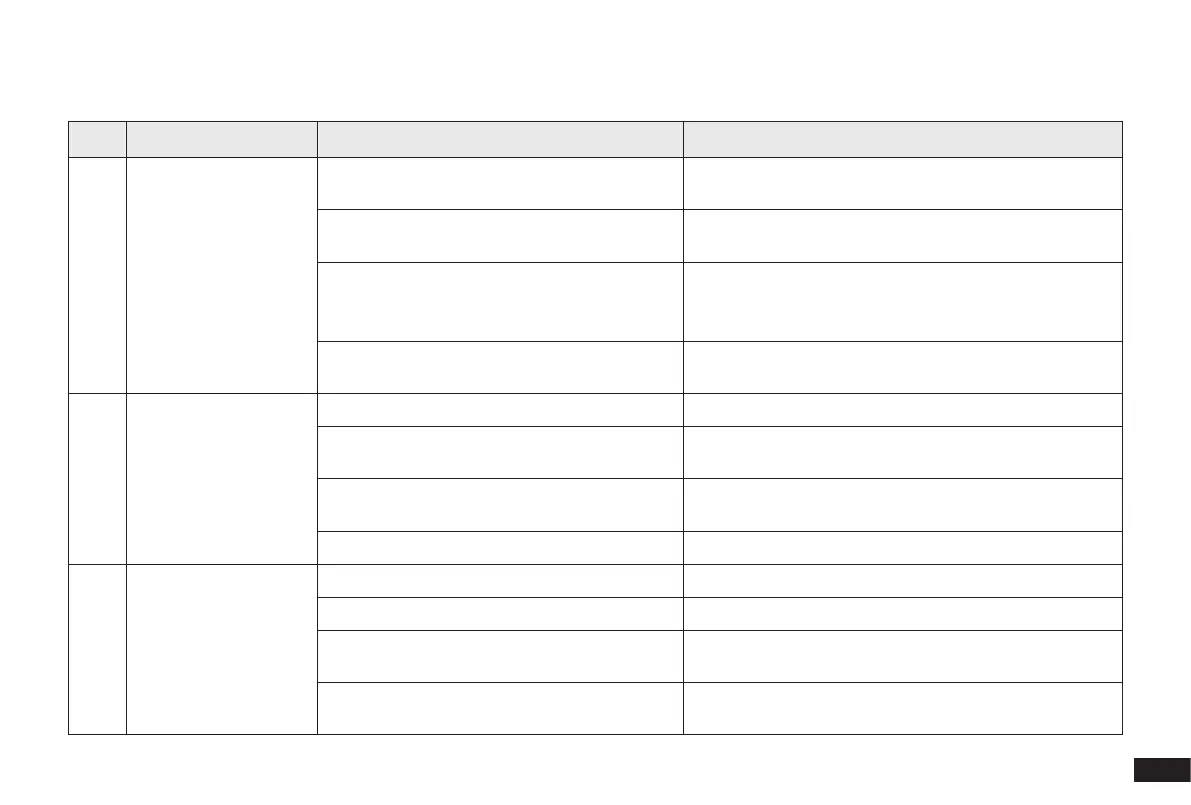
No. Scenario Possible Cause Solution
1
Robot is not able to
connect to the home
Wi-Fi network�
Incorrect home Wi-Fi username or password
entered�
Enter the correct home Wi-Fi username and password�
Robot is not within range of your home Wi-Fi
signal�
Make sure Robot is within range of your home Wi-Fi
signal�
Network setup started before Robot was ready�
Turn ON Power Switch� Press the RESET Button for 3
seconds� Robot is ready for network setup when it plays a
musical tune and its Wi-Fi Indicator light ashes slowly.
Robot does not support 5 GHz Wi-Fi�
Make sure the robot has been connected with 2�4 GHz Wi-Fi
network�
2 Robot is not charging�
Robot is not switched ON� Switch ON Robot�
Robot has not connected to the Docking
Station�
Be sure that the robot’s Charging Contacts have
connected to the Docking Station Pins�
The Docking Station is not connected to the
power supply�
Make sure the Docking Station is connected to the power
supply�
The battery is completely discharged� Please contact Customer Care for help�
3
Robot cannot return to
the Docking Station�
The Docking Station is not correctly placed� Refer to Section 2�2 correctly place the Docking Station�
The Docking Station is not correctly connected� Make sure the Docking Station is correctly connected�
The Docking Station is manually moved during
the cleaning�
It is suggested not to move the Docking Station during
the cleaning�
Robot did not start cleaning from the Docking
Station�
Make sure Robot starts cleaning from the Docking Station�
4. Troubleshooting/4.1 Troubleshooting


 To Next Page