14EN
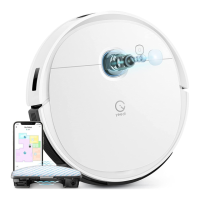
DOWNLOAD THE YEEDI APP
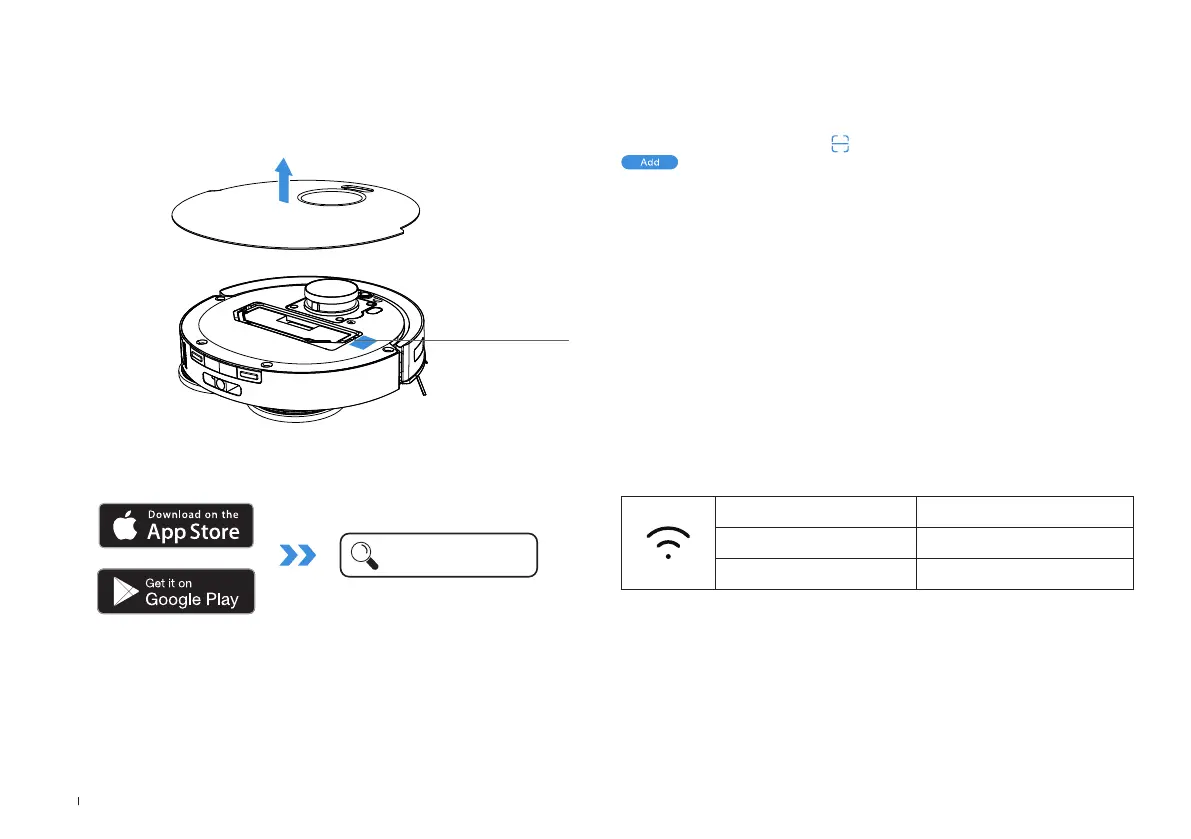
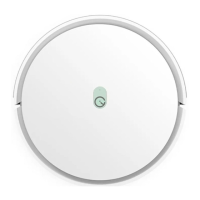
Under the Top Cover
1� Scan the QR Code under the Top Cover to download the App�
2� Search the YEEDI to download the App�
To enjoy all available features, it is recommended to control your robot via
the YEEDI App.
YEEDI
CONNECT ROBOT WITH APP
Wi-Fi Indicator Light
White light slow ash Connecting
White light fast ash Disconnected to Wi-Fi
Solid Blue Light Connected to Wi-Fi
Please be aware that the realization of intelligent functions such as remote startup,
voice interaction, 2D/3D map display and control settings, and personalized
cleaning (depending on different products) requires users to download and use
YEEDI App, which is constantly updated� You need to agree to our Privacy Policy
and User Agreement before we can process some of your basic and necessary
information and enable you to operate the product�If you do not agree with our
Privacy Policy and User Agreement, some of the aforementioned intelligent
functions cannot be realized through YEEDI App, but you can still use the basic
functions of this product for manual operation�
1. Via Bluetooth:
Turn on the robot and mobile phone Bluetooth� Allow the App to obtain mobile
phone Bluetooth permission� Tap to scan the QR Code on robot or tap
in the App to nd nearby robot�
2. Via Wi-Fi:
You can also choose to connect robot with the App through other methods
according to the prompts on the App's page�
Note: Please select the appropriate connecting method�
Wi-Fi Network Requirements:
• You are using a 2�4GHz or 2�4/5 GHz mixed network�
• Your router supports 802�11b/g/n and IPv4 protocol�
• Do not use a VPN (Virtual Private Network) or Proxy Server�
• Do not use a hidden network�
• WPA and WPA2 using TKIP, PSK, AES/CCMP encryption�
• WEP EAP (Enterprise Authentication Protocol) is not supported�
• Use Wi-Fi channels 1-11 in North America and channels 1-13 outside North
America (refer to local regulatory agency)�
• If you are using a network extender/repeater, the network name (SSID) and
password are the same as your primary network�
• Please enable the WPA2 on your router�


 To Next Page