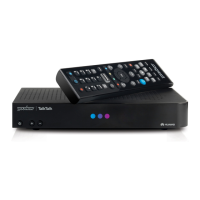
This manual describes the setup and usage of a YouView box, specifically designed for TalkTalk customers, to enhance their television viewing experience by integrating internet-based services with traditional Freeview channels. The YouView box acts as a bridge, bringing a wide range of TV entertainment, including on-demand content and box sets, into the user's home through their existing internet connection.
Function Description
The YouView box serves as a digital TV recorder and smart TV platform, allowing users to access a combination of live Freeview channels and internet-delivered content. Its primary function is to provide a comprehensive entertainment hub, enabling users to watch, record, and catch up on their favorite shows. The box connects to the internet via an Ethernet cable (either directly or through Powerline Adapters) and to the television via an HDMI or SCART cable, and to an aerial for Freeview channels.
Key functions include:
- Live TV Reception: The box receives Freeview channels through a connected aerial, offering a standard array of digital terrestrial television.
- On-Demand and Catch-Up TV: Through its internet connection, the YouView box provides access to a vast library of on-demand content, including catch-up services from various broadcasters and exclusive box sets via the TalkTalk Player. This allows users to watch programs they missed or explore new content at their convenience.
- Recording Capabilities: While not explicitly detailed in the provided pages, YouView boxes typically include recording functionality, allowing users to pause, rewind, and record live TV.
- TalkTalk Player Access: A dedicated feature for TalkTalk customers, the TalkTalk Player offers free access to a "TV Gift" comprising over a thousand inclusive shows and box sets from the US and the UK, further expanding the entertainment options.
- Router Integration: The system relies heavily on the user's broadband router, which needs to be properly set up and updated to ensure it can deliver the full range of TV entertainment.
Usage Features
The YouView box is designed for straightforward setup and ease of use, with a step-by-step guide to assist users.
Setup Process:
- Router Preparation: Before connecting the YouView box, the user's TalkTalk router must be ready for TV services. This involves ensuring the router is set up to receive the full range of channels. If a new router has been provided, it needs to be set up first according to its accompanying guide and connected to the internet. For existing routers, an update is required, which can be done either via a supplied CD (for PCs only, not MACs or Tablets) or by downloading the update from the TalkTalk website (talktalk.co.uk/routerupdate). The update process involves following on-screen instructions, starting with a "Welcome" screen and concluding with a "Finished!!" screen indicating the router is ready.
- Connecting the Box and Cables:
- Internet Connection: The YouView box needs to be connected to the router.
- Without Powerline Adapters: A grey Ethernet cable is used. One end connects to a yellow LAN socket on the router, and the other end connects to the ETHERNET socket on the YouView box.
- With Powerline Adapters: Two Powerline Adapters are used along with two yellow Ethernet cables. One Powerline Adapter connects to the router: one end of a yellow Ethernet cable goes into the adapter, the other into a yellow LAN socket on the router. This adapter is then plugged into a power socket near the router and switched on. The second Powerline Adapter connects to the YouView box: one end of the second yellow Ethernet cable goes into this adapter, the other into the LAN socket on the YouView box. This adapter is plugged into a power socket near the YouView box and switched on. It is recommended to plug Powerline Adapters directly into the wall, not into extension cables, to ensure optimal performance.
- TV Connection: The YouView box connects to the television.
- HDMI Cable: If the TV has an HDMI socket, an HDMI cable is used. One end connects to the TV's HDMI socket, and the other to the HDMI socket on the YouView box.
- SCART Cable: If the TV does not have an HDMI socket, a SCART cable is used. One end connects to the TV's SCART socket, and the other to the TV SCART socket on the YouView box.
- Aerial Connection: To receive Freeview channels, an aerial must be connected.
- Existing Aerial Cable: The existing aerial cable from the TV is removed and connected to the ANTENNA IN socket on the YouView box.
- White Aerial Cable Supplied: Alternatively, one end of the supplied white aerial cable connects to the aerial wall socket, and the other end connects to the ANTENNA IN socket on the YouView box.
- Power Connection: The black power supply cable connects one end to the YouView box and the other to a power socket. The YouView box is then switched on at the back and front, followed by switching on the TV. The middle light on the YouView box indicates it's ready for setup.
- YouView Setup:
- Using the TV remote, the user presses the "Source" button and selects the input corresponding to the YouView box (HDMI or AV/SCART).
- The YouView box then guides the user through an on-screen setup process, starting with a "Let's get started" welcome screen. Users navigate using the arrow keys and "OK" button on their remote.
- Upon successful completion, the system will display an "All done" screen, confirming broadband connection and channel tuning, and automatically switch to BBC 1.
- TalkTalk Remote Setup (Optional): To control both the TV and YouView box with a single TalkTalk remote, users can program the remote. This involves pressing "Search" until the TalkTalk button flashes three times and stays lit, then pressing and holding the number corresponding to their TV brand (listed in the manual) until the TV switches off. Releasing the button after the TV switches off, and then switching the TV back on when the TalkTalk button flashes twice, completes the process.
- Accessing the TalkTalk Player:
- Users press the TalkTalk button on their remote.
- They are prompted to register details (First name, Surname, Password) and confirm their TalkTalk PIN (found in the Welcome Pack or online at talktalk.co.uk/myaccount).
- After confirmation, pressing "OK" grants access to the TalkTalk Player.
Maintenance Features
The manual provides troubleshooting tips for common issues, which can be considered as part of user-level maintenance.
- Picture Quality Problems: If experiencing issues with picture quality, users are advised to re-tune their Freeview channels. If this doesn't resolve the issue, it might indicate a need for a new aerial or repair work to the existing aerial. Resources for finding qualified engineers (cai.org.uk or rdi-lb.co.uk) are provided.
- On-Demand Channel Access Issues: If on-demand channels are not working, users should try switching their YouView box and broadband router off and on again. If the problem persists, they are directed to talktalk.co.uk/tvhelp for further assistance.
- TalkTalk Player Not Working: The primary check is to ensure the router is connected to broadband. If not already done, updating the router (using the CD or download) is crucial for YouView functionality.
- Slow Internet While Watching TV: This issue is often related to network congestion. Users are advised to check how many devices (e.g., iPad, Tablet, phone, games console, laptop) are connected to their router and avoid using them all simultaneously while watching TV to improve broadband speed.
The manual emphasizes that the YouView box is a device that integrates with existing home network infrastructure and TV equipment. Its maintenance largely revolves around ensuring these connections are stable and that the router is correctly configured and updated. The provided troubleshooting steps empower users to resolve common issues independently before seeking further support.

 Need help?
 General

 To Next Page