14
Battery Status Display
This icon is displayed when the optional PowerShell and Battery are connected. The level of
charge remaining on the Battery is indicated by the number of solid bars in the icon. The bars
flash when the Battery is charging. For example, the icon shown in Figure 9 indicates that the
Battery has between 25-50% of charge remaining. Make sure the Battery is fully charged before
each use.
Number of Solid Bars Charge Remaining
1 10-25%
2 25-50%
3 50-75%
4 75-100%
AC Power Indicator
This icon is displayed when the Z1 is connected to an AC power outlet via the Power Supply.
Current Date
The current date is displayed automatically on the Z1. It is pre-programmed at the factory.
FAULT
“FAULT” is displayed if one of several conditions has occurred that require your attention. See Fault
Conditions (page 19) for explanations of the FAULT codes.
REMINDER
“REMINDER” is displayed if there is excessive air leakage. See Reminder Alert (page 18) for an
explanations of REMINDER conditions.
Starting and Stopping Treatment
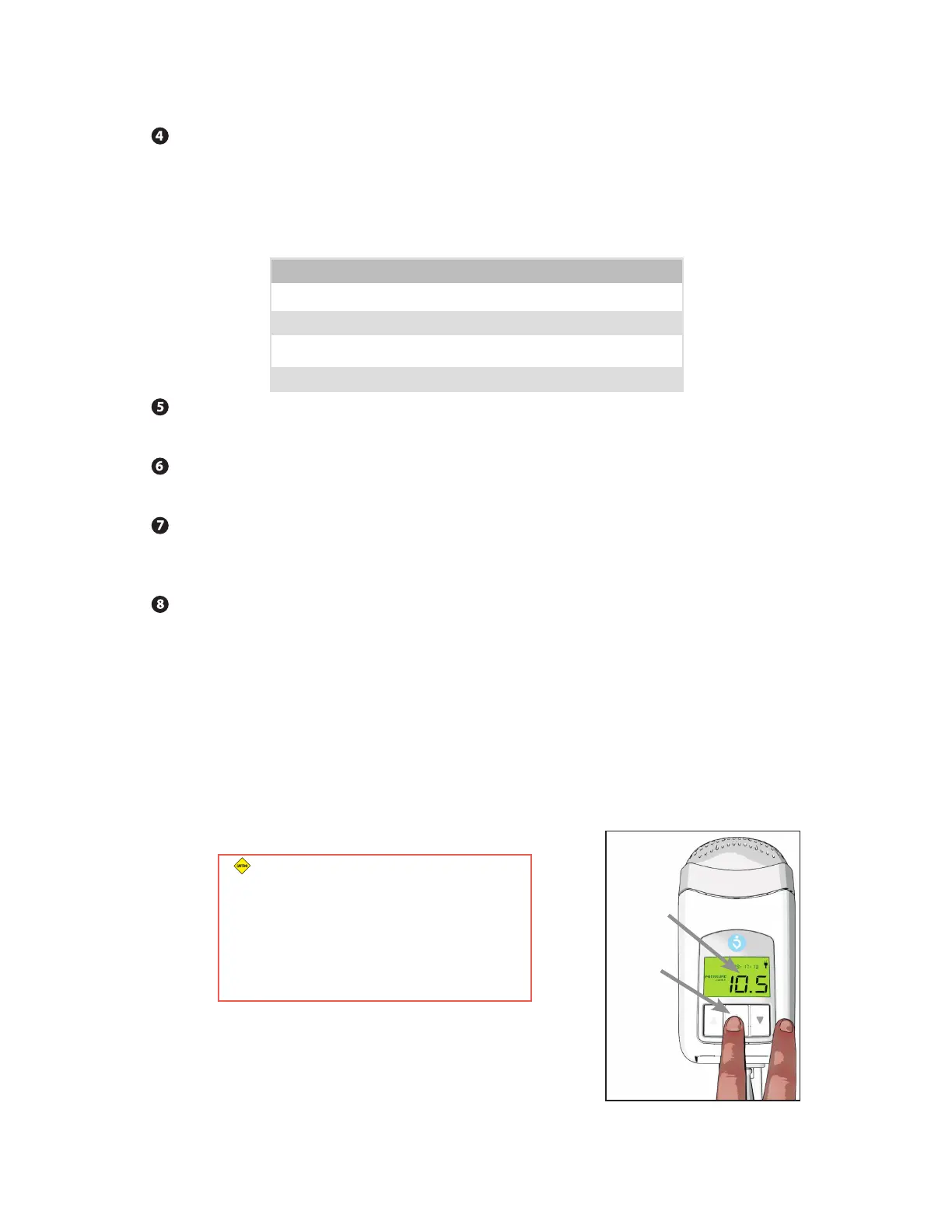
1. Press the Start/Stop Button on the Z1 to initiate treatment using the pre-programmed
prescription setting. The Treatment Pressure Display will show the actual pressure
being delivered at all times. If the Ramp Mode has been programmed, the ramp start
pressure will be displayed upon pressing the Start/Stop Button and the indicated
pressure will rise as the Z1 ramps up to prescribed treatment pressure. If the incorrect
pressure is displayed, contact your health care provider before commencing CPAP
therapy. (Figure 10)
Current
Treatment
Pressure
Start/Stop
Button
CAUTION (When using the PowerShell
Only): Make sure your Battery is fully
charged before commencing CPAP therapy
using the PowerShell. The battery life of a
fully charged battery in the PowerShell is
typically 8 hours or longer and treatment
will terminate when the charge is expended.
2. Press the Start/Stop Button a second time to stop
treatment.
Figure 10


 To Next Page