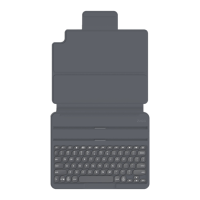
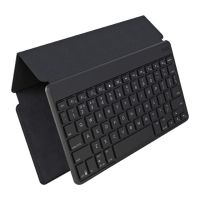
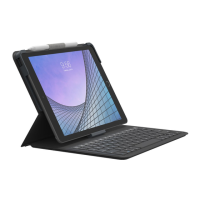
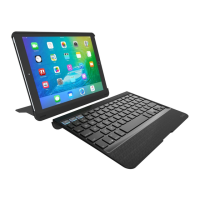
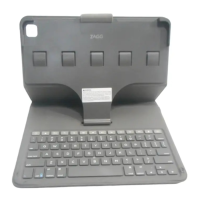
The Universal comes ready to go with about 80% of the battery
charged. To turn it on, simply slide the power button to the ON
position, you’ll see a green dot. A blue LED light will flash on the
CAPS LOCK key and a green LED will flash on the fn key. To turn
your Universal o, simply switch the power button to the OFF
position, you’ll see a red dot.
Each time you switch devices, especially one with dierent
operating systems, you’ll need to pair your Universal. To pair it,
make sure it is turned on and then find your operating system below
and follow the directions.
FOR ANDROID
1. Select SETTINGS > WIRELESS & NETWORKS > BLUETOOTH > ON
2. Press the Pair button on your Universal keyboard. A blue LED
light will flash until your device and the Universal are paired.
3. Your device should find the Universal and then list it as an
available device. If it doesn’t, simply touch Search for devices and it
will scan again.
4. When the Universal shows in your list of available devices, touch
it to complete pairing.
FOR iOS
1. On your device select: SETTINGS > GENERAL > BLUETOOTH > ON.
2. Press the Pair button on your Universal keyboard. A blue LED light
will flash until your device and the Universal are paired.
3. Your device will display “ZAGGkeys Universal” as an available
device. Select this option to complete pairing.
FOR WINDOWS
1. Press the Pair button on your Universal keyboard. A blue LED light
will flash until your device and the Universal are paired.
2. If you have it, touch the Bluetooth symbol in your system tray*
and select Add a Device. If you don’t have the Bluetooth symbol
available, simply touch the Start button and then choose Devices.
From this menu you can choose Add a Device.
3. The Universal should show up as an available device; select it and
touch Next to complete pairing.
*Windows 8 users can use the Settings charm.
POWERING ON AND OFF
PAIRING YOUR UNIVERSAL
ANDROID DEVICE
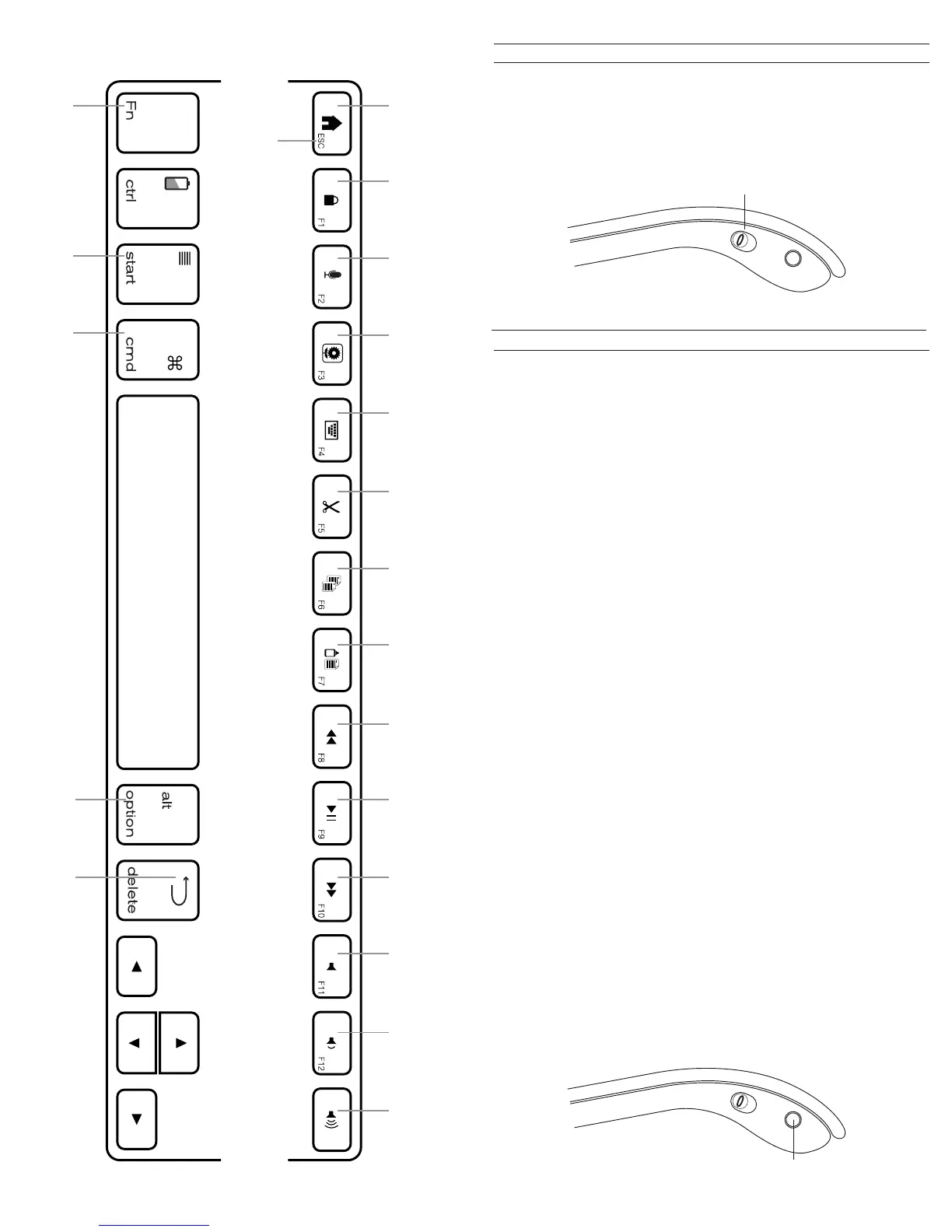
N/A Alt
Home Lock
N/A
N/A
Cut Copy Paste Track Back Play/Pause
Track
Forward
Mute Vol Down Vol Up
Function Menu Back
Works with
some devices
Functions in the lower right hand corner are accessed by pressing Fn + the key.
PAIR BUTTON
POWER BUTTON


 To Previous Page