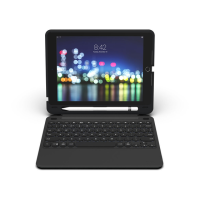
Your Universal features a powerful lithium-ion battery that lasts for
up to three months of normal use between charges. It comes with a
charging cable you can use to charge your keyboard quickly and
conveniently. To charge your Universal, simply follow these steps:
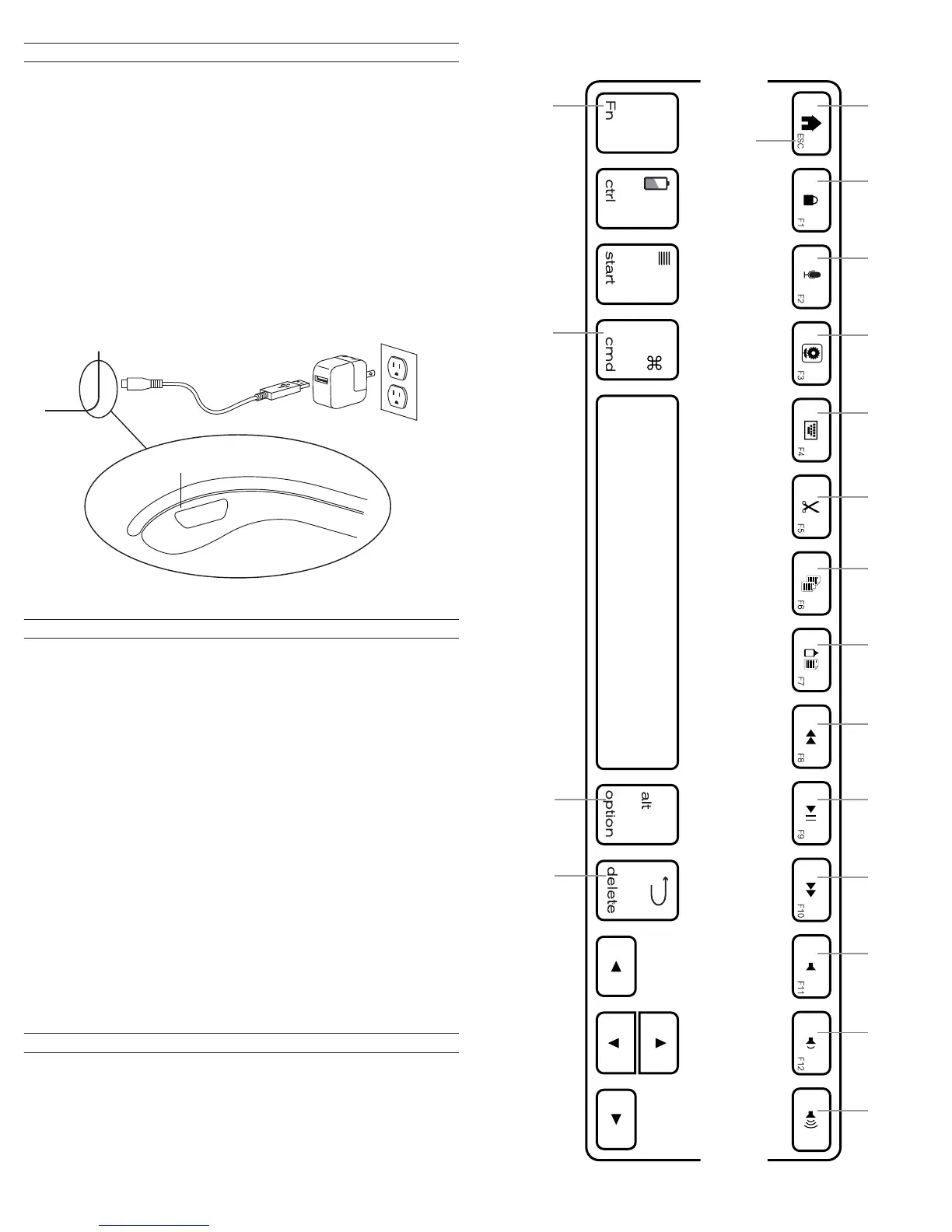
1. Plug the micro USB connector into the charging port.
2. Plug the regular USB connector into any USB outlet (including a
ZAGGsparq™, your computer, your device, etc.).
3. A green LED light will illuminate to indicate the Universal is
charging. Wait until this light turns o, indicating a full charge. It
usually takes 2-4 hours to completely charge your Universal.
4. Remove the Micro USB connector and enjoy your Universal for up
to three months before you need to charge it again.
CHARGING APPLE DEVICE
As mentioned, the Universal features a powerful, rechargeable
battery that lasts up to three months between charges*. To check
your Universal’s remaining battery power, simply hold down the
function (fn) key and press the battery key (also the CTRL key). The
LED indicator will flash one of three ways.
1. Three green flashes indicate 50% or more battery life remaining.
2. Three yellow flashes indicate between 25%-50% battery life
remaining.
3. Three red flashes indicate less than 25% battery life remaining.
When your Universal reaches critical battery level the red light will
flash once every five minutes.
To help preserve battery life, your Universal will enter sleep mode if
left on and not used for several minutes. To wake your Universal,
simply press any key. The Universal’s battery has no memory and
therefore may be charged whenever you wish. For optimal battery
life, we recommend turning your Universal o when idle for a
prolonged time.
BATTERY LIFE
Your Universal has a variety of special function keys. However, not
all keys work with each operating system*. Please refer to the
diagrams below to learn more about the special function keys that
work with your device.
*Not all functions work, or work the same, across all operating systems and/or across all
devices within an operating system. Please refer to the device specific tables for
information on specific system key functions.
SPECIAL FUNCTION KEYS
Command Alt\Option
Home Lock Cut Copy Paste Track Back Play/Pause
Track
Forward
Mute Vol Down Vol Up
Function
Functions in the lower right hand corner are accessed by pressing Fn + the key.
Siri Photos
Hide/Expose
Keyboard
CHARGING PORT
Forward
Delete


 To Next Page