Need help?
Do you have a question about the Zagg pro keys and is the answer not in the manual?
Instructions for inserting the device into the case, covering landscape mode and seating.
Guide on detaching the case from the keyboard and removing the device from the case.
Details on how to turn the Pro Keys keyboard on and off using the power button and LED indicators.
Instructions for pairing the Pro Keys keyboard with up to two devices via Bluetooth.
Methods to switch to the device's onscreen keyboard when disconnected from the ZAGG Pro Keys.
Steps for charging the ZAGG Pro Keys keyboard using a Type-C connector and USB outlet.
How to check the Pro Keys' battery life using a key combination and LED indicator colors.
Explanation of special function keys for controlling device features like pairing, media, and backlight.
Common solutions for device response issues, including restarting, re-pairing, and contacting support.
Essential precautions for safe usage, including breaks, cleaning, and environmental considerations.
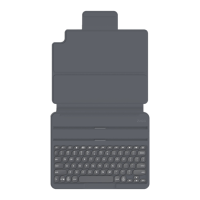
The ZAGG Pro Keys (2020) is a wireless keyboard and detachable case designed to enhance the functionality and protection of your tablet. This online manual provides comprehensive instructions for its use, from initial setup to advanced features and troubleshooting. The device is engineered to offer a seamless user experience, allowing you to transform your tablet into a productivity powerhouse while maintaining its portability and protection.
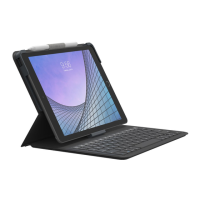
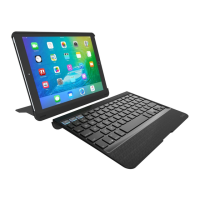
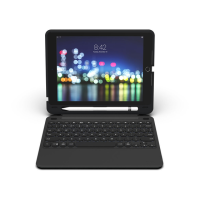
The ZAGG Pro Keys serves as a versatile accessory for your tablet, combining a protective case with a full-featured wireless keyboard. Its primary function is to provide a physical typing experience, similar to a laptop, which can significantly improve efficiency for tasks such as writing emails, documents, or engaging in extensive text input. The detachable case allows you to use your tablet independently, offering flexibility for various activities like reading, watching videos, or drawing, without the keyboard attached. The keyboard connects wirelessly via Bluetooth®, ensuring a clutter-free setup. It also features special function keys that provide quick access to common tablet controls, enhancing overall user convenience. The integrated stand mechanism props up your tablet at an optimal viewing angle, whether you're typing or simply consuming media.
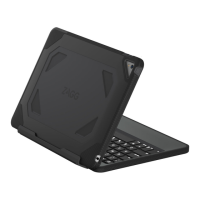
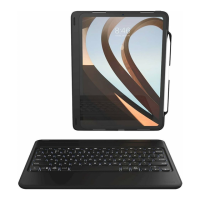
To begin using your Pro Keys, insert your tablet into the case. Hold your device in landscape mode with the volume control buttons facing up. Gently press the top half of your device into the case, applying light pressure until it snaps snugly into place. Then, press the bottom half of your device into the case, ensuring all corners are properly seated.
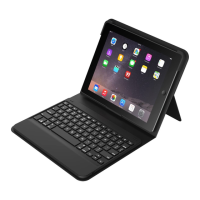
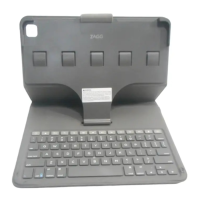
Once your device is securely in the case, attach the case to the keyboard by placing it in one of the two cradles located above the keys. A magnetized, foldable back flap on the case then secures your tablet in an upright position. Place the top of this flap against the top of the back of the case; it will magnetically snap into place, forming a triangular stand that props up your tablet. To detach the case from the keyboard, simply pull the magnetized back flap away from the case.
To remove your tablet from the case, hold the top lip of the case and press against the back. Then, grasp the exposed side of your device and lift/pull it away from the cover.
To turn your Pro Keys on, press the Power button located at the top right corner of the keyboard. A green LED will briefly illuminate. To turn it off, press and hold the Power button for three seconds; a red LED will flash to indicate it has powered down.
The Pro Keys keyboard can pair with up to two devices simultaneously. To pair, ensure your device's Bluetooth® is enabled. Press and hold either the Bluetooth 1 or 2 key for three seconds. A blue LED on the Power button will begin pulsing, indicating pairing mode. Your device will then display "ZAGG Pro Keys" as an available pairing option. Select it and follow any additional pairing steps required by your device. To pair with a second device, repeat these steps. To switch between paired devices, simply press the corresponding Bluetooth 1 or 2 key. If pairing is not completed within 60 seconds, the process will abort, and you'll need to repeat the steps.
When you want to use your tablet without the physical keyboard, there are several ways to switch to your onscreen keyboard. You can press the Keyboard Hide/Show button, turn off the Bluetooth® connection from your device settings, or simply turn your Pro Keys keyboard off. Additionally, removing the tablet in the case from the grooves above the keyboard will automatically disconnect Bluetooth and bring up the virtual keyboard on your iPad.
The Pro Keys keyboard includes a range of special function keys for enhanced control:
To charge your Pro Keys, plug the Type-C connector into the charging port on the keyboard. Then, connect the regular USB connector into any 5V USB outlet. A red LED will light up to indicate that your keyboard is charging. Once fully charged, this LED will turn off. Normal usage, without the backlit feature, allows for approximately one hour of use per day. Utilizing the backlit feature will consume more battery life and necessitate more frequent charging.
To check your Pro Keys' battery life, press the "fn" key simultaneously with the battery key. The LED light will flash in one of three ways to indicate the remaining battery life:
If your Pro Keys is not responding, common issues include a dead battery or unsuccessful pairing.
For further assistance, refer to the FAQ section on www.zagg.com/faq or contact ZAGG Customer Service via zagg.com/support/contact.php, questions@zagg.com, or by phone at 1-800-700-ZAGG [9244] (or 00-1-801-839-3906 for international customers).
It is important to take frequent breaks when using your keyboard. If you experience any discomfort (pain, tingling, numbness, or burning in your neck, shoulders, arms, wrists, hands, or any other part of the body), stop using the keyboard and consult a physician. Use only Type-C USB chargers with your keyboard. Do not attempt to service, disassemble, crush, or puncture your keyboard. Avoid immersing your keyboard in water or exposing it to other liquids, as this can cause short circuits, fire, or electric shock. Do not use liquid or aerosol cleaners; clean only with a soft, dry cloth after disconnecting all cords. Do not use your keyboard while operating a motorized vehicle. Keep your keyboard away from heat sources such as radiators, stoves, campfires, or barbeque grills. To prevent fire or electric shock, connect your keyboard to products only as instructed in the documentation. Do not modify or adjust any ports. When discarding your keyboard, recycle it according to local electronic recycling requirements.
For unparalleled scratch protection for your device, InvisibleShield® screen protection is recommended.
 General
| Cover | - |
|---|---|
| Backlight | Yes |
| Compatibility | iPad |
| Product color | Black, Grey |
| Ergonomic design | No |
| Brand compatibility | Apple |
| Maximum screen size | 10.2 \ |
| Cables included | USB Type-C |
| Package depth | 266.7 mm |
| Package width | 209.55 mm |
| Package height | 30.48 mm |
| Mobile operating systems supported | iOS |
| Keyboard language | UK English |
| Device interface | Bluetooth |
| Connectivity technology | Wireless |
| Harmonized System (HS) code | 84716060 |
 Weight and Dimensions
| Depth | 195.8 mm |
|---|---|
| Width | 256.9 mm |
| Height | 24 mm |
| Weight | 1066 g |

 To Next Page