26
Power Cycle: Close Audacity, turn off the converter and unplug the USB Cable. Then plug in the USB Cable, turn
on the converter, and reopen Audacity.
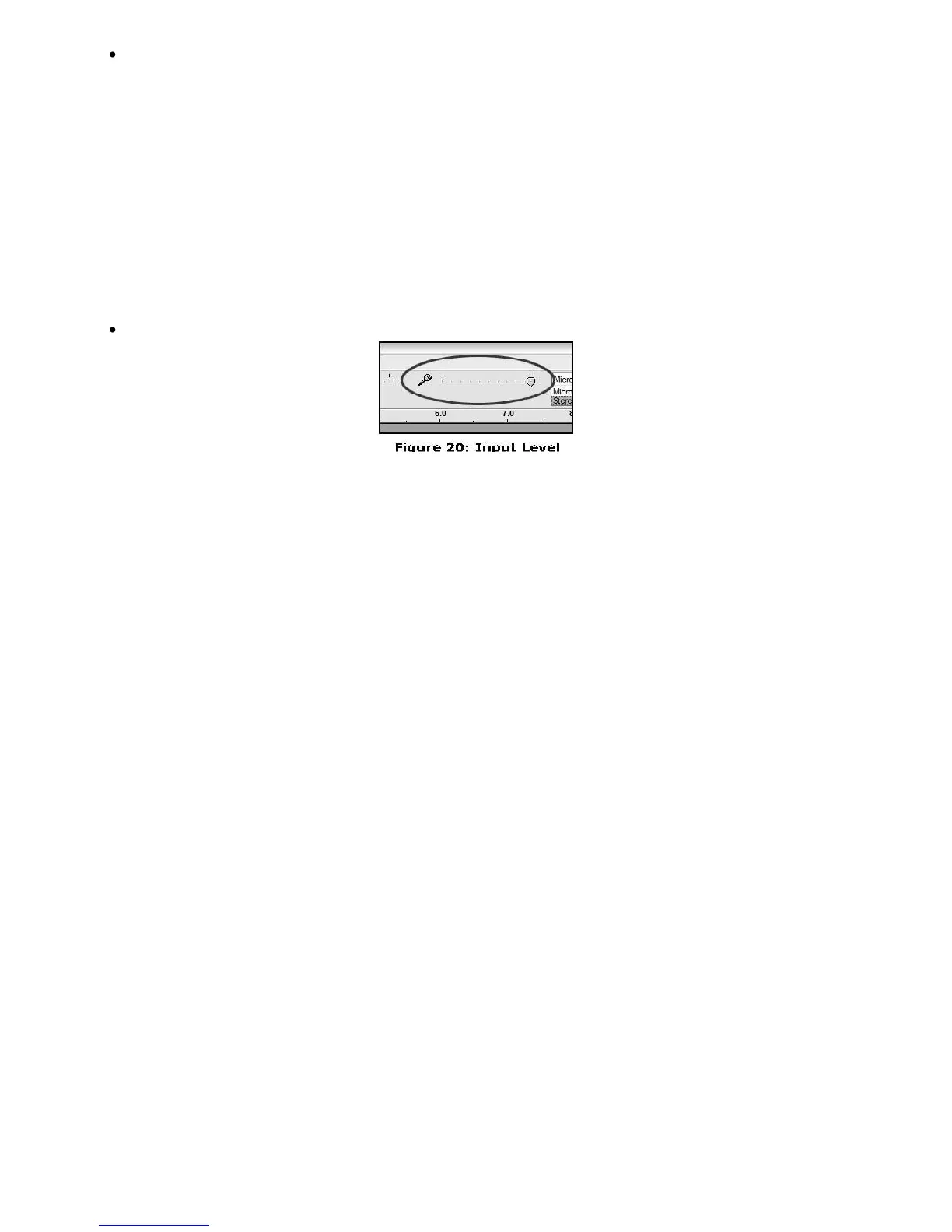
If you are not seeing the microphone slider, please go to the Preferences menu in Audacity, click on the Interface tab and
make sure that the Enable Mixer Toolbar and Enable Meter Toolbar options are checked. If they are not, please check
them and then press OK.
Check the microphone slider to make sure that it is at full volume, all the way to the right as shown in Figure 20:
POOR SOUND Quality:
If a recording sounds distorted or garbled during playback, you may need to adjust the input volume from the
turntable. Try moving the Input Level slider in Audacity to the left to lower the input volume (See Figure 17).
You can use the Normalize effect, as described in the Adjusting Your Audio Level section, to bring the volume
back up to normal after the recording.
Make sure that your RCA plugs are plugged into a source or not touching bare metal. If you are experiencing
noise through the USB, you may have interference from the RCA plugs. Ensure the USB cable is not touching or
near any other cables.
If you experience any odd sounds coming from the recording, try closing all applications, restarting the computer,
and only run Audacity while recording.
If you are using the RCA plugs and your turntable is equipped with a PHONO/LINE switch, make sure that you
have the switch on the bottom panel set to the correct position. Make sure that you have properly installed and
calibrated the tone arm of the turntable.



 To Next Page