8
AUDACITY CONFIGURATION ON PC
1 Launch Audacity: Click on the Start menu on the bottom left of your screen. Select All Programs, then Audacity.
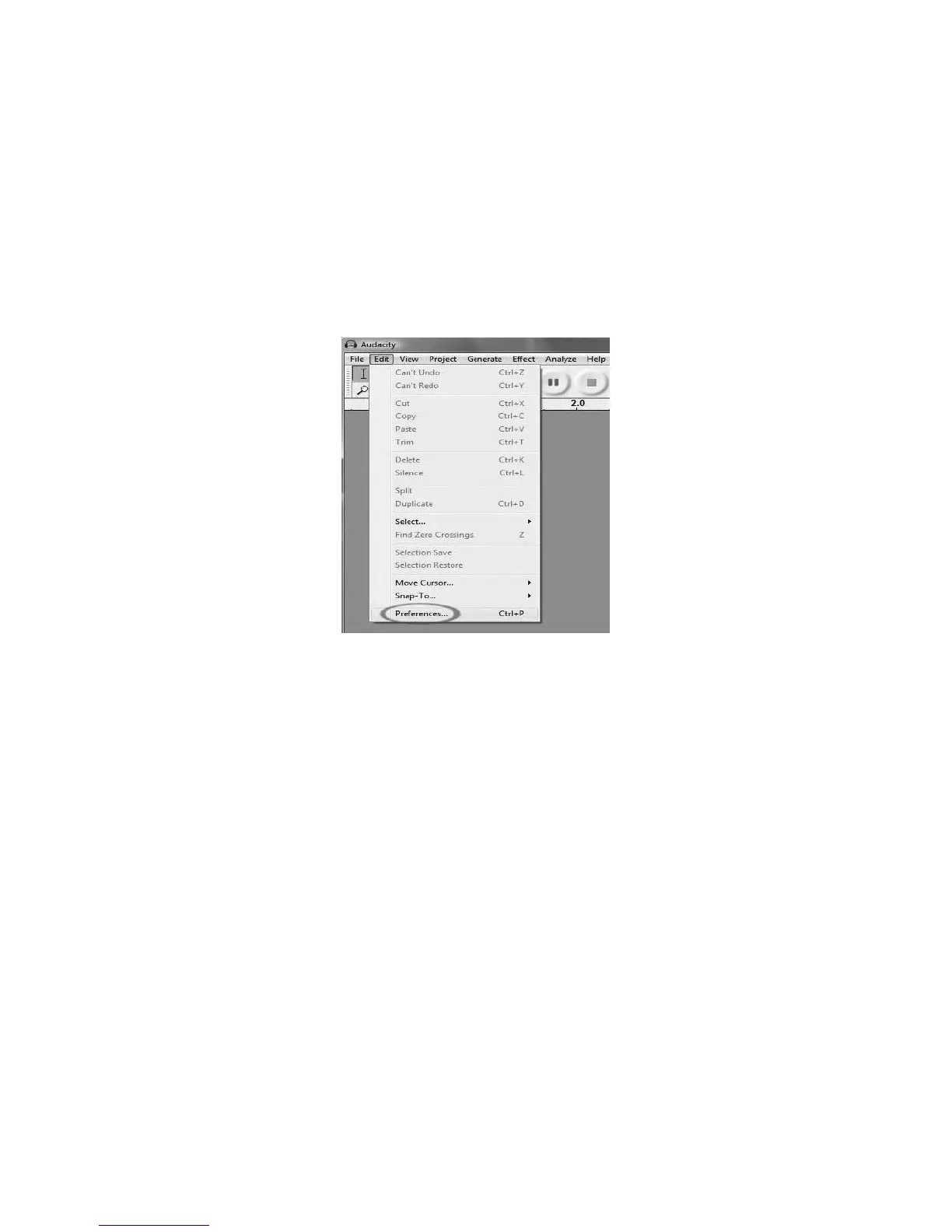
2 In Audacity, click on the Edit menu at the top of the screen.
3 Select Preferences from the Edit menu.
Figure 1: Select Preferences
The Audacity Preferences window will come up (Figure 2). Choose the Audio I/O tab from the top of the Preferences
screen.
4. Set your Playback Device to your internal sound card. Since different computers have different internal sound
cards, your selection may be different from the image below (Figure 2). The correct selection, however, will NOT
be SSS USB Audio Device, Microsoft Sound Mapper or Modem.
5. Set your Recording Device to SSS USB Audio Device. This represents your Converter.
Note: The USB Converter may show up with a different name in the Preferences window. This may depend on
your computer model and operating system. 99% of the time it will contain “USB” in the Name.
6. Set Channels to 2 (Stereo).
7. Check the box labeled Software Playthrough.



 To Next Page