9
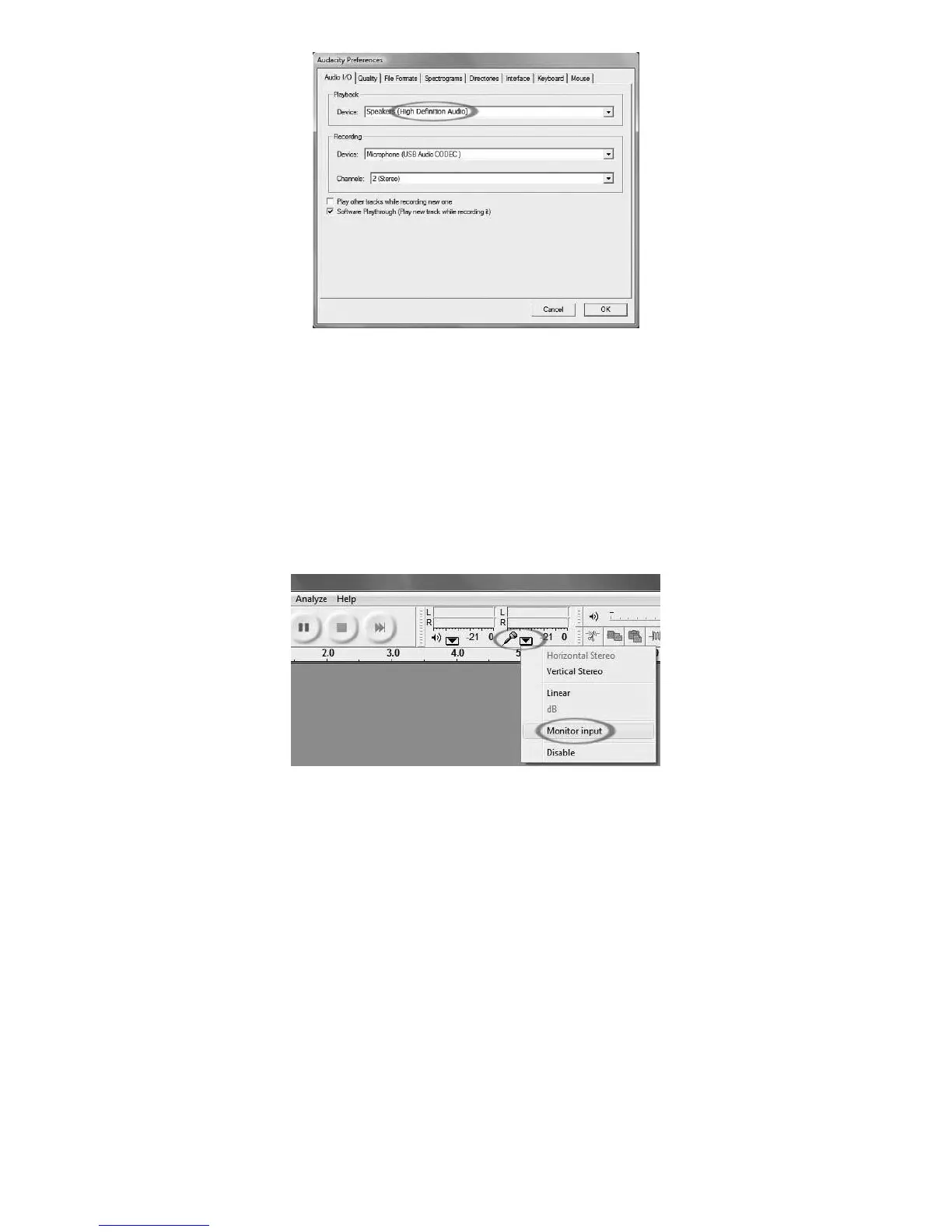
Figure 2: Select USB Audio Device from Preferences
8. Under the Quality tab, set the Default Sample Format to 16bit.
9. Select OK to save your settings and close the Preferences window.
10. At the top of the main Audacity window, to the right of the play control buttons, you will see the input and output
level meters (labeled L and R). Under the output level meter, is an icon that looks like a microphone. Next to the
microphone is a black arrow that points down. Click this arrow and select Monitor Input. (If you don't see the input
and output level meters, open your Preferences again as described above, select the Interface tab, and make sure
that Enable Mixer Toolbar is checked.)
You should be all ready to record.
These settings will be saved when you exit. However, you will need to select Monitor Input from the input meter’s
drop-down menu each time you launch Audacity.
CONFIGURING AUDACITY FOR MAC OS 10.4 AND ABOVE
1 With the Audacity program open, click on the Audacity menu at the top of the screen.
2 Select Preferences from the Audacity menu.
3 Under the Audio I/O tab, set your Playback Device to Built- In Audio.
4 Under the Audio I/O tab, set your Recording Device to SSS USB Audio Device.
5 Under the Audio I/O tab, set your Channels to 2 (Stereo).
6 Check the box labeled Software Playthrough.



 To Next Page