Add/Remove a Player
To add or remove a player from your account, select “Prole” then select “Play-
ers”. To add a player, select the “+” sign located in the top right corner. Enter
all the information of your sub user like name, email address, handedness,
and the presets. Email address so the player can view swings by downloading
the Zepp Golf app. The coach can view the swings the player takes as long as
the player has a Zepp 2 sensor.
To delete a player, select the player prole in which you would like to remove.
Tab on “edit” in the top right corner of screen. Tab on the “trash can icon” in
the top right corner of screen. A popup screen will appear conrm your deci-
sion. Tap on “Remove” to delete the player
A popup screen will appear conrm your decision. Tap on “Remove” to delete
the player.
Switch Between Players’ Captured Swings
Capturing swing data for dierent players is done by selecting the player in
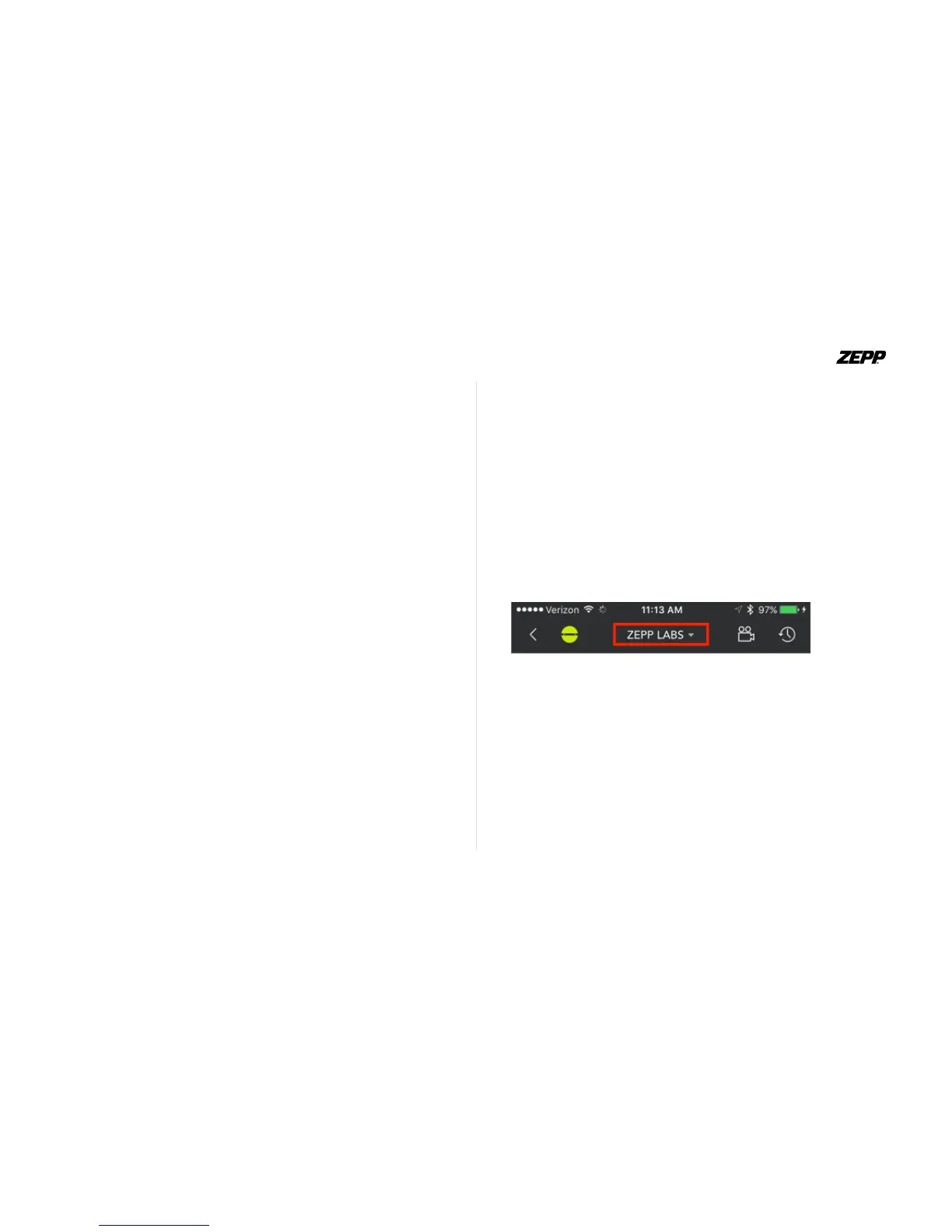
the “Change Golfer” tab located in the “3D swing analysis view”. Above the
3D avatar there is section that contains the name of the current player. To
switch between players, simply tap the name to open the “Change Golfer”
tab which contains all players. Select accordingly and swing! All swings
will then be saved under that specic player’s account.
ZEPP GOLF USER GUIDE Page 14


 To Next Page