Page 4 Decoder-Update-and-Sound-Loading-device MXULFA, Test and Connection boards MXTAPS, -V, MSTAPK, -G
The decoder update starts ...
5. Self-update of the MXULF or MXULFA
• Download new MXULF software from www.zimo.at - Update & Sound - Decoder update device MXULF as
.zip file; unzip the .zip file, save the two resulting actual update files MXULF.ulf and MXULF.bin in the
root directory of the USB stick. For this you can use the ZIMO USB stick enclosed with the device
(which is already correctly formatted), or any other USB stick; see chapter "USB stick for use with
MXULFA".
In the main directory (root) of the USB stick other files may be stored at the same time (especially update
or sound files for decoders); for reasons of clarity and reliability files of any kind and in large numbers
should not be present on the stick.
Tip for first time users: only the necessary files on the USB stick (root), in this case MXULF.ulf and MXULF-bin.
• Prepare MXULFA: Disconnect all connections, reconnect ""Power" (included power supply unit or rail
output of a digital control center) → LED "Power" green.
• Insert USB stick prepared above
→ LED 3 flashes red-green-yellow (if correct files,
i.e. .ulf and .bin, are found on the USB stick).
• Key 3 (long, 3 sec) → Self-update starts
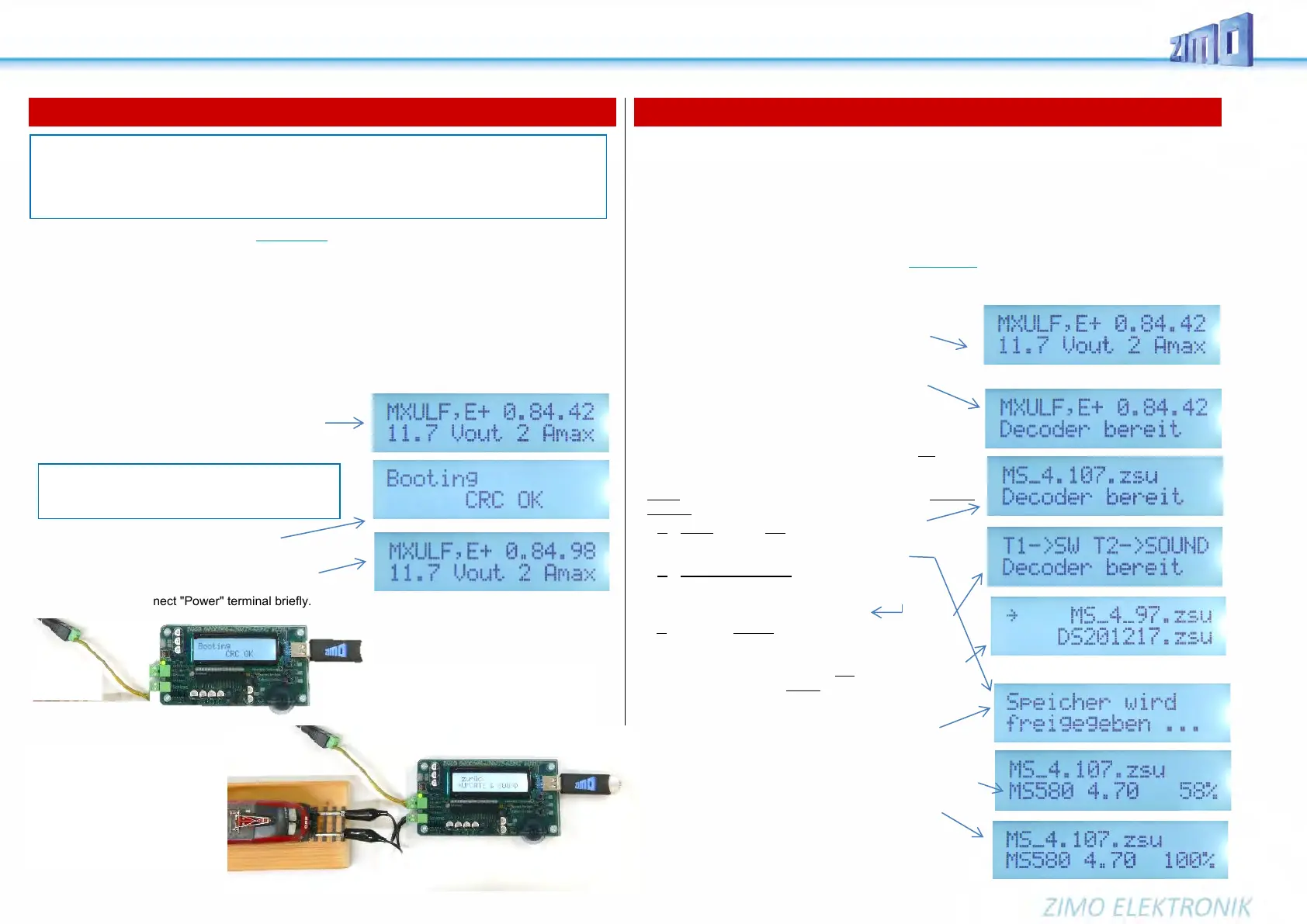
• Wait for message "Booting ... CRC OK".
CRC OK" may appear instead!
• Key 3 → to acknowledge,
MXULF resets and shows startup screen if automatic reset
does not work: Disconnect "Power" terminal briefly.
6. Decoder software and sound from USB stick
The "standard procedures" include: Decoder software update and sound project load
single (or several in a row) ZIMO decoder of the generations MX... and MS...,
either on rail (mostly decoder built into loco) or connected to MXTAP.., MSTAP,
optionally via rail protocol (in loco or ...TAP.. ) or (sound only) SUSI interface (1/10 time requirement).
Decoder software update via the rail with decoder software collection file on the USB stick.
Decoder installed in locomotive or connected to a test and connection board MXTAP..., MSTAP ...
• Prepare USB stick: download a suitable (containing the relevant decoder type; possibly for MS and
MX separately) decoder SW collection file from www.zimo.at - Update & Sound - Update MS decoder or
Update MX decoder, unpack it and save it in the root directory of the USB stick (.zsu file).
Tip for first time users: only this one file on the USB stick (root), delete all others (especially older .zsu versions)
• Prepare MXULFA: Connect "Power" (power supply or
power source according to the technical data) to the
MXULF;
→ Start screen on display → LED "Power" green.
Sequence of the following two steps as desired:
• Connect rail to MXULFA, vehicle (with decoder)
on rail (only vehicle, only decoder)
OR: Connect MSTAP.. or MXTAP.. board (with decoder plugged in
or connected decoder) to MXULFA (rail)
→ Second line: "Decoder ready" or decoder type (display
dependent on MXULF-SW version; sequence not de-
pendent).
• Insert prepared (described above) USB stick,
Three variants of the further process depending on the stick
content:
1. if single decoder SW collection file (.zsu file):
→ First line: Name of this file → LED „1“ yellow
Key 1
→
Start decoder software update
2. if single sound project on the stick (.zpp file):
→ First line: Name of this file → LED „2“ yellow
Key 2 → Starting decoder sound loading
see next chapter
3. if there are several files on the stick (.zsu and/or .zpp)
→ First line: → LED „1 and/or LED „2“ yellow
Note on keys - selection of the further operation
Key 1 → to the list of decoder SW collection files (.zsu)
Key 2 → to the list of sound projects (.zpp files)
Scroll (scroll wheel) in respective list; cursor on selected
file, depending on whether .zsu or .zpp:
Key 1
→
Starting the decoder software update
Key 2 → Starting the decoder sound loading
see next chapter
Decoder software update in progress, with logging of the
most important steps (clear memory), progress display in %.
When 100% is reached: Remove the vehicle from the track,
and - if desired - connect/set up another decoder,
Key 1 → Start decoder update with identical .zsu file
NOTE: Especially in times of market introduction of new decoder types or generations, frequent up-
dating of the MXULFA's own software is practical or even necessary.
It is impossible in practice to keep a correct documentation of which decoder in which version is com-
patible with which software of the MXULFA; therefore, it must be recommended to update the
MXULFA itself at the latest in case of problems.
NOTE: Key 1 and key 2 lead into the areas of the
decoder software update or the sound loading, if
suitable files (.zsu or .zpp) are stored on the stick.
For the self-update, only the power supply (at
terminal "Power" of the MXULFA) must be con-
nected, and a USB stick with the correct files for the
update must be inserted.
Typical arrangement for
software update and/or sound
loading via " rail "; Decoder installed
in locomotive, locomotive on "up-
date track", power supply from
power supply unit via terminal
"Power", USB stick with the correct
files for update and/or sound load-
ing inserted.


 To Next Page