___ ZipSpin
3. Making a Composite CD
This process will guide you to select audio tracks from various audio CDs and combine them into one
customized Audio CD.
Select function #3. Copy Track from main menu
Insert an Audio CD with your favorite tacks in the Reader drive and Insert Blank CD-R disc
into the writer drive.
As soon as both audio CD and blank CD-R are recognized, you will see the # of tracks
(1,2,3,4,5………) on the duplicator LCD screen.
Navigate , to the track number that you would like to select, and then press ENT to
confirm your selection. The track will be played through the rear end audio jacks (if amplified
speakers are connected) after each selection is made. Continue with your selection of
tracks from the disc. You will see a letter of “ a, b, c, d,….” on top of each selected track.
** You do not have to wait for each track to finish playing. Press ENT button to make your
selection at any time. The duplicator is not copying the tracks at this point.
Once you finished selecting the tracks you want to copy, you can press to move cursor to
the end with the “OK” display. And press ENT to confirm and submit your selection.
Once you have entered your selections, you will see “ Copying Audio Tracks…..” on your
LCD screen.
When copying was finished, the LCD will show CD-R’s usage and free space.
You can repeat above step 1-6 to select Audio track from other source discs, and copy to
the same blank disc.
.
★ Note: Once you have finished copy Audio Tracks, you NEED to execute function #4. Close
Disc on this CD. This function will finalize the CD or otherwise it will not be able to
play on any audio CD player.
<<< ZIPSPIN>>>
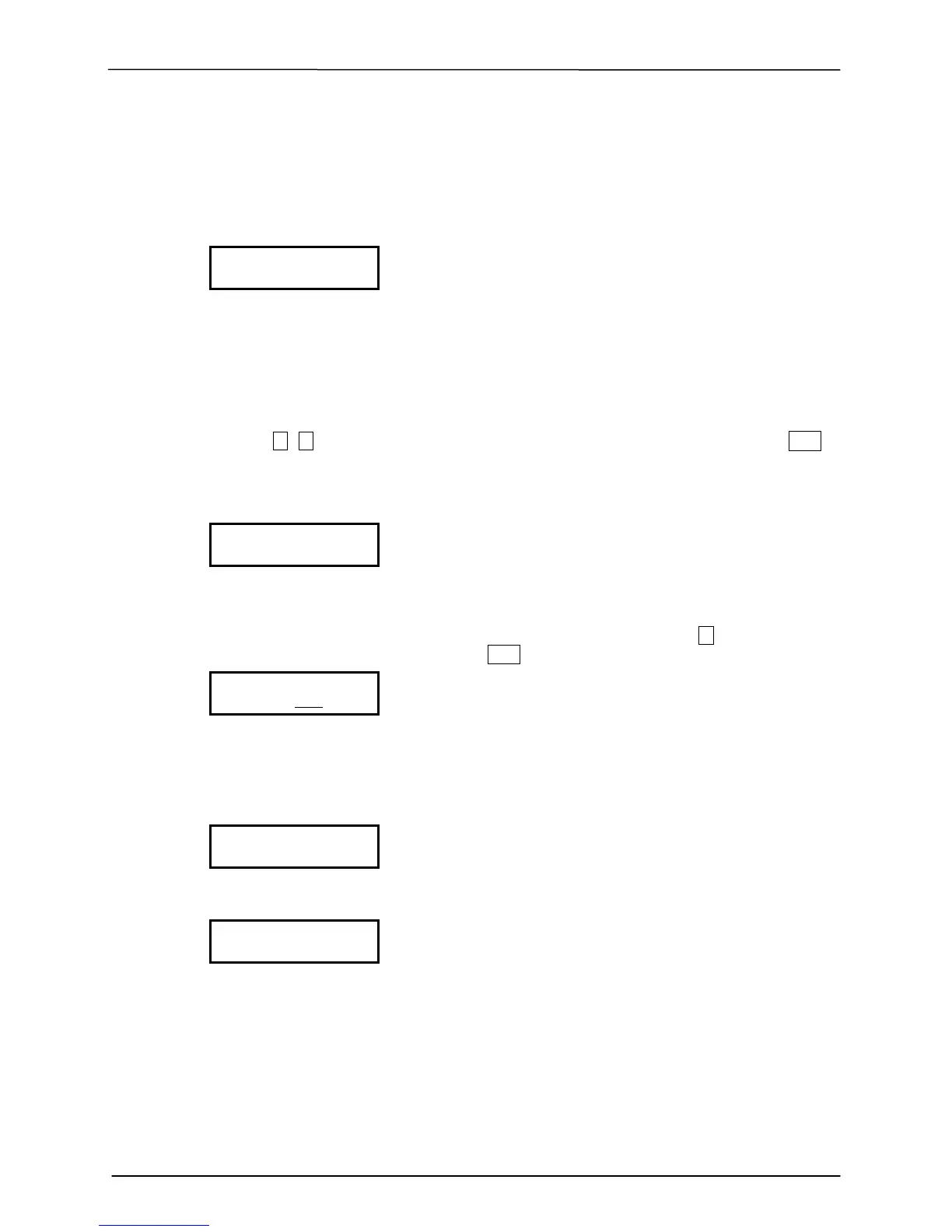
3. Copy Track
7 8 9 10 OK_
Track 01 04:39
Copy.... 00:04
15 Free 20:42


 To Next Page