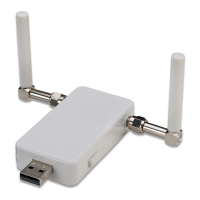
You also have the option of supplying power for the modem using the Modem’s header.
If you prefer to use the modem’s header, DON”T USE THE POWER CUBE AT THE
SAME TIME. For more information about using the modem’s header to power the
modem, please see Chapter 7 - Using the Modem’s Header
for more information.
Connecting the Modem to the Internet using a Windows Computer
In this example we install a USB driver onto a Windows 7, 8, or 10 computer, then use
dial-up networking to connect to the Internet. When connected this way, the modem uses
the Windows built-in protocol stack and not the TCP/IP stack built into the modem.
This section is intended to be used as an example to let you use the modem quickly. If
you do not want to install the modem in Windows, you can skip ahead to Chapter 2 for
more detailed instruction for installing your modem.
Installing the Windows USB Driver
1 Download the Windows USB driver for your modem from
www.zoomtel.com/4575support
. Unzip the file and store it in a folder on your
desktop.
2 Inside that folder, double click on DriverInstall.exe to install the USB driver. The
driver installs in the background in roughly 30 seconds. If the This program
might not have installed correctly dialog box appears, you can ignore this
message and click This program installed correctly.
3 Plug one end of a USB cable into the USB port of your computer and plug the
other end of the cable into your modem’s USB port.
Setting up the Modem for your Network
Before you can connect to the Internet through Windows, you will need to register your
modem with your cellular network. To do this, open up a terminal program on your
computer to talk directly to your modem. If you do not have a terminal program on your
PC, there are several open source programs such as Tera Term, Putty, or RealTerm that
you can download and use if you obey their terms of use.
1 To check what port your modem is installed on, go to the Control Panel, click on
Phone and Modem, and select the Modem tab. The modem will be installed as
a Huawei Mobile Connect Modem and the com port number will be listed next
to the modem.
6



 To Next Page