6 ADSL X6 Quick Start
4
44
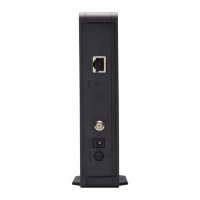
4 Plug the included power cube into a power strip or wall outlet
and then plug its other end into the modem’s power (PWR)
jack.
Important!
Only use the power cube shipped with the X6. Other power
cubes may damage your hardware.
The PWR and WLAN lights on the front panel of the modem
should become steady on, and the LINK light should blink. If
the PWR light does not turn on, make sure there is power at
the wall outlet or power strip where you plugged in the power
cube.
5
55
5
Turn the computer on.
6
66
6 Plug one end of the supplied phone cord into the
modem’s ADSL port and the other into the ADSL wall jack.
The blinking LINK light should become steady on. If it does
not, refer to Troubleshooting Tips on page 22.
Tip!
If your X6 came with an ADSL splitter, you can plug it into
the ADSL wall jack. This enables you to use the wall jack for
both your ADSL connection and for telephone service. The
splitter has two jacks, one labeled for your ADSL modem
connection and the other for your phone.
7
77
7 Phone filters are not absolutely required, but we HIGHLY
RECOMMEND that you use a filter for EVERY phone
and fax that is sharing the ADSL phone line. (Do not plug
a filter between the ADSL wall jack and the X6.) Phone filters
block the ADSL frequencies so that someone making a normal
phone call will not hear modem noise on the line. They also
keep phone noise from interfering with ADSL performance.
You may have received ADSL phone filters with your X6. If
you did not, or if you need more filters, they are available at
most retail stores that carry consumer electronics.



 To Next Page