26
Upgrading the firmware version
Upgrade the firmware version when necessary.
NOTE
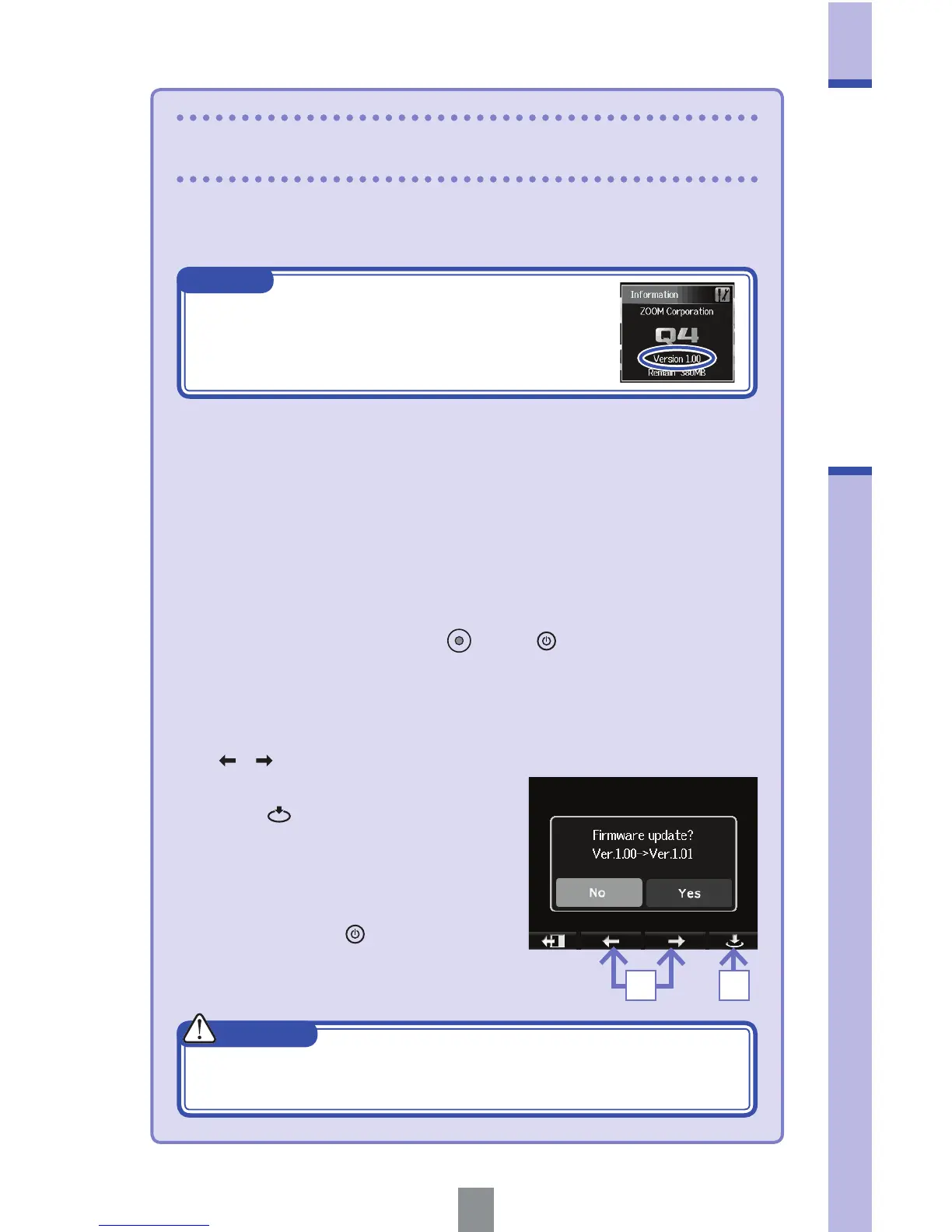
You can check the firmware version using the
Information item in the Setting menu.
1. Copy the file for upgrading the firmware to the root directory on
the SD card.
• The latest version of the firmware can be downloaded from www.
zoom.co.jp.
2. Insert the SD card into the unit’s card slot.
3. While pressing and holding , press until the unit starts and
the Firmware update screen opens.
4. If the contents of the version update shown are as desired, use
/ to select “Yes”.
Upgrading the firmware version
54
5. Press .
6. When updating the version
completes and "Complete!"
appears, press for at least one
second to shut down.
CAUTION
Upgrading the firmware version is not possible if the remaining
battery power is low.


 To Next Page