EasyManua.ls Logo

Zte BLADE A310 - User Manual

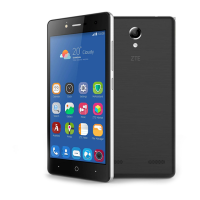
Zte BLADE A310
171 pages
Print Icon
To Next Page IconTo Next Page
Loading...
1
User Manual

Table of Contents

Other manuals for Zte BLADE A310

Questions and Answers

  • B
    Brittany DyerAug 13, 2025
    What to do if my Zte Cell Phone shows a nano-SIM card error?
    • J
      joanlambertAug 13, 2025
      If your Zte Cell Phone displays a nano-SIM card error, there are several potential causes. The nano-SIM card may be malfunctioning or damaged, in which case you should take it to your service provider for testing. Alternatively, the nano-SIM card may be inserted improperly; ensure it is correctly inserted. Lastly, debris on the nano-SIM card contacts can cause errors; clean the contacts with a soft, dry cloth.
  • M
    Melissa Flores MDAug 17, 2025
    Why does my Zte BLADE A310 have poor reception?
    • M
      Mrs. Kimberly Reed DVMAug 17, 2025
      Poor reception on your Zte Cell Phone can occur for several reasons. The network signal might be weak at your current location, such as in a basement or near a tall building. In this case, move to a location where the network signal can be properly received. The network may also be busy, especially during peak times; avoid using the phone at these times or try again later. You might also be too far from a base station; you can request a service area map from your service provider to confirm.
  • J
    Julie BrennanAug 21, 2025
    What to do if my Zte BLADE A310 Cell Phone is unable to connect to the network?
    • A
      Ashley FranklinAug 21, 2025
      If you are unable to connect to the network with your Zte Cell Phone, the nano-SIM card may be invalid, and you should contact your service provider. Alternatively, you may be outside of the network's service area, so check with your service provider. A poor signal could also be the cause; try moving to an open space or closer to a window if you are inside.
  • D
    Dr. John JohnsonAug 25, 2025
    Why is the standby time on my Zte BLADE A310 so short?
    • S
      Sarah VasquezAug 26, 2025
      If your Zte Cell Phone's standby time is shortened, it could be related to your service provider's system configuration; standby time can vary between providers. If you are in an area with a weak signal, temporarily power off the phone. Battery depletion or high temperatures can also shorten battery life. Finally, if the phone cannot connect to the network, it will continue searching for a base station, consuming battery power; change your location to one where the network is accessible, or temporarily turn off your phone.
  • R
    Robert AdamsAug 28, 2025
    Why do I hear echo or noise on my Zte BLADE A310 during calls?
    • A
      Anthony BellAug 28, 2025
      Echo or noise during calls on your Zte Cell Phone can be caused by poor network link quality from your service provider or poor quality of the phone line you are calling. To resolve this, end the call and dial again, as you may be switched to a better-quality network link or phone line.
  • L
    lopeztimothySep 1, 2025
    Why am I unable to select certain features on my Zte Cell Phone?
    • C
      cranestevenSep 1, 2025
      If you are unable to select certain features on your Zte Cell Phone, it may be that your service provider does not support these features, or you have not applied for services that provide these features. Contact your service provider to confirm. The phone’s temperature being below 0 °C or higher than 45 °C can also affect feature availability; adjust the battery charging environment to avoid extremes of temperature.
  • N
    Nicholas AlexanderSep 4, 2025
    Why can't I make outgoing calls on my Zte Cell Phone?
    • M
      Mr. Ricardo Carroll MDSep 5, 2025
      If you cannot make outgoing calls on your Zte Cell Phone, you may have activated the Call barring feature; disable this feature. Alternatively, you may have activated the Fixed dialing numbers feature; disable this feature as well.
  • F
    flittleSep 8, 2025
    What to do if my Zte Cell Phone says 'PIN Code blocked'?
    • X
      xblankenshipSep 8, 2025
      If your Zte Cell Phone's PIN code is blocked, it is because you have entered an incorrect PIN code three consecutive times. Contact your service provider. If they provide the nano-SIM card’s PUK code, use the PUK code to unlock the nano-SIM card.

Summary

Getting Started

Installing SIM and microSD Cards

Provides instructions for inserting nano-SIM and microSDHC cards into the device.

Charging the Battery

Details the process of charging the phone's battery using the provided charger.

Initial Setup and Screen Management

Covers first-time setup, language selection, and locking/unlocking the screen.

Security and Privacy

Protecting Your Phone With Screen Locks

Setting up screen locks like Swipe, Pattern, PIN, or Password for device security.

Protecting Your Phone With Encryption

Enables encrypting all data on the phone for enhanced privacy and security.

Knowing the Basics

Text Input Methods and Keyboards

Covers entering text, managing input methods, and using Android/TouchPal keyboards.

Connecting to Networks and Devices

Connecting to Mobile Networks

Manages SIM cards, default subscriptions, data usage, and network types.

Connecting to Wi-Fi

Steps to turn on Wi-Fi, connect to networks, add new networks, and use WPS.

Using the microSDHC Card as Portable or Phone Storage

Configuring and managing the microSDHC card for storage purposes.

Phone Calls

Placing and Ending Calls

Basic operations for making, ending, and handling phone calls.

Answering or Rejecting Calls

Instructions on how to answer, reject, or reject with a message.

Calling Your Contacts

Making calls to contacts stored on the phone or SIM card.

Checking Voicemail

Accessing and managing voicemail messages left by callers.

Adjusting Your Call Settings

Customizing contact display, sound, vibration, and call forwarding options.

Contacts

Checking Contact Details

Viewing and managing contact information stored on the phone.

Adding a New Contact

Creating new contact entries with names, numbers, and other details.

Importing, Exporting, and Sharing Contacts

Transferring contacts between SIM, phone storage, and external devices.

Editing Contacts

Modifying existing contact details and setting custom ringtones.

Email

Setting Up the First Email Account

Guides on configuring the initial email account for receiving and sending emails.

Checking Your Emails

Instructions for automatically or manually checking for new emails.

Responding to an Email

How to reply to the sender, reply all, or forward an email.

Messaging

Sending a Message

Steps for composing and sending text (SMS) or multimedia (MMS) messages.

Replying to a Message

How to reply to received messages within existing conversation threads.

Camera

Capturing a Photo

Instructions for taking photos using the front and back cameras.

Settings

Wireless and Network Settings

Configuring Wi-Fi, Bluetooth, and managing nano-SIM cards.

User, Location, and Security Settings

Managing user accounts, location services, and device security options.

Troubleshooting

Poor Network Reception Issues

Resolving problems related to weak network signals and busy networks.

Call Quality and Feature Issues

Troubleshooting echo, noise, and inability to select certain features.

Battery and Connectivity Problems

Addressing issues with battery charging, standby time, and network connectivity.

Phone Power and SIM Card Errors

Resolving problems with turning the phone on, SIM card errors, and network connection.

Call and Software Stability Issues

Troubleshooting issues with making calls, PIN code blocking, and software crashes.

For Your Safety

General Safety Precautions

Guidelines on safe phone usage, including driving, small parts, and loud sounds.

RF Exposure and SAR Information

Information regarding radio frequency (RF) energy and specific absorption rate (SAR).

Exposure Limits and Handling Advice

Advice on limiting RF exposure and regulatory information.

Distraction and Product Handling

Precautions against distraction while driving and proper handling of the device.

Child Safety and ESD Precautions

Safety measures regarding small children, demagnetization, and electrostatic discharge.

Health and Medical Safety

Information on seizures, repetitive strain injuries, and emergency calls.

Electrical Safety and Interference

Guidelines on electrical safety, using accessories, and radio frequency interference.

Vehicle and Explosive Environment Safety

Precautions for use in vehicles and potentially explosive atmospheres.

Zte BLADE A310 Specifications

General IconGeneral
SIMDual SIM (Micro-SIM, dual stand-by)
Display TypeIPS LCD
OSAndroid 5.1 (Lollipop)
ProcessorQuad-core 1.0 GHz Cortex-A53
CPUQuad-core 1.0 GHz Cortex-A53
Internal Storage8 GB
RAM1 GB
Video1080p@30fps
Selfie camera2 MP
LoudspeakerYes
3.5mm jackYes
WLANWi-Fi 802.11 b/g/n, hotspot
Bluetooth4.0, A2DP
GPSYes, with A-GPS
RadioFM radio
USBmicroUSB 2.0
SensorsAccelerometer, proximity
Battery TypeLi-Ion 2200 mAh, removable
StatusAvailable
Display Size5.0 inches
Resolution720 x 1280 pixels
Card slotmicroSD
FeaturesLED flash
ColorsBlack, Gold
ChipsetMediaTek MT6735
Main Camera8 MP, AF

Videos

How to Change Wallpaper in ZTE Blade A310

Related product manuals