115
Google Now, Voice Search, and
Voice Actions
You can search for information on the web or on your phone
using Google search, or get information when you need it using
Google Now without searching. You can also search the web or
perform certain tasks by speaking.
Using Google Now
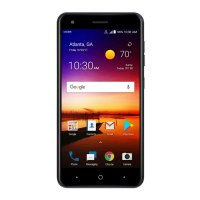
Touch on the home screen and select Google. The first time
you open it, follow the prompts to enable Google Now. Google
Now can give information (for example, weather forecasts, traffic
conditions, flight delays) when you might need it by learning you
routines over time, schedules, locations, and web searches.
Information appears in Google Now in the form of cards. Swipe
left or right to remove a card. It will reappear when there are
new updates.
Searching With Text
1. Touch on the home screen, select Google and touch
the search field at the top.
You can also touch the Google Search widget on the home
screen directly.
2. Enter the terms you want to search for and touch the search
key on the keyboard, or touch a search suggestion.


 To Next Page