EasyManua.ls Logo

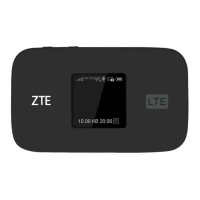
Zte Falcon Z-917 - User Manual

Zte Falcon Z-917
24 pages
Print Icon
To Next Page IconTo Next Page
Loading...
TCS530100.1
2.875”
4.875”
2.875”
Question and Answer IconNeed help?

Do you have a question about the Zte Falcon Z-917 and is the answer not in the manual?

Summary

Getting to Know Your Mobile Hotspot

ON;OFF Switch

Slide the switch to turn the Hotspot on or off.

micro-SIM Card Slot

Install the micro-SIM card into the designated slot.

Charging & USB Port

Used for charging the device and connecting via USB cable.

Understanding Indicators

Setting Up Your Mobile Hotspot

Install SIM Card

Lift SIM card cover and insert the SIM card.

Power On

Slide the ON/OFF switch to turn on the device.

Charge Hotspot

Connect the device using the included charger or USB cable.

Install Battery

Remove the cover and install the battery correctly.

Connecting to Your Mobile Hotspot

Connect Wi-Fi Device

Connect your computer or device to the hotspot's Wi-Fi network.

Managing Your Mobile Hotspot

Summary

Getting to Know Your Mobile Hotspot

ON;OFF Switch

Slide the switch to turn the Hotspot on or off.

micro-SIM Card Slot

Install the micro-SIM card into the designated slot.

Charging & USB Port

Used for charging the device and connecting via USB cable.

Understanding Indicators

Setting Up Your Mobile Hotspot

Install SIM Card

Lift SIM card cover and insert the SIM card.

Power On

Slide the ON/OFF switch to turn on the device.

Charge Hotspot

Connect the device using the included charger or USB cable.

Install Battery

Remove the cover and install the battery correctly.

Connecting to Your Mobile Hotspot

Connect Wi-Fi Device

Connect your computer or device to the hotspot's Wi-Fi network.

Managing Your Mobile Hotspot

Overview

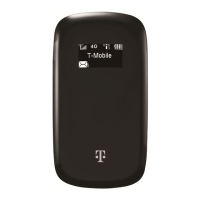
This document describes the ZTE Falcon Z-917, a T-Mobile 4G LTE Mobile Hotspot.

Function Description:

The ZTE Falcon Z-917 is a portable mobile hotspot that allows users to connect multiple Wi-Fi-enabled devices to the internet via a cellular network. It acts as a bridge, converting a cellular data connection into a Wi-Fi signal, enabling devices like laptops, tablets, and smartphones to access the internet even when a traditional Wi-Fi network is unavailable. The device uses a micro-SIM card for its cellular connection.

Important Technical Specifications:

  • Device Name: ZTE Falcon Z-917
  • Network Compatibility: LTE/UMTS/HSPA network.
  • SIM Card Type: Micro-SIM card (included).
  • Connectivity: Wi-Fi, USB.
  • Maximum Connected Devices: The Wi-Fi chip supports up to 10 devices connected simultaneously.
  • Default Wi-Fi SSID: Can be found on the device label.
  • Default Wi-Fi Password: Can be found on the device label.
  • Default Admin Password: admin (for web UI access).
  • Hotspot URL: http://Mobile.Hotspot/ or IP address: 192.168.0.1.

Usage Features:

  • Power On/Off: The device features an ON/OFF switch (slide switch) to easily turn the hotspot on or off.
  • SIM Card Installation: A micro-SIM card is installed by lifting a cover and inserting the card into the micro-SIM card slot.
  • Charging: The device can be charged using the included charger or by plugging it into a computer via the USB port.
  • Wi-Fi Connectivity:
    • Users can connect their Wi-Fi-enabled devices by searching for available Wi-Fi networks, selecting the hotspot's SSID, and entering the default password.
    • WPS (Wi-Fi Protected Setup): If a client device supports WPS, users can activate WPS on the hotspot by holding the WPS key for more than 3 seconds. This allows for a simplified connection process without manually entering the password.
  • Web User Interface (Web UI):
    • The hotspot can be managed through a web browser by navigating to http://Mobile.Hotspot/ or 192.168.0.1.
    • The web UI allows for:
      • Viewing connected devices.
      • Changing the admin password.
      • Changing the Wi-Fi Network Name (SSID).
      • Enabling/disabling SSID broadcasting.
      • Changing the Wi-Fi password.
      • Managing the Whitelist function.
  • USB Connectivity: The device can also be connected to a PC via a USB cable. Upon connection, the OS will automatically install necessary drivers, and an icon will appear on the desktop for easy access to the login screen.
  • Whitelist Function: This security feature allows users to restrict access to the hotspot to only specific devices whose MAC addresses are added to a whitelist. When enabled, only whitelisted devices can connect, even if other users have the correct password. Up to 10 MAC addresses can be added to the whitelist. Users can also remove devices from the whitelist.

Maintenance Features:

  • LED Indicators: The device has LED indicators that provide visual feedback on its status:
    • Network Indicator:
      • Red solid: Limited/no service, SIM card error, or registered to LTE/UMTS/HSPA network.
      • Green solid: Registered to UMTS/HSPA network and connected.
      • Blue solid: Registered to LTE network and connected.
    • SMS Indicator:
      • Blue solid: Unread messages or FOTA (new software) available.
      • Blue blinking: Inbox full or FOTA upgrading.
      • LED light off: No unread messages or new messages.
    • Wi-Fi Indicator:
      • Blue solid: Wi-Fi is on.
      • Blue blinking: WPS is active.
      • LED light off: Wi-Fi is off.
    • Battery Indicator:
      • Red solid: Battery low (10% to dead), requires charging.
      • Green blinking: Battery is being charged.
      • Green solid: Battery level is middle or high (100% to 11%).
      • LED light off: Battery not inserted.
  • Reset Point: A reset point is available, requiring a pin to be inserted and held for 3 seconds to reset the device.
  • Battery Installation: The battery is installed by removing the cover and placing the battery inside.
  • Account Management: Users can update their admin password through the web UI under "Settings" > "Device Settings" > "Account Management."
  • Customer Support: T-Mobile provides customer care via phone (611 from a T-Mobile phone or 1-877-453-1304) from 3 a.m. to 10 p.m. Pacific time daily. Automated account help is available 24/7.
  • Terms and Conditions: Service and usage are subject to T-Mobile's Terms and Conditions, including an arbitration provision, which can be found at www.T-Mobile.com/terms-conditions.
  • Data Passes: Information on Mobile Internet Postpaid Data Passes and Mobile Internet Pay In Advance Data Passes is provided, detailing qualifying plans, SIM starter kit requirements, voice/messaging exclusion, roaming limitations, usage application, and billing.

Zte Falcon Z-917 Specifications

General IconGeneral
BrandZte
ModelFalcon Z-917
CategoryWireless Router
LanguageEnglish

Related product manuals